
Screens & connections
Best portable monitor for a laptop: three sensible second screens
For a laptop, the best second screen is the one you will open every day: quick connection, predictable power, and enough room for the work in front of you. The three options here trade FHD simplicity, faster motion, and a roomier canvas.
Z1RC gives 2.5K 16:10 work space; Z1FC gives 144Hz FHD motion; ZenScreen keeps a simpler alternative.
Document-heavy travelers fit Z1RC; gaming or scrolling priorities fit Z1FC.
Check video-capable USB-C, power, and exact laptop output before expecting one cable.
Our take is based on published specifications and linked sources. We have not hands-on tested these products. Some links may earn a commission.
Buying links, offers & research notes Expand
A closer look
Match the port before the panel
These are three different fits—not a universal first, second, and third place. Identify your laptop's video output and power plan, then confirm the exact model on the manufacturer page.
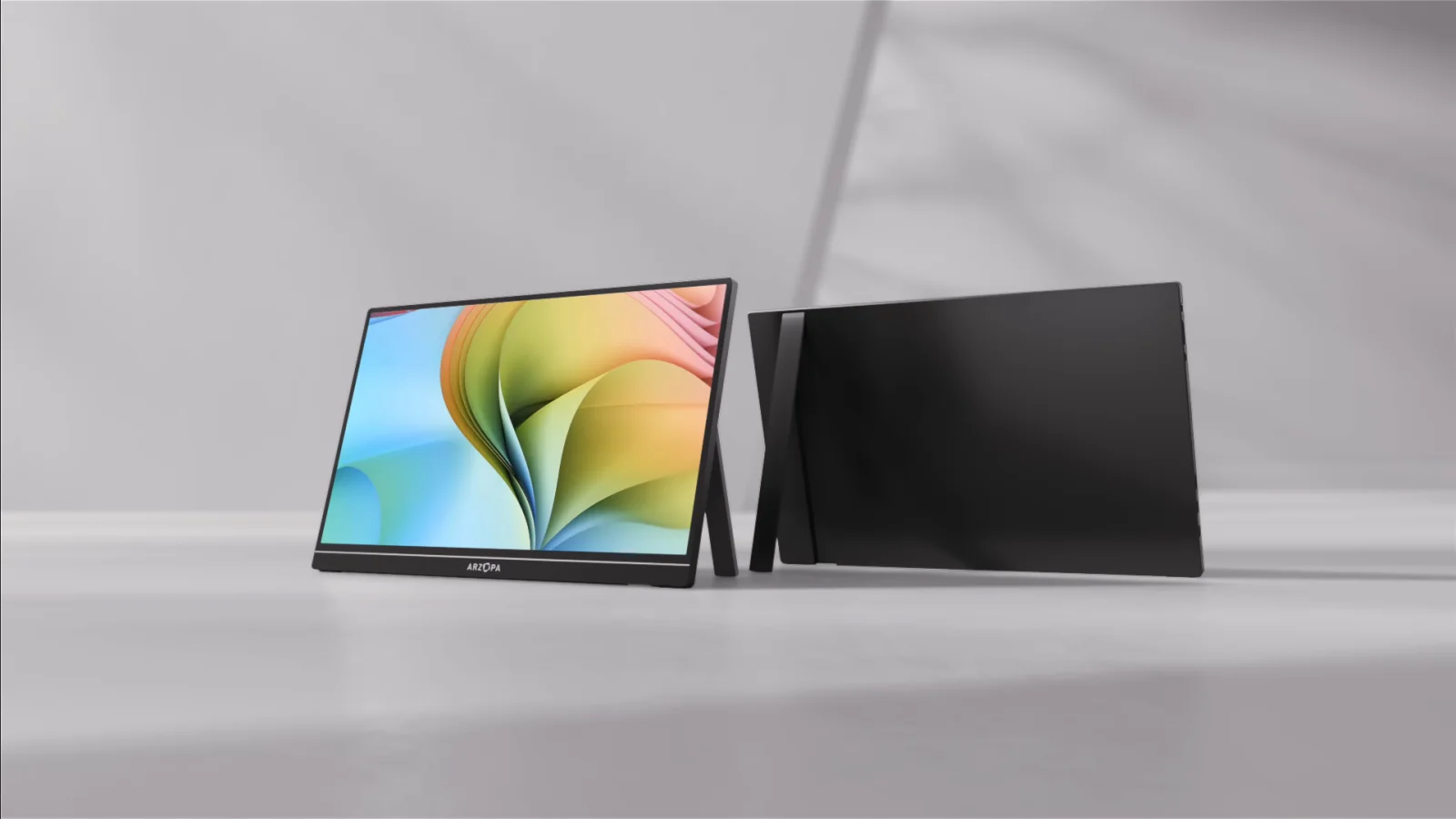 Photo: manufacturer
Arzopa Z1RC
Arzopa
Best for taller text space
16:10 · 2.5K · 60Hz
Official specs checked September 8, 2026
See Amazon US listing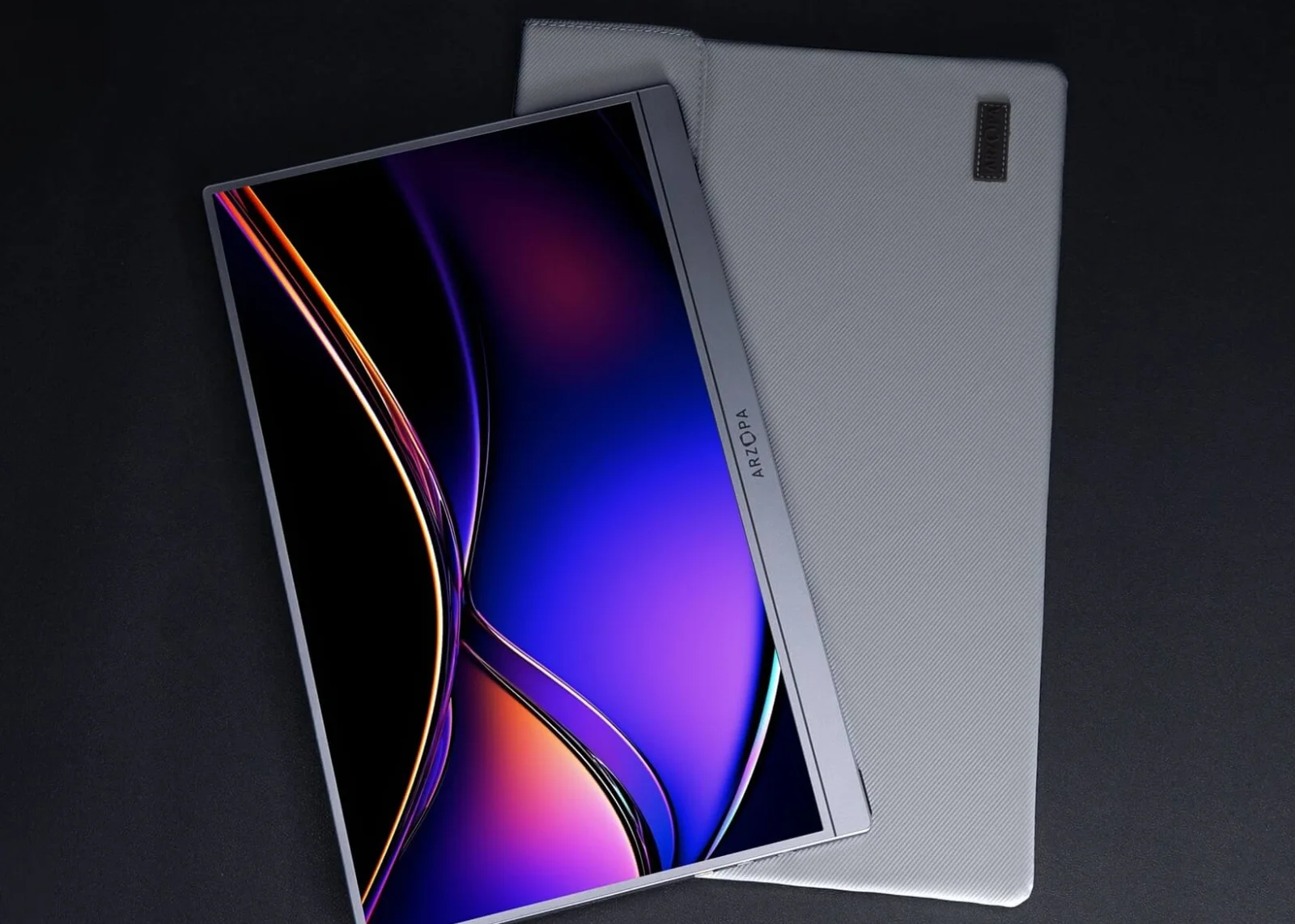 Photo: manufacturer
Arzopa Z1FC
Arzopa
Best for 144Hz motion
16.1 in · FHD · 144Hz
Official specs checked September 8, 2026
See Amazon US listing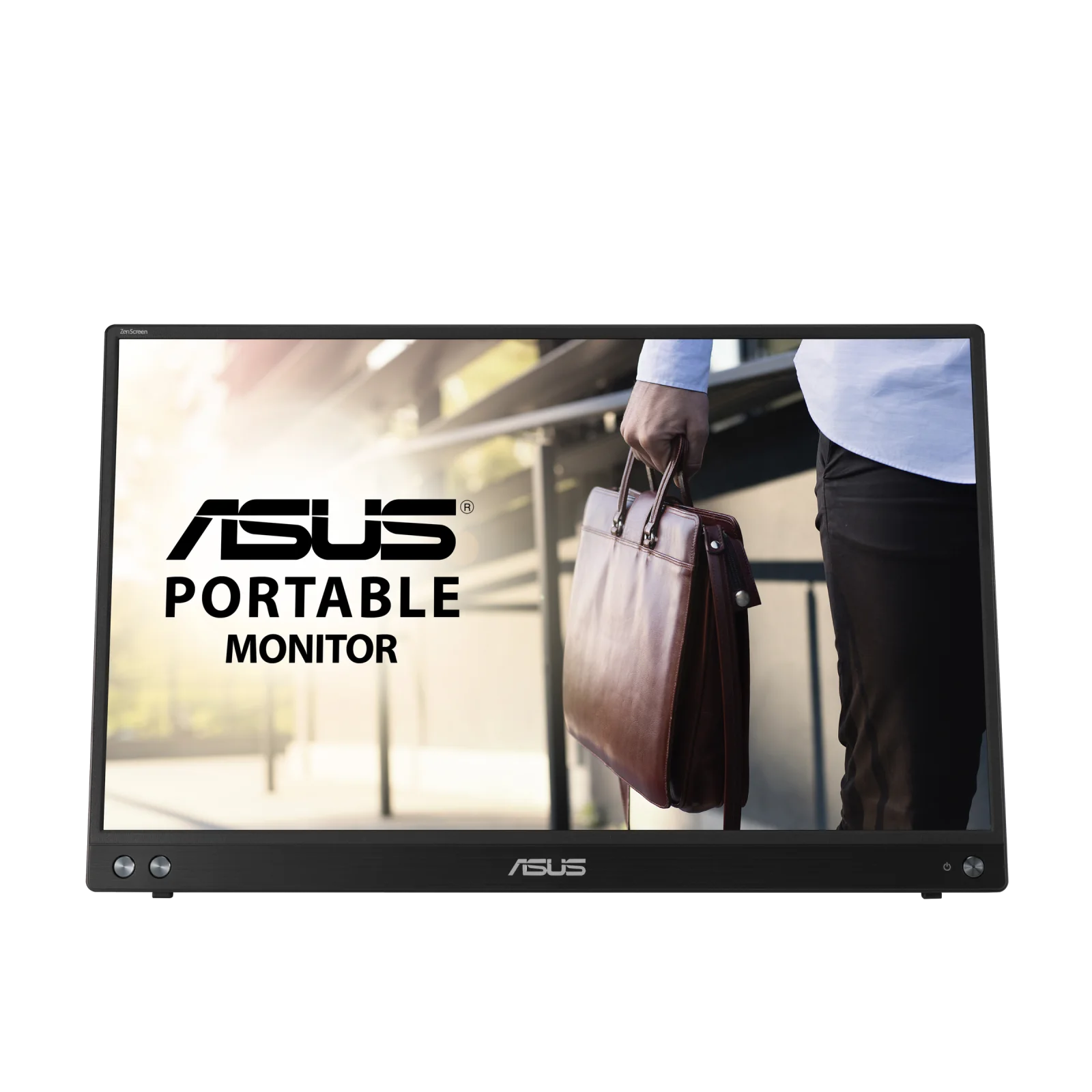 Photo: manufacturer
ASUS ZenScreen MB16ACV
ASUS
Best for USB-A fallback
DP Alt Mode · USB-A fallback
Official specs checked September 8, 2026
See ASUS US listingCheck the connection before choosing
Check your signal and power path before choosing a portable monitor.
Three gates before checkout
Pass the connection test, not just the product filter.
The laptop outputs video
USB-C must explicitly support DisplayPort Alt Mode, Thunderbolt, or USB4 video. HDMI is a separate signal path; USB-A needs supported graphics hardware and software.
The monitor gets power
USB-C can carry video and power in a compatible setup. HDMI carries video, so budget a second USB-C power cable or adapter before you order.
The OS wakes cleanly
Native USB-C and HDMI avoid some software dependencies. USB-A or DisplayLink adds driver, permission, performance, and sleep-wake checks.
Host compatibility map
The laptop, not the monitor, starts the compatibility answer.
Use this map to identify the signal path. It deliberately keeps Windows, ChromeOS, HDMI, USB-C, and USB-A separate because a connector shape does not prove the same behavior across laptops.
| Host setup | Likely connection | What to verify |
|---|---|---|
| Windows laptop with USB-C video | USB-C DP Alt Mode → monitor USB-C | Preferred one-cable route when the laptop port, monitor input, and full-featured cable all carry video. Confirm the laptop's manual; USB-C shape alone proves nothing. |
| Windows laptop with HDMI | HDMI output → monitor HDMI input + separate USB-C power | HDMI carries the picture. The portable monitor normally still needs its own USB-C power connection. Match full-size HDMI, mini HDMI, adapters, resolution, and refresh mode. |
| Windows laptop with USB-A only | USB-A → compatible USB graphics adapter/monitor + driver | This is not native video over USB-C. It depends on DisplayLink or another manufacturer-supported USB graphics path, driver permissions, performance, and sleep-wake behavior. |
| Chromebook with USB-C video | USB-C with display output → monitor USB-C | Use ChromeOS display settings to confirm the external display and test the exact cable. Some USB-C ports are data/charging only; a Chromebook model page must decide. |
| Chromebook or laptop with HDMI | HDMI output → monitor HDMI input + separate USB-C power | Treat this as a two-connection setup. ChromeOS or Windows chooses the display mode; the monitor's USB-C power input remains separate from HDMI video. |
System support homepages are starting points, not proof for a particular laptop. Use the exact laptop maker's technical specification and manual for the port capabilities.
Three fit-led picks
Pick the screen that solves your laptop's constraint.
Photo: manufacturerBest text-space option for a USB-C work laptop
Arzopa Z1RC
Display
16.0-inch IPS · 2,560 × 1,600 · 16:10 · 60Hz
Brightness
350 nits (manufacturer specification)
Power
USB-C host can carry video + power when the laptop port and cable support DP Alt Mode; HDMI needs separate USB-C power.
Ports
2 × full-function USB-C · 1 × mini HDMI 2.0
Travel weight
1.79 lb
Stand
Built-in stand with landscape/portrait positioning listed; hinge stability was not independently tested.
Laptop connection plan
Use a full-featured USB-C cable from a laptop USB-C port that explicitly carries DisplayPort video. For an HDMI laptop, send video through HDMI-to-mini-HDMI and power the monitor through USB-C.
Choose it
Choose it when documents, code, spreadsheets, or a taller reference window make 16:10 and 2.5K more useful than high refresh rate.
Skip it
Skip it when you need 120Hz/144Hz, an integrated height-adjustable stand, or a laptop with only USB-A and no confirmed DisplayLink path.
Cables: USB-C to USB-C full-featured cable, mini-HDMI to HDMI cable, and USB-A to USB-C power cable listed.
Dimensions: 356 × 238 × 9.3 mm (about 14.02 × 9.37 × 0.37 in)
Evidence: The current Arzopa product page lists a 16-inch 2,560 × 1,600 IPS panel, 16:10, 60Hz, 350 nits, 1.79 lb, built-in stand, dual full-function USB-C, mini HDMI, included cables, and warranty wording. This page does not claim an independent test.
Policy check: Global listing and support materials checked September 8, 2026. Recheck price, stock, exact variant, warranty, and return terms before ordering.
Photo: manufacturerBest work-and-play balance on published specs
Arzopa Z1FC
Display
16.1-inch IPS · 1,920 × 1,080 · 16:9 · 144Hz
Brightness
300 nits (manufacturer specification)
Power
A compatible USB-C host may carry video + power over one full-featured cable; HDMI requires a separate USB-C power connection.
Ports
2 × full-function USB-C · 1 × mini HDMI 2.0
Travel weight
1.72 lb
Stand
Built-in stand for landscape/portrait viewing listed; hinge stability was not independently tested.
Laptop connection plan
Prefer native USB-C DP Alt Mode for a one-cable attempt. Use mini HDMI for video from a laptop HDMI port and a separate USB-C cable/adapter for monitor power; do not treat an HDMI cable as a power cable.
Choose it
Choose it when a larger 16.1-inch portable panel and 144Hz ceiling matter for motion while you still want USB-C and mini-HDMI options.
Skip it
Skip it when the sharpest text, taller 16:10 workspace, or a laptop with only USB-A is the priority. The refresh-rate claim does not prove that your laptop can output 144Hz.
Cables: USB-C to USB-C full-featured cable, mini-HDMI to HDMI cable, and USB-A to USB-C power cable listed.
Dimensions: 366 × 228 × 9.3 mm (about 14.41 × 8.98 × 0.37 in)
Evidence: The current Arzopa product page lists a 16.1-inch 1,920 × 1,080 IPS panel, 16:9, 300 nits, 144Hz, 1.72 lb, built-in stand, dual full-function USB-C, mini HDMI, included cables, and warranty wording. Refresh mode remains dependent on the laptop, cable, and operating system.
Policy check: Global listing and support materials checked September 8, 2026. Recheck price, stock, exact variant, warranty, and return terms before ordering.
Photo: manufacturerBest documented USB-C / USB-A fallback
ASUS ZenScreen MB16ACV
Display
15.6-inch IPS · 1,920 × 1,080 · 16:9 · 60Hz
Brightness
250 cd/m² typical (manufacturer specification)
Power
USB-C carries video + power on a compatible DP Alt Mode host; 5V/3A input and 6.64W listed consumption are in the ASUS documentation.
Ports
1 × USB-C with DisplayPort Alt Mode; USB-A hybrid connection uses the ASUS/DisplayLink driver path.
Travel weight
0.9 kg / 1.98 lb
Stand
Fold-out kickstand with 15°–35° tilt and a 1/4-inch tripod socket listed.
Laptop connection plan
Use USB-C DP Alt Mode when the laptop port and cable support it. A USB-A connection is a software-dependent hybrid route: install the current ASUS/DisplayLink driver only when the manual and your Windows version support it, then expect a driver and wake-state check.
Choose it
Choose it when a model-specific manual, documented USB-C DP Alt Mode input, lower listed power consumption, and a USB-A fallback are more useful than 2.5K or high refresh rate.
Skip it
Skip it when you need two direct video-capable USB-C inputs, 144Hz, 16:10 text space, or a driver-free USB-A connection. USB-A is not equivalent to native USB-C video.
Cables: USB-C to USB-C cable and USB-C to USB-A cable listed in the exact user guide; sleeve/cover also listed.
Dimensions: 357.9 × 224.8 × 10.5 mm (about 14.09 × 8.86 × 0.41 in)
Evidence: The ASUS USA tech-spec page and exact MB16ACV user guide list 15.6-inch 1,920 × 1,080 IPS, 250 cd/m² typical brightness, 60Hz, USB-C DP Alt Mode, USB-A hybrid behavior, 6.64W consumption, 5V/3A input, 0.9 kg net weight, kickstand, tilt range, and supplied cables.
Policy check: ASUS US product and support pages checked September 3, 2026. The product page routes buyers to retailers; confirm the retailer's return policy and exact warranty coverage.
Connection planner
Choose the whole cable chain before choosing the display.
| Connection path | Cable chain | When to use it |
|---|---|---|
| USB-C DP Alt Mode | Laptop USB-C video port → full-featured USB-C cable → monitor USB-C video input | Best first choice. One cable can carry video and power only when the host port, cable, monitor input, and power budget all agree. |
| HDMI + independent monitor power | Laptop HDMI → HDMI/mini-HDMI input; charger or laptop USB port → monitor USB-C power input | Use when the laptop has HDMI or a documented HDMI adapter. HDMI is a video path, not a reliable power path for a portable screen. |
| USB-A + driver | Laptop USB-A → supported DisplayLink/USB graphics hardware → monitor | Use only when the exact monitor or adapter documents the driver route for your operating system. A driver can affect performance, permissions, and wake behavior. |
| Dock or hub | Laptop → powered dock/hub → USB-C or HDMI monitor input | A dock simplifies ports but adds another failure point. Check that it outputs an independent display signal and supplies power to the monitor path. |
Pre-check worksheet
Fill this out before you click Buy.
Save this worksheet with the product tab. It forces the four failure points into the open: video capability, HDMI power, USB-A drivers, and sleep-wake recovery.
1. Name the exact laptop
Brand/model: ____________________ | Windows / ChromeOS version: ____________________
The product name is not enough. Record the exact laptop model because two otherwise similar machines can expose different USB-C, HDMI, or USB-A capabilities.
2. Prove the USB-C video path
USB-C port: video yes / verify / no | Cable: full-featured yes / no
Look for DisplayPort, Thunderbolt, or USB4 video documentation in the laptop maker's current specifications. Charging-only USB-C cannot drive the monitor.
3. Plan HDMI power
HDMI type: full / mini / adapter | Monitor power: USB-C / adapter
Write down the separate USB-C power cable before checkout. HDMI-to-mini-HDMI transmits video; it does not remove the monitor's power requirement.
4. Identify a USB-A driver
Driver path: native / DisplayLink / manufacturer: __________
If the route starts at USB-A, find the exact driver and supported OS in the monitor or adapter manual. Do not install a random graphics driver just because a port fits.
5. Test sleep and wake
Sleep → wake: pass / verify | Lid close: pass / verify
Before relying on the monitor for work, sleep the laptop, wake it, lock/unlock it, and reconnect the cable. Driver-based paths can need a different recovery step than native video.
6. Check the physical setup
Desk width: ______ in | Bag: ______ lb | Stand angle: ______
The product page can document dimensions and a stand, but it cannot prove stability on your desk, viewing angle, cable reach, or comfort during a full workday.
Choose a portable monitor when…
It solves a temporary second-screen constraint.
- You have a documented USB-C video or HDMI output and a clear power plan.
- A separate display for documents, email, code, or a reference window is worth carrying.
- You can test the exact laptop, cable, operating system, and sleep-wake cycle before relying on it.
Skip or verify first when…
The cable is doing more work than the screen.
- Your laptop has only a data/charging USB-C port and no documented video output.
- You have USB-A only but cannot identify the supported DisplayLink or manufacturer driver.
- You need color-critical brightness, height adjustment, or guaranteed wake reliability that this guide did not test.
Evidence boundary
What the product page cannot answer for your laptop.
Compatibility is conditional
A laptop product name does not reveal every port mode. The exact model manual, cable, operating-system version, and monitor input decide the path.
Manufacturer claims are not hands-on results
Resolution, brightness, refresh rate, stand, and cable lists are manufacturer specifications. WorkChoose did not measure luminance, wobble, color, performance, or wake reliability.
Policies are time-stamped
Warranty, stock, and return text can change. Re-open the exact US product and retailer page before purchasing, especially when a USB-A driver is involved.
Continue the decision
Choose the guide that matches your device.
Portable monitors for MacBook
Use the exact Mac chip, port, lid, and native display-limit matrix.
Read nextPortable monitors for iPad Pro
Plan USB-C video, external power, and iPadOS workspace behavior.
Read nextPortable monitor vs screen extender
Compare a separate panel with an attached multi-screen format and driver path.
Read nextPortable monitor comparison chart
Filter exact panels by size, resolution, refresh, inputs, power, weight, stand, and Mac/iPad notes.
Read nextArzopa Z1RC review
Check the 2.5K 16:10 workspace, 60Hz limit, USB-C/HDMI power paths, and current purchase terms before choosing.
Read nextComplete work setup
Fit the display into desk height, cable, monitor-arm, and walking-pad decisions.
Read nextTouchscreen monitor paths
Separate video, USB touch data, power, and operating-system support.
Read nextHow WorkChoose chooses
See the evidence and ranking rules behind every buying guide.
Read nextFrequently asked questions
What is the best portable monitor for a laptop?
There is no universal winner. The Arzopa Z1RC is the text-space pick on published 16:10 and 2.5K specifications, the Z1FC is the higher-refresh option, and the ASUS ZenScreen MB16ACV has the clearest documented USB-C DP Alt Mode plus USB-A hybrid fallback in this shortlist. Choose by your laptop's signal and power path first.
What is the best portable computer monitor?
For a laptop, start with its video output rather than a universal winner. Arzopa Z1RC is the text-space pick for a compatible USB-C work laptop, Z1FC favors higher refresh, and ASUS ZenScreen MB16ACV offers the clearest documented USB-C plus USB-A hybrid fallback in this shortlist. Verify your exact laptop port, cable, power, and driver path before buying.
Does every laptop USB-C port support a portable monitor?
No. USB-C describes the connector, not its capabilities. The laptop port must expose DisplayPort Alt Mode, Thunderbolt, or USB4 display output; the monitor input and full-featured cable must support the same route. Check the exact laptop specification instead of relying on the port shape.
Can HDMI power a portable monitor?
Usually no. HDMI carries the video signal, while a portable monitor generally needs USB-C power or its documented adapter. Plan HDMI for video and a separate USB-C power connection. A USB-C-to-HDMI cable also does not automatically work in both directions.
Can I connect a portable monitor through USB-A?
Only through a supported USB graphics path such as a DisplayLink adapter or a monitor's documented hybrid mode. It requires compatible hardware, the correct current driver, operating-system permissions, and a plan for performance and sleep-wake recovery. USB-A alone is not native DisplayPort video.
Will a portable monitor work with a Chromebook?
It can, when the exact Chromebook exposes display output over USB-C or HDMI and the monitor receives the planned power. Confirm the Chromebook model's port capability, use a full-featured USB-C cable for DP Alt Mode, and check ChromeOS display settings after connection. USB-C data/charging alone is not enough.
Do portable monitors wake correctly after my laptop sleeps?
Sometimes, but it is not a universal manufacturer guarantee. Native USB-C and HDMI paths usually have fewer software dependencies; USB-A or DisplayLink paths add a driver and permissions layer. Test sleep, wake, lock/unlock, lid close, and cable reconnect on your exact laptop before making the setup business-critical.
Is one USB-C cable always enough?
No. One cable can carry video and power only when the laptop port supports DP Alt Mode and supplies enough power, the monitor accepts that route, and the cable is full-featured. If the display flickers, dims, restarts, or drains the laptop quickly, use separate monitor power.
Is this the same as the MacBook portable-monitor guide?
No. This page is for general Windows laptops, Chromebooks, and HDMI/USB-A connection planning. For exact MacBook chip display limits, lid-open/lid-closed behavior, and macOS-specific DisplayLink considerations, use WorkChoose's dedicated MacBook guide.
Are the links on this page affiliate links?
Yes. Eligible Arzopa purchase buttons use approved PartnerBoost affiliate links, so WorkChoose may earn a commission at no added cost. ASUS, evidence, and support links remain direct; product order continues to follow fit and evidence rather than commission.