Screens & connections
Portable monitor vs screen extender: which travels better?
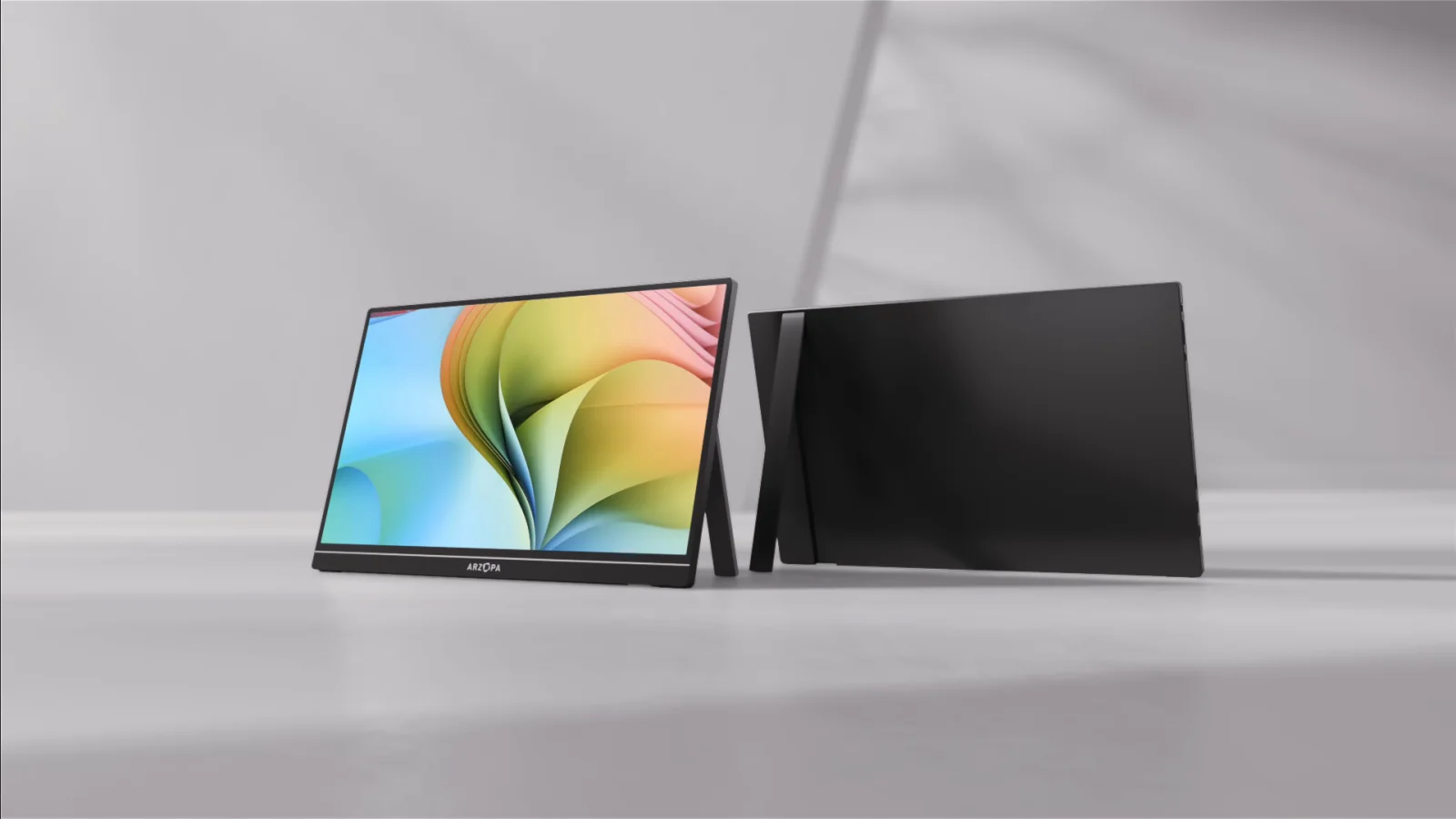
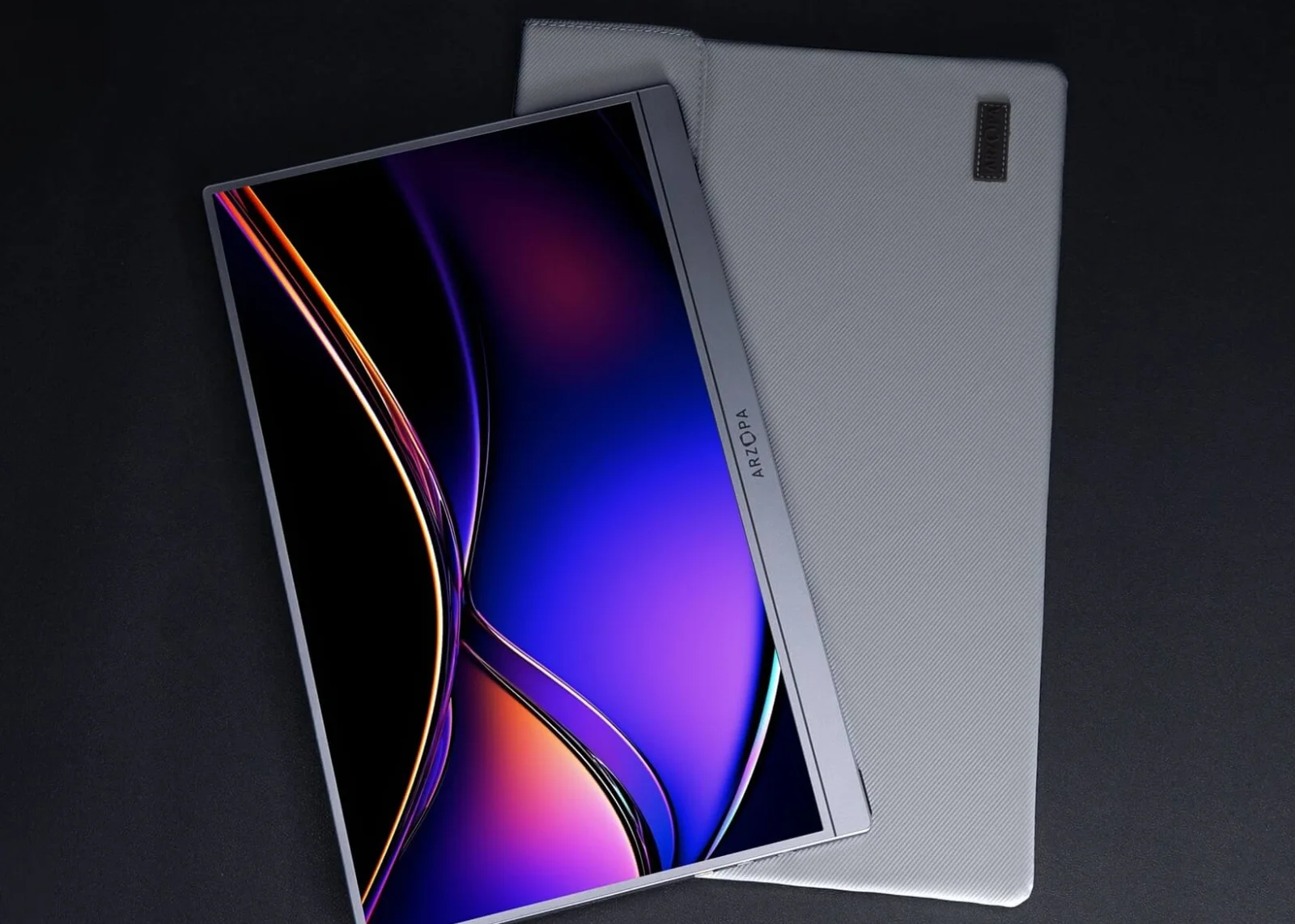
A screen extender stays attached to the laptop, while a portable monitor can move to a console, tablet, or separate desk. The trade-off is between attached simplicity and placement freedom, with weight, hinges, software, and ports deciding which one gets used.
Choose an extender when attached laptop simplicity matters; choose a portable monitor when console or tablet placement matters.
Stable laptop hinge fits extenders; mixed-device travelers fit separate portable monitors.
Extenders add hinge and software constraints; separate screens need their own stand, cable, and power.
Our take is based on published specifications and linked sources. We have not hands-on tested these products. Some links may earn a commission.
Buying links, offers & research notes Expand
A closer look
Choose the signal path before the form factor
These direct manufacturer links put a native USB-C panel, a lightweight native monitor, and an attachable extender side by side. Verify the exact Mac port, driver requirement, power path, and display limit.
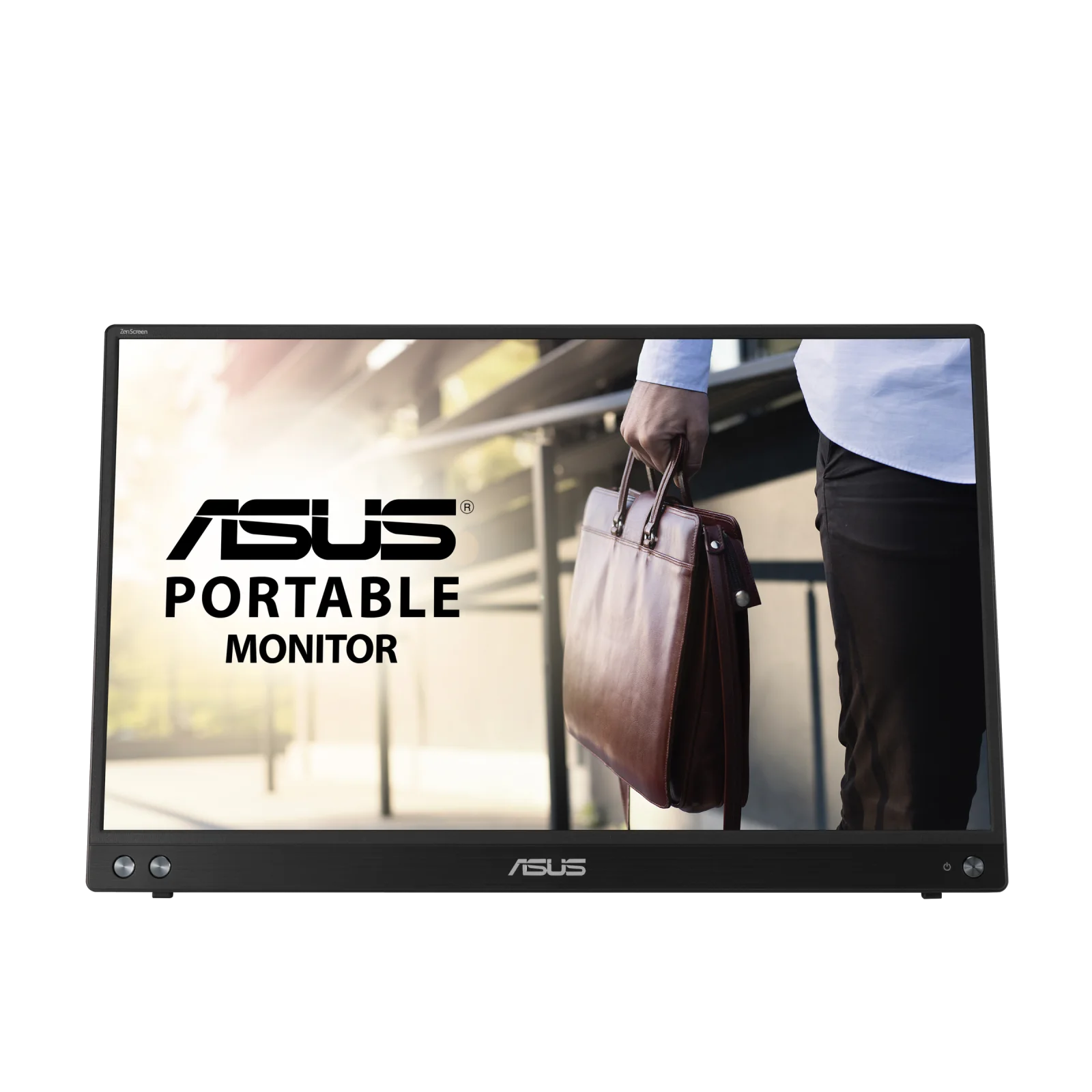 Photo: manufacturer
ASUS ZenScreen MB16ACV
ASUS
Native signal check
USB-C DP Alt Mode · no-driver path
Official specs checked September 3, 2026
See current price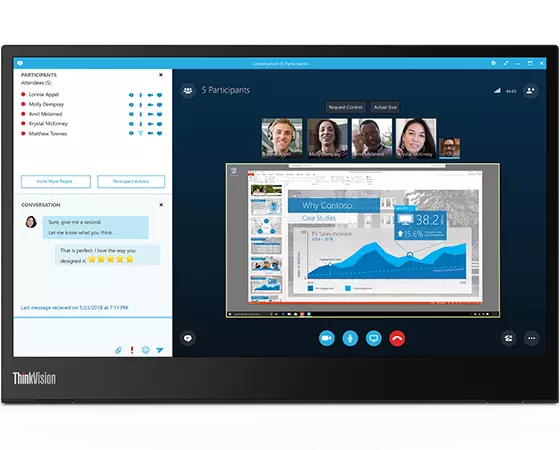 Photo: manufacturer
Lenovo ThinkVision M14 — 61DDUAR6US
Lenovo
Native signal check
14 in · dual USB-C · 1.31 lb listed
Official specs checked September 3, 2026
See current price Photo: manufacturer
Mobile Pixels Duex Max DS
Mobile Pixels
Extender check
Attachable panel · USB-C/HDMI options
Official specs checked September 3, 2026
See current priceCheck the connection before choosing
Check your signal and power path before choosing a portable monitor.
Identify
Your exact Mac model and native external-display limit
Choose
Native USB-C/HDMI or DisplayLink-managed USB graphics
Verify
Cable, power, privacy, portability, and return terms
Already know you want a conventional portable monitor?
Use the MacBook shortlist for model-by-model panel, port, power, and workspace fit checks.
Native vs DisplayLink
The connector shape is not the decision.
Native display path: the Mac sends a normal video signal through USB-C DisplayPort Alt Mode or HDMI. Apple says a correctly connected display is detected automatically, then the Mac’s own display support determines how many panels and which resolutions can run. No DisplayLink graphics driver is needed for this path.
DisplayLink path: a USB graphics device sends display data through DisplayLink Manager. Synaptics’ macOS documentation describes the software path, and manufacturer guides may require permissions such as Screen Recording. That adds a software dependency and can matter on company-managed Macs or after macOS updates.
USB-C check: a USB-C port may carry only data or charging. Apple and ASUS both direct users to confirm the port’s video capability; ASUS specifically says MB16ACV needs DP Alt Mode for the one-cable USB-C path. A USB-C-to-USB-C cable alone cannot create a missing video signal.
Intent-to-path map
Four MacBook searches, four checks before checkout.
Use the route that matches your constraint, then verify the exact hardware and software documents. The label “portable” or “extender” does not settle the signal path.
Portable monitor with one cable on MacBook
Native USB-C DisplayPort Alt Mode can carry video and power over one full-featured cable when the Mac port and monitor both support it. HDMI normally adds a separate power cable, and a one-cable claim never overrides the Mac’s display limit.
Portable monitor for MacBook with HDMI
Use HDMI only after checking output-to-input direction, supported resolution, adapter behavior, and the monitor’s separate USB-C power requirement. HDMI is a native video signal, but it is not automatically a one-cable portable-monitor setup.
Portable monitor with no driver on MacBook
A native USB-C DP Alt Mode or HDMI path normally needs no DisplayLink graphics driver. Confirm the port and cable first; “driver-free” does not promise a particular resolution, refresh rate, sleep/wake result, or extra display beyond Apple’s limit.
DisplayLink dock for MacBook Air M3
A DisplayLink dock depends on compatible hardware, current DisplayLink Manager, macOS permissions, and sometimes IT approval. It can provide a different USB graphics path, but it does not change Apple’s native M3 rules; verify whether the dock, lid state, driver, and target displays work together.
Stop if unresolved: identify the exact MacBook chip, port protocol, cable direction, power path, display count, macOS driver requirement, and return window before treating a product-page compatibility statement as a purchase decision.
Official specs, side by side
Four ways to add screen space
The comparison separates the signal path from the physical form. A screen extender can be native or driver-managed; “attachable” does not automatically mean DisplayLink. Unknown return or privacy fields remain unknown rather than being filled with generic retailer assumptions.
| Model / type | Mac signal path | Thickness / weight | Power / connection | Extra display | Privacy / mobile use | Returns / support evidence |
|---|---|---|---|---|---|---|
| ASUS ZenScreen MB16ACVPortable monitor · MB16ACV US model | Native over USB-C when the Mac port supports DisplayPort Alt Mode. ASUS says no additional macOS driver is needed on that path. A USB-A hybrid-signal connection requires DisplayLink software. | 10.5 mm slim profile (ASUS product page)0.9 kg / 1.98 lb | 6.64 W in the ASUS US technical specification1 × USB-C with DisplayPort Alt Mode and USB 3.2 | 1 additional display in this comparison; the total simultaneous-display limit is a property of the exact Mac model and resolution, not the monitor alone. | No built-in privacy filter is listed. The fold-out kickstand and 1/4-inch tripod socket change placement, not the viewing angle seen by others.Fold-out kickstand, portrait or landscape positioning, and a tripod socket. The monitor can draw power from a compatible USB-C host; ASUS notes external power can improve brightness and stability. | The product page does not state a model-specific return window. ASUS’s US Part Shop policy lists 30 calendar days for eligible direct orders; a reseller’s policy can differ.Use the official MB16ACV support page for the English user guide, service locations, and model-specific troubleshooting. |
| Lenovo ThinkVision M14 — 61DDUAR6USPortable monitor · US part number 61DDUAR6US | Native USB-C display path. Lenovo requires a host USB-C port with DP Alt Mode and power delivery; its current PSREF lists Mac OS support for Lenovo’s display-management utility, but no DisplayLink path is specified. | 4.4 mm for the display component; assembled dimensions with stand are about 3.8 in deep0.598 kg / 1.31 lb | 6 W typical / 7.5 W maximum without USB-C output; USB-C power delivery up to 65 W2 × USB-C with DP 1.2 Alt Mode; one cable carries video and power | 1 additional display in this comparison; Apple says the supported number of external displays depends on the exact Mac model, resolution, and refresh rate. | No visual privacy filter is listed. The Kensington slot is physical security hardware, not a privacy screen.Height-adjustable foot, -5° to 90° tilt, ports on both sides, sleeve, clips, and a USB-C cable. Lenovo says an external adapter can power the monitor and pass power through to a notebook. | The US product listing and PSREF do not expose a model-specific return window. Confirm Lenovo’s current return eligibility for the exact seller and configured part number before ordering.Lenovo’s US support page lists the M14 overview, manuals, service parts, and the 3-year limited warranty record. |
| Mobile Pixels Duex Max DSAttachable screen extender · SKU 101-1007P06 · 14.1-inch option | The current Duex DS page says USB-C is plug and play when the host supports DP Alt Mode. It also shows HDMI as a fallback for a USB-C port without DP Alt Mode. Do not assume the USB-A adapter path is native; check the exact cable and host path before purchase. | 0.25–0.60 in across the published profile1.8 lb | 4.5 W; no battery is listed and the manufacturer says power comes from the laptop1 × USB-C and 1 × Mini HDMI; USB-C-to-C, HDMI, and USB-A-adapter paths are shown by the manufacturer | 1 additional display in the Duex Max DS configuration. The physical attachment does not remove Apple’s Mac model limits for native display signals. | No built-in privacy filter is listed for the 14.1-inch Max DS. Magnetic attachment changes placement; it does not make the panel private from side viewing.Magnetic laptop attachment, landscape/portrait/presentation/kickstand modes, and a detachable setup. The 14.1-inch panel is sized for 14-inch-and-larger laptops according to the current product page. | Mobile Pixels’ current return policy allows a refund request within 30 calendar days of receipt; return shipping can be deducted and original components/packaging are required.Use Mobile Pixels support/FAQ for compatibility and contact instructions; the manufacturer also maintains separate Mac driver documentation for older Duex paths. |
| SideTrak Swivel 15.6 by LuxorAttachable native USB-C screen extender · LTTL151 · 15.6-inch Swivel | Native USB-C display path on a Mac port that carries video. Luxor lists Mac compatibility and no driver requirement, but the exact MacBook port and cable still need to support the display signal. | 14.65 × 8.5 × 1 in folded; 21.5 × 8.5 × 0.6 in unfolded1.88 lb including cord | 4.5 W; up to 60 W DC passthrough with about 15 W reserved, according to the current product page2 × USB-C; the current Luxor page describes plug-and-play use with no driver or external power | 1 additional native display. Its attachable form does not bypass the external-display ceiling Apple publishes for the exact Mac model. | No built-in privacy filter is listed. The 360° swivel and 270° rotation can face the screen toward a collaborator, but do not limit side viewing.Magnetic attachment plate, fold-flat design, 360° swivel, 270° rotation, and a mount that doubles as a freestanding kickstand. | Luxor’s current public pages use conflicting 30-day and 60-day return summaries; the detailed return page also lists authorization, new-condition packaging, return shipping, and a 25% restocking fee. Confirm the terms for this exact direct order before attaching the plate.Use the exact LTTL151 product page and linked user manual, then contact Luxor for model-specific signal, plate, cable, or warranty questions. |
Source boundary: manufacturer pages and current support/specification documents checked September 3, 2026. No hands-on latency, sleep/wake, brightness, mechanical-load, or battery test is claimed. Apple’s display-count rule remains model-specific.
MacBook compatibility worksheet
Turn “works with Mac” into a checkable setup.
Use this order so a glossy compatibility badge does not hide a port, power, display-count, or software mismatch.
- 1
Record the exact Mac
Write the model year/chip, macOS version, available ports, and Apple’s supported external-display count for the resolution and refresh you intend to use.
- 2
Mark the signal path
For native, confirm USB-C DisplayPort Alt Mode or HDMI. For DisplayLink, record the required Manager version, macOS permissions, reboot step, and whether your employer allows the install.
- 3
Count every cable and power source
Write down whether one cable carries both video and power, whether HDMI needs a separate USB-C power input, and the maker’s published wattage. “USB-C” alone is not a power/video guarantee.
- 4
Measure the mobile setup
Record monitor thickness, weight, stand or magnet footprint, laptop-lid size requirement, hinge/rotation range, and whether the panel can sit independently when you are not attaching it.
- 5
Decide whether privacy is required
Treat “no filter published” as no verified privacy protection. Check for a model-specific filter, its size, and whether the filter changes brightness or fit. Do not infer privacy from a kickstand, case, or side placement.
- 6
Save the return and support route
Keep the official return policy, warranty, support page, and order channel together. Test the exact device during the seller’s current return window and keep original packaging.
Choose native
Your Mac has the required video port, the monitor needs no third-party display driver, and one or two extra panels stay within Apple’s exact model limit.
Choose DisplayLink
You need USB graphics beyond a native port limit and can install the current Manager, grant required permissions, and accept a software-dependent workflow.
Pause / skip
The exact Mac, port, cable, display count, power path, privacy requirement, or return terms remain unresolved. Ask the manufacturer before ordering.
Evidence rule: a product page that says “compatible with macOS” confirms a manufacturer position, not every MacBook generation, port, cable, resolution, or enterprise policy. Keep the unresolved inputs visible until the exact configuration is confirmed.
Read the signal path before the CTA.
The four options below are not ranked by a universal “best.” They represent different trade-offs between native simplicity, physical attachment, driver dependency, power, privacy, and service evidence.
ASUS ZenScreen MB16ACV
Best first look for a native, no-driver USB-C path
Portable monitor · Exact variant: MB16ACV US model
- Display
- 15.6 in FHD IPS · 1,920 × 1,080 · 60 Hz
- Connection
- 1 × USB-C with DisplayPort Alt Mode and USB 3.2
- Mac path
- Native over USB-C when the Mac port supports DisplayPort Alt Mode. ASUS says no additional macOS driver is needed on that path. A USB-A hybrid-signal connection requires DisplayLink software.
- Weight
- 0.9 kg / 1.98 lb
- Thickness
- 10.5 mm slim profile (ASUS product page)
- Power
- 6.64 W in the ASUS US technical specification
- Extra display
- 1 additional display in this comparison; the total simultaneous-display limit is a property of the exact Mac model and resolution, not the monitor alone.
- Privacy
- No built-in privacy filter is listed. The fold-out kickstand and 1/4-inch tripod socket change placement, not the viewing angle seen by others.
- Returns
- The product page does not state a model-specific return window. ASUS’s US Part Shop policy lists 30 calendar days for eligible direct orders; a reseller’s policy can differ.
Why consider it
This is the cleanest starting point when you want macOS to see a conventional external display over USB-C without installing a graphics driver. The official page also publishes weight, profile, power, and the USB-C video requirement in one place.
Why you may skip it
Skip it when the Mac port is data-only, when you need a visual privacy filter, or when one portable panel is not enough for your exact Mac’s native display limit. Do not use ASUS’s USB-A DisplayLink path on a managed work Mac without checking the software and permissions policy first.
Mobile-work fit
Fold-out kickstand, portrait or landscape positioning, and a tripod socket. The monitor can draw power from a compatible USB-C host; ASUS notes external power can improve brightness and stability.
Warranty
ASUS’s LCD monitor warranty information lists 36 months for the product category; confirm the exact MB16ACV US warranty card and seller terms.
Support path
Use the official MB16ACV support page for the English user guide, service locations, and model-specific troubleshooting.
Official sources
Lenovo ThinkVision M14 — 61DDUAR6US
Best lightweight native USB-C panel
Portable monitor · Exact variant: US part number 61DDUAR6US
- Display
- 14 in FHD IPS · 1,920 × 1,080 · 60 Hz
- Connection
- 2 × USB-C with DP 1.2 Alt Mode; one cable carries video and power
- Mac path
- Native USB-C display path. Lenovo requires a host USB-C port with DP Alt Mode and power delivery; its current PSREF lists Mac OS support for Lenovo’s display-management utility, but no DisplayLink path is specified.
- Weight
- 0.598 kg / 1.31 lb
- Thickness
- 4.4 mm for the display component; assembled dimensions with stand are about 3.8 in deep
- Power
- 6 W typical / 7.5 W maximum without USB-C output; USB-C power delivery up to 65 W
- Extra display
- 1 additional display in this comparison; Apple says the supported number of external displays depends on the exact Mac model, resolution, and refresh rate.
- Privacy
- No visual privacy filter is listed. The Kensington slot is physical security hardware, not a privacy screen.
- Returns
- The US product listing and PSREF do not expose a model-specific return window. Confirm Lenovo’s current return eligibility for the exact seller and configured part number before ordering.
Why consider it
At 1.31 pounds, the M14 is the lightest fully native panel in this comparison. Two side-mounted USB-C ports make left/right placement easier, and the power-pass-through design is useful when a MacBook has a single working USB-C port.
Why you may skip it
Skip it when your Mac lacks DP Alt Mode, when you need HDMI, or when you expect the M14 to bypass Apple’s native external-display limit. The 4.4-mm figure applies to the display component; the stand and cable footprint are larger.
Mobile-work fit
Height-adjustable foot, -5° to 90° tilt, ports on both sides, sleeve, clips, and a USB-C cable. Lenovo says an external adapter can power the monitor and pass power through to a notebook.
Warranty
3-year limited warranty in Lenovo’s US support/specification record
Support path
Lenovo’s US support page lists the M14 overview, manuals, service parts, and the 3-year limited warranty record.
Official sources
Mobile Pixels Duex Max DS
Best current physical extender with a native USB-C fallback
Attachable screen extender · Exact variant: SKU 101-1007P06 · 14.1-inch option
- Display
- 14.1 in FHD LCD · 1,920 × 1,080 · 60 Hz · 300 nit listed brightness
- Connection
- 1 × USB-C and 1 × Mini HDMI; USB-C-to-C, HDMI, and USB-A-adapter paths are shown by the manufacturer
- Mac path
- The current Duex DS page says USB-C is plug and play when the host supports DP Alt Mode. It also shows HDMI as a fallback for a USB-C port without DP Alt Mode. Do not assume the USB-A adapter path is native; check the exact cable and host path before purchase.
- Weight
- 1.8 lb
- Thickness
- 0.25–0.60 in across the published profile
- Power
- 4.5 W; no battery is listed and the manufacturer says power comes from the laptop
- Extra display
- 1 additional display in the Duex Max DS configuration. The physical attachment does not remove Apple’s Mac model limits for native display signals.
- Privacy
- No built-in privacy filter is listed for the 14.1-inch Max DS. Magnetic attachment changes placement; it does not make the panel private from side viewing.
- Returns
- Mobile Pixels’ current return policy allows a refund request within 30 calendar days of receipt; return shipping can be deducted and original components/packaging are required.
Why consider it
Unlike a plain portable panel, the Duex Max DS can travel attached to the laptop and can also stand separately. The current USB-C/HDMI design gives it a native signal path in compatible setups, while the published 1.8-pound weight and 4.5-W draw are easy to compare against a daily carry.
Why you may skip it
Skip it if your laptop lid cannot safely accommodate the magnets, if you need a privacy filter, or if you need multiple extra displays from a single Mac. The product page’s “compatible with macOS” statement does not guarantee every Mac port, resolution, cable, or sleep/wake combination.
Mobile-work fit
Magnetic laptop attachment, landscape/portrait/presentation/kickstand modes, and a detachable setup. The 14.1-inch panel is sized for 14-inch-and-larger laptops according to the current product page.
Warranty
The current Mobile Pixels warranty page says a 2-year limited manufacturer warranty applies from March 2025, while the portable-monitor collection still displays a 1-year summary. Confirm the exact order terms.
Support path
Use Mobile Pixels support/FAQ for compatibility and contact instructions; the manufacturer also maintains separate Mac driver documentation for older Duex paths.
SideTrak Swivel 15.6 by Luxor
Best larger attachable screen in this comparison
Attachable native USB-C screen extender · Exact variant: LTTL151 · 15.6-inch Swivel
- Display
- 15.6 in FHD anti-glare TFT LCD · 1,920 × 1,080 · 60 Hz · 400 nits
- Connection
- 2 × USB-C; the current Luxor page describes plug-and-play use with no driver or external power
- Mac path
- Native USB-C display path on a Mac port that carries video. Luxor lists Mac compatibility and no driver requirement, but the exact MacBook port and cable still need to support the display signal.
- Weight
- 1.88 lb including cord
- Thickness
- 14.65 × 8.5 × 1 in folded; 21.5 × 8.5 × 0.6 in unfolded
- Power
- 4.5 W; up to 60 W DC passthrough with about 15 W reserved, according to the current product page
- Extra display
- 1 additional native display. Its attachable form does not bypass the external-display ceiling Apple publishes for the exact Mac model.
- Privacy
- No built-in privacy filter is listed. The 360° swivel and 270° rotation can face the screen toward a collaborator, but do not limit side viewing.
- Returns
- Luxor’s current public pages use conflicting 30-day and 60-day return summaries; the detailed return page also lists authorization, new-condition packaging, return shipping, and a 25% restocking fee. Confirm the terms for this exact direct order before attaching the plate.
Why consider it
It is a current, in-stock attachable alternative with a larger 15.6-inch panel, an explicitly driver-free USB-C path, published power data, and a mount that also works as a kickstand.
Why you may skip it
Skip it when the laptop lacks a video-capable USB-C port, when 1.88 pounds plus the attachment plate is too much for the lid, or when the conflicting public return summaries are unacceptable without written confirmation.
Mobile-work fit
Magnetic attachment plate, fold-flat design, 360° swivel, 270° rotation, and a mount that doubles as a freestanding kickstand.
Warranty
Luxor’s current warranty page lists a 1-year limited warranty for SideTrak products, excluding cables.
Support path
Use the exact LTTL151 product page and linked user manual, then contact Luxor for model-specific signal, plate, cable, or warranty questions.
Official sources
Keep building the setup
The next useful checks
FAQ
MacBook display questions, answered carefully
What is the difference between a native external display and DisplayLink?
A native display receives a video signal through a Mac port such as USB-C DisplayPort Alt Mode or HDMI, and macOS treats it as a conventional external display. DisplayLink sends USB graphics through a DisplayLink device and requires DisplayLink Manager software on macOS. Native is usually the simpler choice when the Mac has the right port; DisplayLink is a software-dependent path that should be checked against your macOS version and work-device policy.
Does every USB-C portable monitor work with every MacBook?
No. The USB-C shape is not enough: the host port must support video output such as DisplayPort Alt Mode, and the Mac model has its own external-display limit. Apple says the number of displays depends on the exact Mac model, resolution, and refresh rate. Check the Mac model’s Apple specifications and the monitor’s compatibility document together.
Do I need a driver for a portable monitor?
Not when the monitor is using a native USB-C DP Alt Mode or HDMI signal and the host port supports it. A USB-A hybrid or DisplayLink path can require DisplayLink Manager. ASUS explicitly calls out a DisplayLink driver for MB16ACV hybrid connections over USB Type-A; the current SideTrak Swivel and Mobile Pixels Duex paths compared here are documented as native USB-C/HDMI options.
Can a screen extender bypass Apple’s MacBook display limit?
Do not assume that it can. A physical extender can add another panel, but its signal may still be native and subject to Apple’s Mac limit, or it may use DisplayLink and depend on software, permissions, and current driver support. Confirm the exact Mac, exact extender SKU, and exact connection path before buying.
Which option is easier for a company-managed MacBook?
Start with a native USB-C/HDMI option if the Mac has the required video port, because it does not need a third-party graphics driver. A DisplayLink solution may require installing DisplayLink Manager, approving macOS permissions, and keeping software updated. Ask IT before ordering; this guide does not claim that any company policy permits or blocks a particular driver.
How should I compare power and one-cable claims?
Look for a published wattage and the exact signal path. One USB-C cable can carry video and power only when the monitor and host port support that combination. HDMI normally handles video only, so a second power connection may be required. If a maker says an external adapter can improve brightness or stability, treat that as a product instruction—not a guarantee for every MacBook port or cable.
Do portable monitors or screen extenders include privacy protection?
Not by default in the models compared here. The cited product pages do not list a built-in privacy filter for these configurations. A stand, magnet, or 270° hinge changes position; it does not prevent someone nearby from seeing the screen. If privacy is a requirement, verify a model-specific filter or add-on and confirm its size.
What should I verify during the return window?
Check the exact Mac model, native or DisplayLink path, resolution, sleep/wake behavior, cable count, power draw, laptop-lid fit, viewing angle, and any employer software restriction. Keep the original packaging and follow the manufacturer’s current return instructions. We did not hands-on test these products, so a product-page compatibility statement is not a substitute for your own exact-device check.