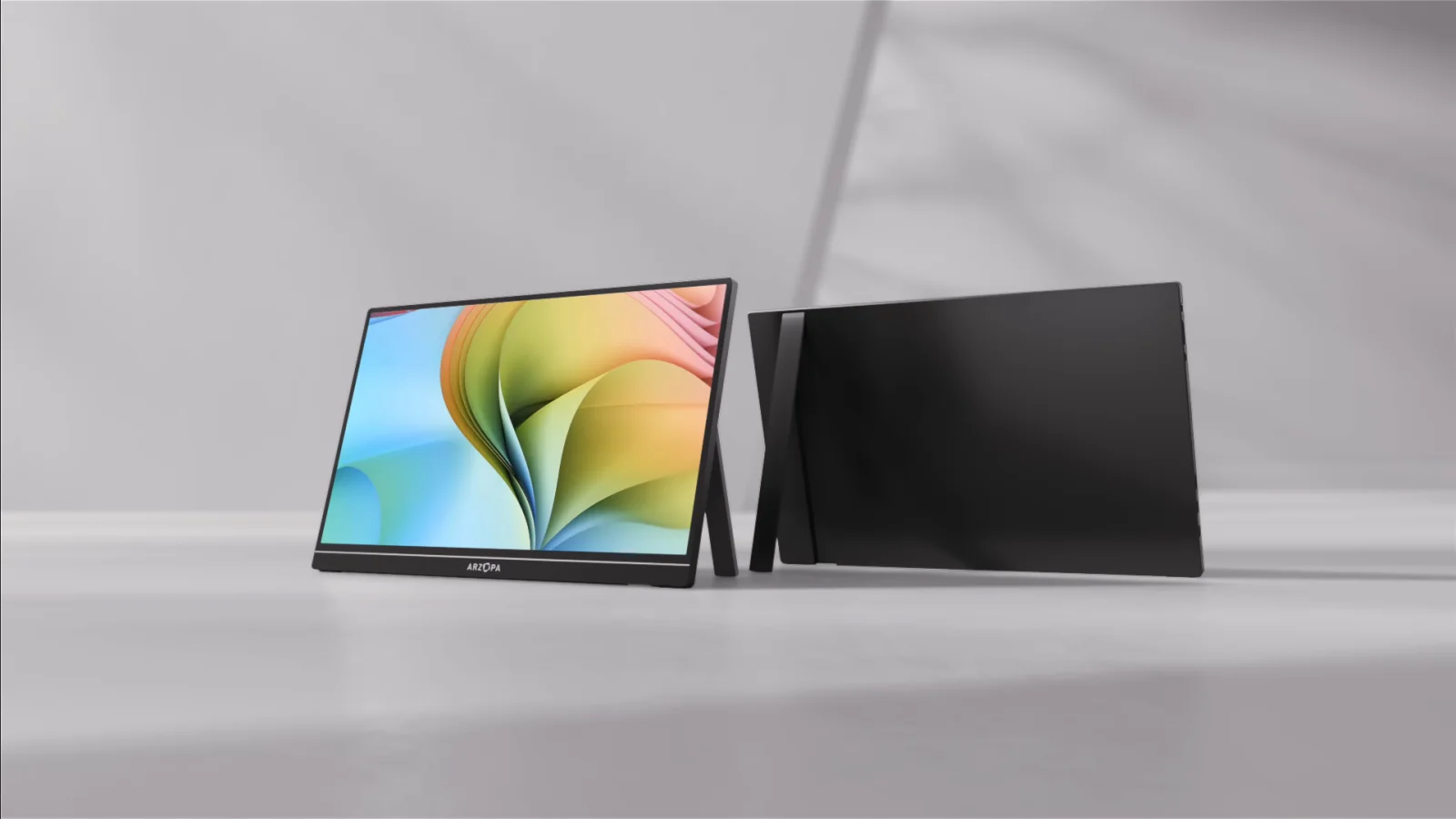
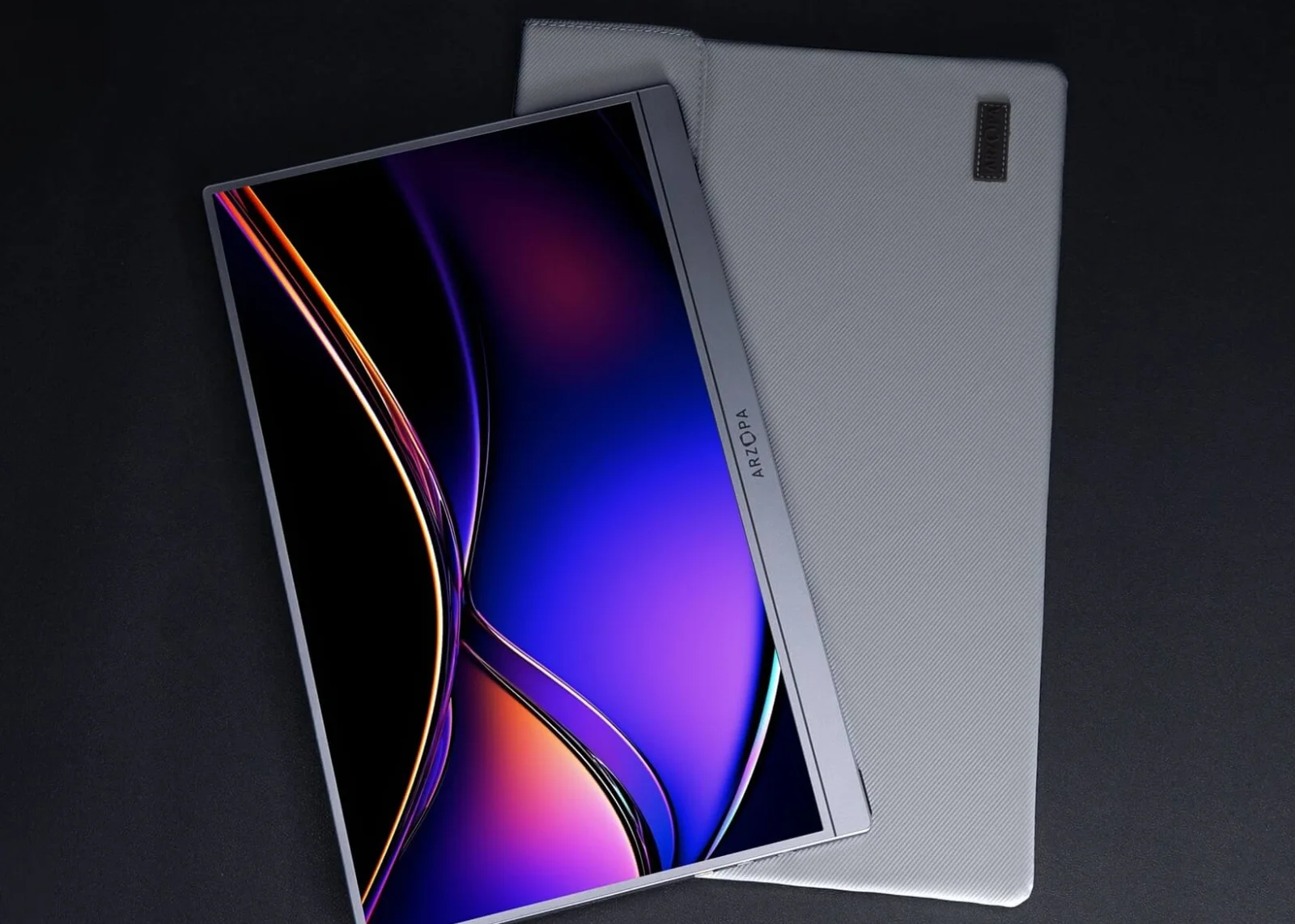
Screens & connections
MacBook Air M2 with two monitors: a DisplayLink setup
The M2 Air looks simple until two external displays enter the plan. A DisplayLink dock can provide the extra path, while a native arrangement or one dependable screen may be kinder if you want fewer drivers, permissions, and wake-up quirks.
DisplayLink is the route to two external screens when native support and the chosen dock do not cover it.
M2 Air owners who value two-screen productivity at a compact desk.
Software installation, power, cable quality, and protected-video limits still apply.
Our take is based on published specifications and linked sources. We have not hands-on tested these products. Some links may earn a commission.
Buying links, offers & research notes Expand
A closer look
Start with the signal and power fit
The three direct manufacturer listings below all take a different route to two screens. Check the monitor input and laptop-power plan before you compare resolution claims.
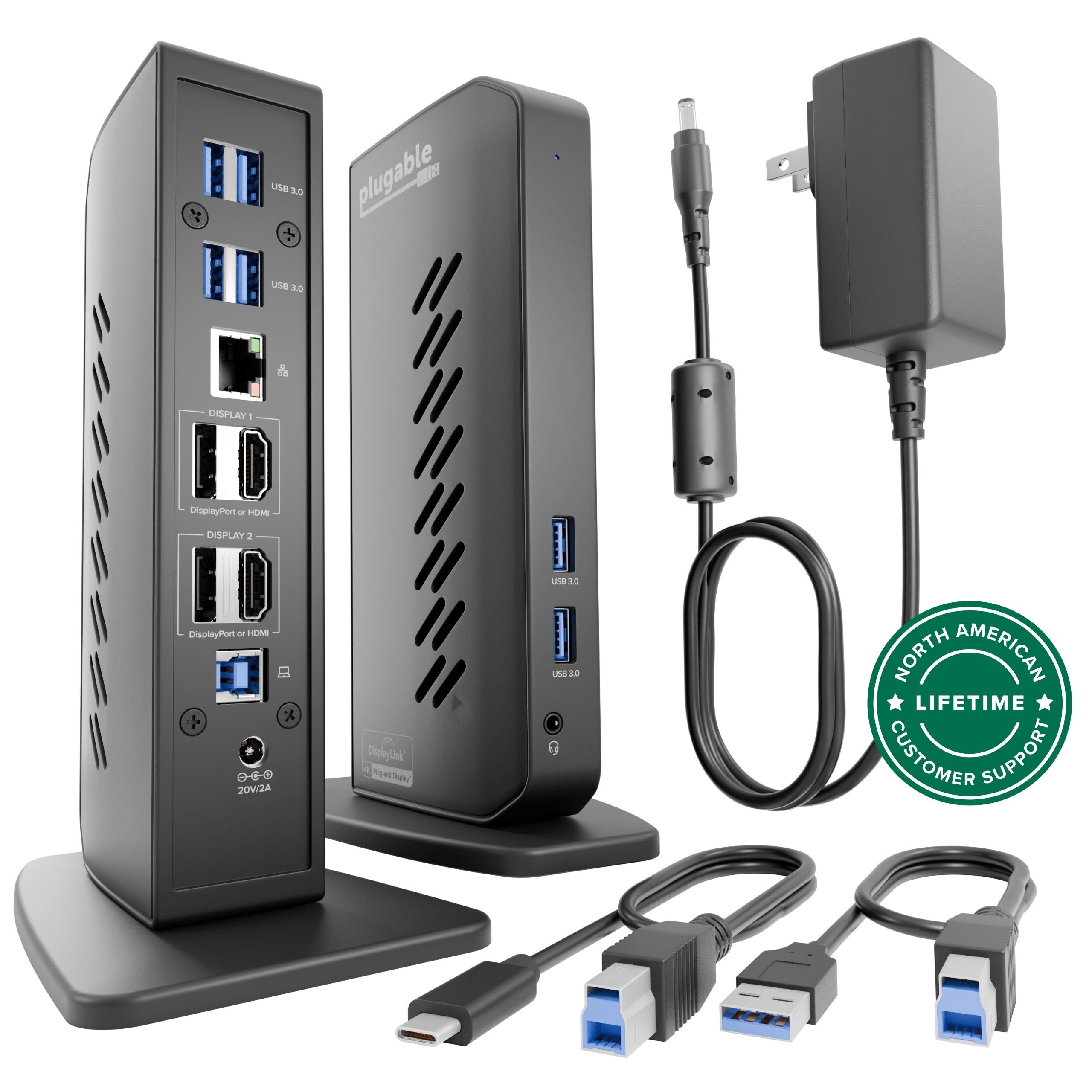 Photo: manufacturer
Plugable UD-6950Z
Plugable
M2 setup fit
2 × HDMI/DP · 4K60 · no host charging
Official specs checked September 3, 2026
See current price Photo: manufacturer
Plugable USBC-6950M
Plugable
M2 setup fit
2 × HDMI · 4K60 · compact adapter
Official specs checked September 3, 2026
See current price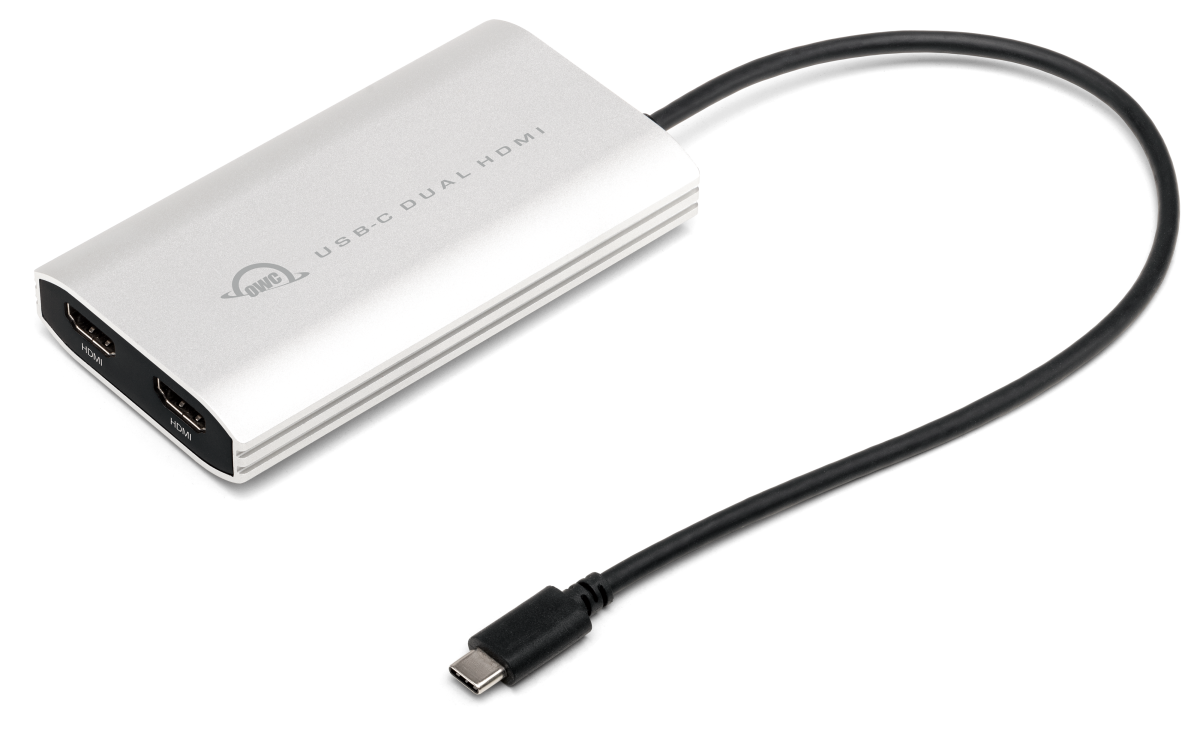 Photo: manufacturer
OWC USB-C Dual HDMI 4K Display Adapter
OWC
M2 setup fit
2 × HDMI · up to 4K · 90W passthrough
Official specs checked September 3, 2026
See current priceQuick answer
Closing the lid does not change the M2 limit.
Apple’s 13-inch and 15-inch M2 Air specifications each list one external display up to 6K at 60Hz. A regular USB-C hub cannot be assumed to turn that into two independent native displays. DisplayLink adds a different USB graphics path through hardware and software.
| Path | What it actually means |
|---|---|
| Native USB-C | One external display through native DisplayPort output over USB-C, up to Apple’s listed 6K60 ceiling. |
| Normal hub or daisy chain | More ports, not automatically more native display engines. Verify the exact Mac and dock technology. |
| DisplayLink | USB data to DisplayLink hardware, then virtual displays through DisplayLink Manager and macOS permissions. Additional screens remain software-dependent. |
| Portable panels | Each panel still needs a compatible signal input, cable, and power source. HDMI output is not USB-C video input. |
Apple and DisplayLink documentation checked September 3, 2026. This page explains compatibility boundaries; it does not promise that every M2 Air, macOS release, dock, cable, and portable monitor combination will behave identically.
Signal and power logic
Trace both monitor branches before you buy.
A dual-HDMI label does not tell you whether the dock is native, DisplayLink, laptop-charging, or able to power a portable panel. Read the whole chain from the M2 Air to each screen.
M2 Air host
One Thunderbolt / USB 4 port carries the USB data path to the DisplayLink device. Keep MagSafe or documented passthrough power in the plan.
DisplayLink device
The dock or adapter must explicitly contain DisplayLink hardware. Two HDMI ports on a generic hub are not enough evidence.
Two video branches
Map output A to monitor A and output B to monitor B. HDMI-to-HDMI is the least ambiguous match for the products above.
Power branches
Check Mac charging, dock power, and each panel’s USB or wall power separately. One wattage number rarely answers all three.
Current manufacturer comparison
Three DisplayLink paths for the M2 Air.
These are exact model-level facts checked September 3, 2026. The ordering is based on signal, power, and setup fit—not commission, popularity, or an unverified hands-on claim.
| Model | Outputs | M2 host path | Power | Panel fit | Main boundary |
|---|---|---|---|---|---|
| Plugable UD-6950ZPowered DisplayLink dock | Two independent DisplayLink output groups, each with HDMI 2.0 or DisplayPort 1.2; manufacturer lists up to 3,840 × 2,160 at 60Hz per display. | USB-C or USB-A host connection carrying USB 3.0 data. Use the included USB-C host cable with an M2 Air; the dock does not use the Mac’s native second-display signal. | The dock has its own 40W AC adapter, but Plugable explicitly says it does not charge the host computer. Keep the MacBook Air on its MagSafe charger. | Choose two portable monitors with HDMI or a documented DisplayPort input. HDMI-to-USB-C DP Alt Mode conversion is not automatically supported; verify the exact active adapter and power path. | Plugable labels this dock for productivity rather than gaming and says protected HDCP content is not supported. The dock also does not provide laptop charging. |
| Plugable USBC-6950MCompact dual-HDMI DisplayLink adapter | Two HDMI outputs, each listed up to 3,840 × 2,160 at 60Hz through DisplayLink. | One integrated USB-C host cable using USB data and DisplayLink. The adapter is not two native USB-C DP Alt Mode outputs. | The current adapter page does not promise MacBook charging. Plan separate MacBook charging and separate power for each portable monitor. | Plugable requires HDMI-to-HDMI connections for the two monitor outputs and says HDMI-to-Thunderbolt or HDMI-to-USB-C DP Alt Mode connections are not supported. | Plugable says HDCP-protected streaming content does not work through this DisplayLink path. It is a productivity adapter, not a universal entertainment adapter. |
| OWC USB-C Dual HDMI 4K Display AdapterBus-powered dual-HDMI DisplayLink adapter | Two HDMI displays up to 4K through a DisplayLink-powered USB-C adapter, according to OWC. | Built-in USB-C cable to a USB-C or Thunderbolt Mac. The video branches are DisplayLink USB graphics, not an M2 Air native dual-display mode. | OWC describes the adapter as bus-powered and lists up to 90W USB-C power passthrough for the laptop. That does not automatically power two attached portable panels. | Use two HDMI-capable portable monitors and their required USB power cables. A USB-C-only panel needs a separately documented active conversion path. | The official page establishes a DisplayLink and power-passthrough path, but it does not establish one universal sleep/wake, refresh-rate, or portable-monitor result for every M2 Air setup. |
The table intentionally omits prices, ratings, sales claims, and test results. Open the live manufacturer listing for current stock, exact variant, documentation, returns, and warranty.
Plugable UD-6950Z
Best when you want a full desk dock and two 4K display branches
- Type
- Powered DisplayLink dock
- Display outputs
- Two independent DisplayLink output groups, each with HDMI 2.0 or DisplayPort 1.2; manufacturer lists up to 3,840 × 2,160 at 60Hz per display.
- M2 host path
- USB-C or USB-A host connection carrying USB 3.0 data. Use the included USB-C host cable with an M2 Air; the dock does not use the Mac’s native second-display signal.
- Power route
- The dock has its own 40W AC adapter, but Plugable explicitly says it does not charge the host computer. Keep the MacBook Air on its MagSafe charger.
- macOS software
- DisplayLink Manager for macOS is required and must be installed manually. macOS permissions are part of the setup.
- Portable-screen fit
- Choose two portable monitors with HDMI or a documented DisplayPort input. HDMI-to-USB-C DP Alt Mode conversion is not automatically supported; verify the exact active adapter and power path.
Why choose it
Best when you want a full desk dock and two 4K display branches. Its published output map lets you write down both monitor branches before ordering.
Why skip or verify
Plugable labels this dock for productivity rather than gaming and says protected HDCP content is not supported. The dock also does not provide laptop charging.
Signal check
USB-C or USB-A host connection carrying USB 3.0 data. Use the included USB-C host cable with an M2 Air; the dock does not use the Mac’s native second-display signal. Choose two portable monitors with HDMI or a documented DisplayPort input. HDMI-to-USB-C DP Alt Mode conversion is not automatically supported; verify the exact active adapter and power path.
Power check
The dock has its own 40W AC adapter, but Plugable explicitly says it does not charge the host computer. Keep the MacBook Air on its MagSafe charger. Do not infer portable-monitor power from laptop passthrough alone.
Plugable USBC-6950M
Best for a small two-HDMI travel setup
- Type
- Compact dual-HDMI DisplayLink adapter
- Display outputs
- Two HDMI outputs, each listed up to 3,840 × 2,160 at 60Hz through DisplayLink.
- M2 host path
- One integrated USB-C host cable using USB data and DisplayLink. The adapter is not two native USB-C DP Alt Mode outputs.
- Power route
- The current adapter page does not promise MacBook charging. Plan separate MacBook charging and separate power for each portable monitor.
- macOS software
- DisplayLink Manager for macOS must be installed and granted Screen Recording permission. On Apple silicon, macOS may also ask to allow the USB accessory.
- Portable-screen fit
- Plugable requires HDMI-to-HDMI connections for the two monitor outputs and says HDMI-to-Thunderbolt or HDMI-to-USB-C DP Alt Mode connections are not supported.
Why choose it
Best for a small two-HDMI travel setup. Its published output map lets you write down both monitor branches before ordering.
Why skip or verify
Plugable says HDCP-protected streaming content does not work through this DisplayLink path. It is a productivity adapter, not a universal entertainment adapter.
Signal check
One integrated USB-C host cable using USB data and DisplayLink. The adapter is not two native USB-C DP Alt Mode outputs. Plugable requires HDMI-to-HDMI connections for the two monitor outputs and says HDMI-to-Thunderbolt or HDMI-to-USB-C DP Alt Mode connections are not supported.
Power check
The current adapter page does not promise MacBook charging. Plan separate MacBook charging and separate power for each portable monitor. Do not infer portable-monitor power from laptop passthrough alone.
OWC USB-C Dual HDMI 4K Display Adapter
Best when laptop power passthrough matters
- Type
- Bus-powered dual-HDMI DisplayLink adapter
- Display outputs
- Two HDMI displays up to 4K through a DisplayLink-powered USB-C adapter, according to OWC.
- M2 host path
- Built-in USB-C cable to a USB-C or Thunderbolt Mac. The video branches are DisplayLink USB graphics, not an M2 Air native dual-display mode.
- Power route
- OWC describes the adapter as bus-powered and lists up to 90W USB-C power passthrough for the laptop. That does not automatically power two attached portable panels.
- macOS software
- Install DisplayLink Manager on the Mac and follow its current macOS permission flow before expecting the HDMI outputs to appear.
- Portable-screen fit
- Use two HDMI-capable portable monitors and their required USB power cables. A USB-C-only panel needs a separately documented active conversion path.
Why choose it
Best when laptop power passthrough matters. Its published output map lets you write down both monitor branches before ordering.
Why skip or verify
The official page establishes a DisplayLink and power-passthrough path, but it does not establish one universal sleep/wake, refresh-rate, or portable-monitor result for every M2 Air setup.
Signal check
Built-in USB-C cable to a USB-C or Thunderbolt Mac. The video branches are DisplayLink USB graphics, not an M2 Air native dual-display mode. Use two HDMI-capable portable monitors and their required USB power cables. A USB-C-only panel needs a separately documented active conversion path.
Power check
OWC describes the adapter as bus-powered and lists up to 90W USB-C power passthrough for the laptop. That does not automatically power two attached portable panels. Do not infer portable-monitor power from laptop passthrough alone.
DisplayLink boundaries
Two extra screens are a software-dependent compromise.
Screen Recording permission
DisplayLink’s first-time configuration guide says macOS needs Screen Recording permission so DisplayLink Manager can access the pixels needed to render the USB display. The app must be restarted when the guide says the permission change requires it.
Background Activity and accessory approval
The current DisplayLink guide also calls out Background Activity. Apple silicon Macs can ask to allow a newly connected accessory. A device that receives power is not necessarily passing USB data.
HDCP / protected video
Plugable’s current dual-HDMI DisplayLink documentation warns that HDCP-protected streaming content is not compatible. Keep the use case to productivity unless the exact manufacturer documents another path.
Updates and sleep/wake
DisplayLink Manager must be running. A macOS or Manager update can change the setup flow, and the official sources do not promise one universal wake, rotation, lid-close, or cable result for every combination.
Latency and graphics behavior
The cited pages establish a USB graphics path, not a universal latency number or native-gaming guarantee. Do not use a DisplayLink comparison table as proof of color-critical or low-latency parity.
Managed Mac policy
Installing a driver and granting Screen Recording can require IT approval. On a company-managed M2 Air, confirm that the software and permission are allowed before buying two monitors around it.
Setup sequence
Build the setup from the panel input backwards.
1. Confirm the exact Mac
Open About This Mac and confirm the base M2 chip and whether the Air is 13-inch or 15-inch. Do not substitute M2 Pro or M2 Max display specifications.
2. Choose monitor inputs first
For the adapters above, HDMI or mini-HDMI monitor input is the clearest match. If both panels are USB-C-only, stop and verify an active conversion product and its power behavior.
3. Map both video branches
Write down adapter output A → monitor A and adapter output B → monitor B. Include HDMI/mini-HDMI cables, USB-C video cables, and any active converter.
4. Map laptop and panel power
Record MacBook charging, dock AC or passthrough, and each monitor’s USB or wall source separately. The UD-6950Z explicitly does not charge the host.
5. Install current Manager
Download DisplayLink Manager from the current official source or the exact dock support page. Install it only when the device is actually DisplayLink hardware and company policy allows it.
6. Grant macOS permissions
Complete Screen Recording and Background Activity steps, allow the Apple silicon accessory prompt if shown, and restart the Manager when instructed.
7. Extend, do not mirror
Open System Settings → Displays and confirm that both external panels are independent. A duplicated picture can mean the dock is not delivering two independent branches.
8. Test the real workflow
Before the return window ends, check sleep/wake, lid open and closed, rotation, brightness, protected video, cable movement, and the apps you actually use. This page is not a hands-on test.
DisplayLink makes sense when…
You accept the extra software layer.
- You need two separate work surfaces from a base M2 Air and accept a driver-managed USB graphics path.
- Your panels have HDMI inputs, or you have a documented active conversion path for the exact USB-C-only panels.
- You can install DisplayLink Manager, grant macOS permissions, and keep the app current.
- Your work is documents, code, email, browser windows, or office apps rather than HDCP-protected streaming.
- You have checked dock power, Mac charging, and each portable screen’s power separately.
Skip or verify first when…
The workaround conflicts with the job.
- You need protected streaming, color-critical work, low-latency gaming, or another workflow the exact DisplayLink product warns against.
- Your managed Mac blocks DisplayLink Manager or Screen Recording permission.
- You are relying on a generic USB-C hub, MST splitter, or monitor daisy chain to create native displays.
- Both monitors are USB-C-only and no exact active HDMI conversion and power instructions exist.
- You cannot provide power for both panels or keep a return route for software-dependent hardware.
Before you buy
M2 Air two-monitor checklist.
Exact Mac model
Base M2 MacBook Air, 13-inch or 15-inch; not M2 Pro/Max or a different Mac.
Native display ceiling
Apple lists one external display up to 6K60. Closing the lid does not document a second native output.
DisplayLink proof
The dock or adapter page must explicitly name DisplayLink hardware and macOS software support.
Monitor inputs
HDMI/mini-HDMI is the clearest match for the products above. HDMI is not the same as USB-C DP Alt Mode.
Video cables
Confirm HDMI-to-HDMI, HDMI-to-mini-HDMI, USB-C, and any active-converter requirements for both branches.
Monitor power
Budget USB-C or wall power for each panel unless the exact monitor documents bus power in your chosen topology.
Mac charging
Check passthrough separately. The UD-6950Z does not charge the host; OWC lists up to 90W passthrough.
macOS permissions
Screen Recording, Background Activity, and Apple silicon accessory approval may be required.
Protected video
Read the exact adapter’s HDCP warning before relying on DisplayLink for Netflix or other protected content.
Sleep and lid state
Check both lid-open and lid-closed behavior, rotation, wake, and the real workflow before the return window ends.
Managed device
Ask IT whether DisplayLink Manager and Screen Recording permission are allowed.
Current listing
Re-open the manufacturer page checked September 3, 2026 and verify exact SKU, software, stock, warranty, and returns.
Keep choosing
Related MacBook and portable-display decisions.
MacBook Air M1 dual portable monitors
Use the parallel M1 guide when you need the same DisplayLink signal, power, permission, and HDCP boundaries on an M1 Air.
Read nextMacBook Air M3 dual-monitor support
M3 Air native support differs: read the exact closed-lid Apple arrangement instead of transferring M2 rules.
Read nextMacBook Air M4 portable monitors
Check the M4 Air’s different native display support and portable-monitor power paths.
Read nextBest portable monitors for MacBook
Compare native USB-C, HDMI power, stands, cables, brightness, and chip-specific display limits.
Read nextPortable monitor comparison chart
Filter exact panels by size, resolution, refresh, inputs, power, weight, stand, and Mac/iPad notes.
Read nextPortable-monitor connection checker
Check the video signal, cable, power, and adapter path before choosing the M2 display setup.
Read nextDual-monitor desk size calculator
Check the desktop width and depth for two portable monitors, a laptop, arms, and accessories.
Read nextPortable monitor vs. screen extender
Separate a true external display from an attachable panel and a software-managed path.
Read nextArzopa Z1RC vs Z1FC for MacBook
Compare two exact portable-monitor panels without confusing the monitor choice with the M2 dual-display workaround.
Read nextFrequently asked questions
Can a MacBook Air M2 run two external monitors?
Not natively according to Apple’s technical specifications for both the 13-inch M2 Air and 15-inch M2 Air. Apple lists one external display up to 6K at 60Hz. Two independent external monitors require a separate path such as a DisplayLink dock or adapter, with compatible hardware, current software, macOS permissions, monitor inputs, and power.
Does closing the MacBook Air M2 lid unlock a second native monitor?
No second native display is documented for the base M2 Air simply by closing the lid. Apple’s M2 specifications still list one external display. Do not transfer the closed-lid two-display instructions for the M3 Air to an M2 Air. DisplayLink is a separate USB graphics workaround, not a change to Apple’s native specification.
Will a normal USB-C hub or MST splitter give an M2 Air two displays?
Do not assume it will. A normal hub, MST splitter, or monitor daisy chain does not by itself override the M2 Air’s one-external-display specification. Look for explicit DisplayLink hardware and a current macOS Manager requirement, or use a Mac with native support for the number of displays you need.
What kind of dock is needed for two monitors on an M2 Air?
Choose a dock or adapter that explicitly contains DisplayLink hardware and publishes macOS support for the exact product. The three options above use HDMI or HDMI/DisplayPort output paths. Match both monitor inputs and do not treat two ports on a dock as proof of two native video signals.
Can I use two USB-C portable monitors with a DisplayLink HDMI adapter?
Not by assuming a passive cable will translate the signal. The Plugable USBC-6950M page specifically requires HDMI-to-HDMI connections and says HDMI-to-USB-C DisplayPort Alt Mode connections are not supported. For a USB-C-only panel, use an active conversion product whose input, output, and power behavior are explicitly documented for that exact monitor.
Do portable monitors need their own power?
Often, yes. HDMI carries the video signal but normally does not power a portable monitor. Plan a USB-C power cable or wall adapter for each panel unless the exact monitor documentation establishes bus power through the chosen connection. A dock’s laptop charging or passthrough rating is not automatically a two-monitor power rating.
What permissions does DisplayLink need on macOS?
DisplayLink’s current first-time configuration guide says macOS requires Screen Recording permission for DisplayLink Manager and may request Background Activity permission. The app must be running, and Apple silicon Macs can show an accessory approval prompt. The exact labels can differ by macOS release, so use the current DisplayLink instructions.
Will DisplayLink work with Netflix or protected video?
Do not promise it. Plugable’s current pages warn that HDCP-protected streaming content is not compatible with its DisplayLink outputs. Treat this as a work-oriented path for documents, code, email, and browser windows; keep a native display path or use another solution when protected video is essential.
Is this page a hands-on test or an affiliate ranking?
No. The product links are direct manufacturer URLs without affiliate parameters, and WorkChoose did not personally test these combinations. The page uses Apple, Synaptics DisplayLink, Plugable, and OWC documentation checked September 3, 2026. Prices, stock, software versions, returns, and compatibility can change.