
Screens & connections
Arzopa Z1RC vs Z1FC for MacBook: 2.5K or 144Hz?
On a MacBook desk, the Z1RC gives documents more vertical room while the Z1FC is the better fit when motion or gaming matters. Check the exact MacBook port and cable before assuming either monitor will run at its headline mode.
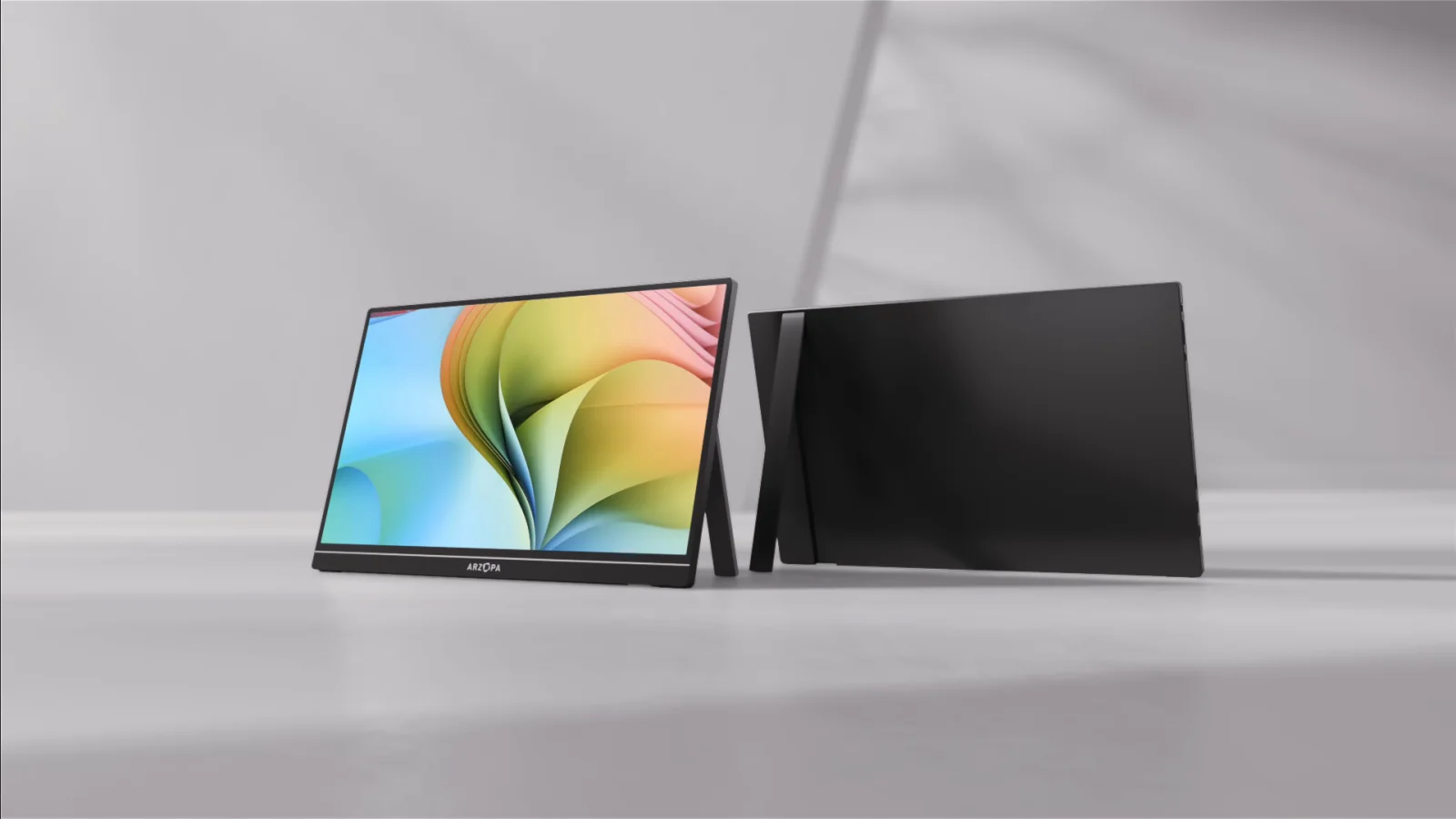
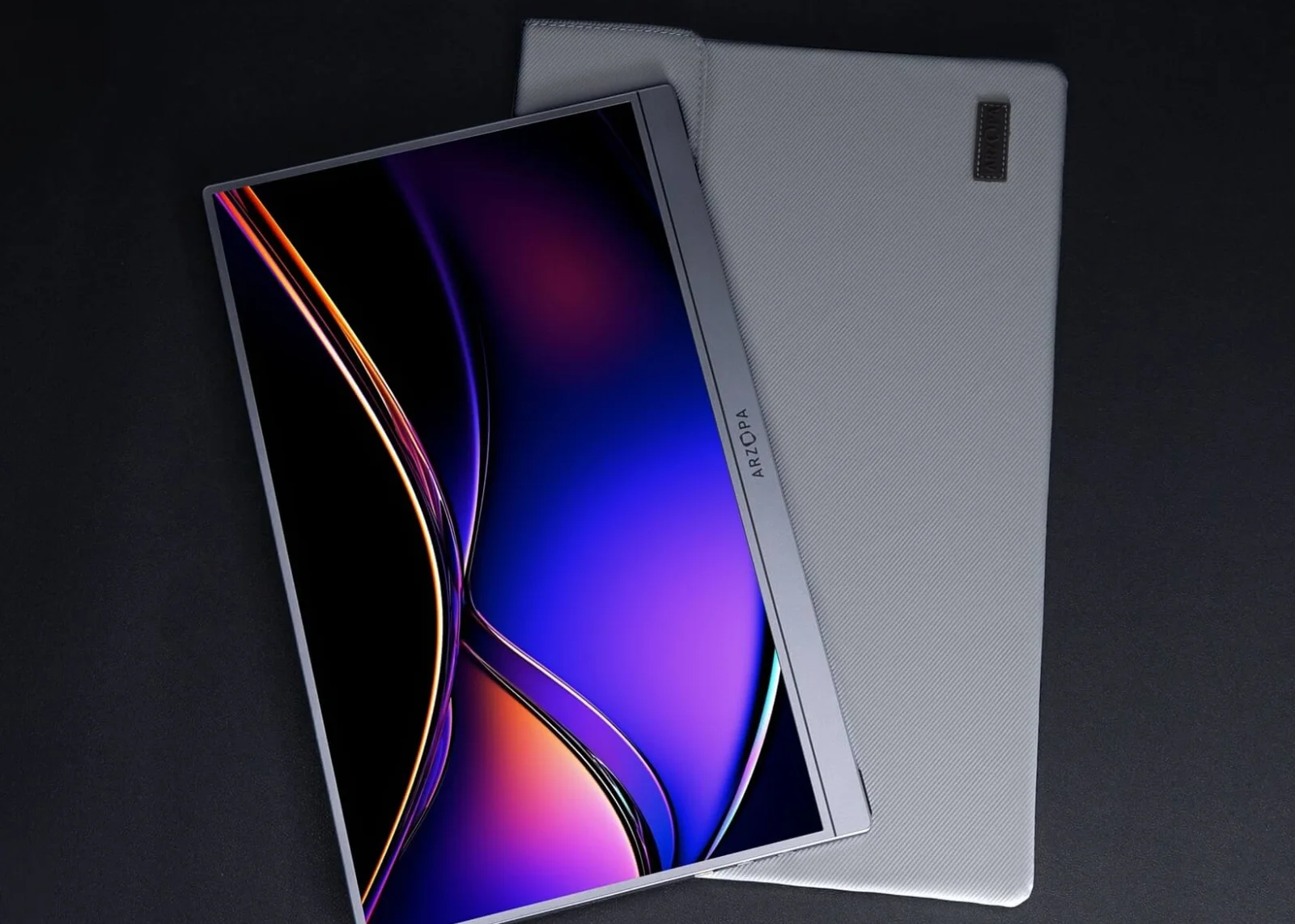
Choose Z1RC for 2560×1600 16:10 work space; choose Z1FC for 144Hz FHD motion.
MacBook writers and spreadsheet users fit Z1RC; gaming or scrolling priorities fit Z1FC.
Check DisplayPort-over-USB-C, cable, and power; a MacBook port shape alone proves little.
Our take is based on published specifications and linked sources. We have not hands-on tested these products. Some links may earn a commission.
Quick answer
Pick the work canvas, not the marketing label.
Choose Z1RC when MacBook text space, the 16:10 frame, and 2,560 × 1,600 matter most. Choose Z1FC when the published 144Hz ceiling and slightly lower published weight are more useful. Neither choice changes how many displays the MacBook can drive natively.
| If your priority is… | Start with… | Because… |
|---|---|---|
| Coding, reading, documents | Z1RC | 2.5K resolution and 16:10 are the product-page differences most relevant to vertical work space. |
| Published refresh rate and travel weight | Z1FC | 144Hz and 1.72 lb are the current product-page figures; actual MacBook modes depend on the full signal chain. |
| Two external Mac displays | Neither alone | Each monitor is one display. The Mac chip, not the monitor model, sets the native display ceiling. |
These are fit-based recommendations from published specifications, not a claim of personal testing, measured game performance, or universal macOS compatibility.
What actually differs
2.5K productivity versus FHD high-refresh is the real fork.
Arzopa’s own comparison article positions Z1RC for sharper text, coding, spreadsheets, and creative work, and Z1FC for smoother motion, gaming, and travel. The exact product pages add the current dimensions, rated power, interface, brightness, weight, and included-cable details below.
Resolution + ratio
Z1RC: 2,560 × 1,600 at 16:10. Z1FC: 1,920 × 1,080 at 16:9. The former gives a taller published work canvas; the latter is the simpler FHD format.
Refresh rate
Z1RC is listed at 60Hz. Z1FC is listed at 144Hz. A MacBook, adapter, cable, selected mode, and application still determine what is available in practice.
Brightness + weight
The exact product pages list 350 nits and 1.79 lb for Z1RC, versus 300 nits and 1.72 lb for Z1FC. These are published figures, not independent measurements.
Ports + power
Both list two full-function USB-C ports and mini HDMI 2.0. Z1RC lists 12W rated power; Z1FC lists 10W. HDMI normally needs separate USB-C monitor power.
MacBook signal and power
One-cable claims are conditional, not magic.
USB-C DP Alt Mode
Both product pages list full-function USB-C with DP output. The MacBook port, monitor input, and cable must all carry DisplayPort video. A charging-only cable can power a screen without carrying a picture.
USB-C power
Arzopa says one USB-C cable can carry video and power when the source supports video and supplies enough power. Z1RC is listed at 12W; Z1FC at 10W. Flicker or restarts are a reason to add power and recheck the cable.
HDMI path
The mini HDMI input is a video path. Use the proper MacBook USB-C-to-HDMI adapter or dock, then mini HDMI at the panel and a separate USB-C power cable at the monitor.
Two-display boundary
Two monitors need two independent host display signals or a dedicated DisplayLink path. Two USB-C ports on one Z1RC or Z1FC do not create another Mac output.
Apple display limit
The monitor does not decide how many screens your MacBook can run.
“Works with MacBook” describes a product claim, not a replacement for Apple’s exact model specification. Use this generation check before you decide whether one or two Z1RC/Z1FC panels make sense.
| MacBook family | Apple source boundary | What it means for Z1RC/Z1FC |
|---|---|---|
| Base M1 Air | One external display up to 6K at 60Hz; native DisplayPort output over USB-C. | One panel can use native USB-C or the adapter HDMI path. Two panels need a separately verified DisplayLink setup. |
| Base M2 Air | Apple’s M2 Air specifications also list one external display up to 6K at 60Hz. | Do not treat two native USB-C monitor connections as supported just because both panels accept USB-C. |
| M3 Air | Apple’s dual-display instructions require the lid closed for two external displays. | The two monitors can be a native closed-lid setup when the exact resolution, cable, and power paths qualify. |
| M4 Air | Up to two external displays in addition to the built-in display, subject to resolution and refresh rate; closing the lid does not increase the maximum. | Two Z1RC/Z1FC panels can fit Apple’s count in principle, but each still needs an independent signal and adequate power. |
Exact model table
Z1RC and Z1FC, field by field.
The figures below come from the current exact US product pages checked September 4, 2026. They describe the panels and their inputs; they do not promise a particular MacBook mode or connection result.
| Model | Resolution / ratio | Refresh / brightness | Weight / size | Stand / panel | Ports / signal | Power / MacBook read |
|---|---|---|---|---|---|---|
| Arzopa Z1RCThe text-space choice for work | 2,560 × 1,600 (2.5K) 16:10 | 60Hz 350 nits 123% sRGB | 1.79 lb 356 × 238 × 9.3 mm | Built-in stand; portrait and landscape positioning listed 16.0-inch IPS · 2,560 × 1,600 · 16:10 · 60Hz | 2 × full-function USB-C; 1 × mini HDMI 2.0 USB-C is listed for video data and power; the product comparison identifies USB-C DP Alt Mode and mini HDMI. | 12W rated power. Arzopa says USB-C can carry video and power when the host supports video and supplies enough power; its warm tips recommend external 5V/3A-or-higher power when needed. One Z1RC is one external display. Its two USB-C sockets are inputs for flexible connection and power, not two independent Mac video outputs. A base M1 or M2 Air still needs a separate DisplayLink path for a second external screen. |
| Arzopa Z1FCThe smoother-motion and lighter travel choice | 1,920 × 1,080 (FHD) 16:9 | 144Hz 300 nits 106% sRGB | 1.72 lb 366 × 228 × 9.3 mm | Built-in stand; landscape and portrait modes listed 16.1-inch IPS · 1,920 × 1,080 · 16:9 · 144Hz | 2 × full-function USB-C; 1 × mini HDMI 2.0 USB-C is listed for video data and power; the product page identifies USB-C DP output and mini HDMI for compatible sources. | 10W rated power. Arzopa says one USB-C cable can handle video and power only when the source supports USB-C video output and provides enough power. One Z1FC is one external display. Two USB-C sockets on the monitor do not make two Mac display outputs. A base M1 or M2 Air needs a separately verified DisplayLink dock or adapter if the goal is two external screens. |
Arzopa product pages also list HDR10, aluminum construction, dual speakers, and no touch input. Those fields do not resolve the central MacBook decision, so this page keeps the comparison on signal, power, text space, refresh, and portability.
Arzopa Z1RC
The text-space choice for work
- Resolution / ratio
- 2,560 × 1,600 (2.5K) · 16:10
- Refresh / brightness
- 60Hz · 350 nits
- Weight / dimensions
- 1.79 lb · 356 × 238 × 9.3 mm
- Color / panel
- 123% sRGB · IPS aluminum design listed
- Stand
- Built-in stand; portrait and landscape positioning listed
- Ports
- 2 × full-function USB-C; 1 × mini HDMI 2.0
- Rated power
- 12W rated power. Arzopa says USB-C can carry video and power when the host supports video and supplies enough power; its warm tips recommend external 5V/3A-or-higher power when needed.
- Included cables
- USB-C-to-USB-C cable, mini-HDMI-to-HDMI cable, and USB-A-to-USB-C cable are listed on the product page.
- MacBook signal
- USB-C is listed for video data and power; the product comparison identifies USB-C DP Alt Mode and mini HDMI.
Why choose it
Choose it when you read, code, write, edit documents, or keep a portrait reference column open. The 16:10 frame and 2,560 × 1,600 resolution are the clearest published reasons to prefer it for MacBook productivity.
Why skip it
Skip it when a 144Hz ceiling matters more than text space, or when your MacBook/cable cannot provide enough power for the chosen one-cable setup. The manufacturer specification is not a hands-on brightness or color test.
MacBook signal read
One Z1RC is one external display. Its two USB-C sockets are inputs for flexible connection and power, not two independent Mac video outputs. A base M1 or M2 Air still needs a separate DisplayLink path for a second external screen.
HDMI and power note
HDMI carries the video signal to mini HDMI; plan a separate USB-C power connection for the monitor. The MacBook needs the appropriate USB-C-to-HDMI adapter or dock. USB-C-to-USB-C cable, mini-HDMI-to-HDMI cable, and USB-A-to-USB-C cable are listed on the product page.
Arzopa Z1FC
The smoother-motion and lighter travel choice
- Resolution / ratio
- 1,920 × 1,080 (FHD) · 16:9
- Refresh / brightness
- 144Hz · 300 nits
- Weight / dimensions
- 1.72 lb · 366 × 228 × 9.3 mm
- Color / panel
- 106% sRGB · IPS aluminum design listed
- Stand
- Built-in stand; landscape and portrait modes listed
- Ports
- 2 × full-function USB-C; 1 × mini HDMI 2.0
- Rated power
- 10W rated power. Arzopa says one USB-C cable can handle video and power only when the source supports USB-C video output and provides enough power.
- Included cables
- Full-featured USB-C-to-USB-C cable, mini-HDMI-to-HDMI cable, USB-A-to-USB-C power cable, and quick-start guide are listed.
- MacBook signal
- USB-C is listed for video data and power; the product page identifies USB-C DP output and mini HDMI for compatible sources.
Why choose it
Choose it when smoother published refresh is useful for scrolling or motion, or when the 1.72 lb published weight matters in a travel bag. It also leaves the MacBook connection model simple: USB-C DP Alt Mode or mini HDMI plus power.
Why skip it
Skip it when you want a 16:10 document canvas or the sharper text density of 2,560 × 1,600. The 144Hz specification does not establish game performance, response quality, or a guaranteed 144Hz mode on every MacBook/cable path.
MacBook signal read
One Z1FC is one external display. Two USB-C sockets on the monitor do not make two Mac display outputs. A base M1 or M2 Air needs a separately verified DisplayLink dock or adapter if the goal is two external screens.
HDMI and power note
HDMI is a video path only; Arzopa says HDMI devices usually need separate USB-C power. The MacBook needs a suitable USB-C-to-HDMI adapter or dock and the monitor needs its power cable. Full-featured USB-C-to-USB-C cable, mini-HDMI-to-HDMI cable, USB-A-to-USB-C power cable, and quick-start guide are listed.
Connection steps
Set up the signal before judging the screen.
1. Confirm the MacBook chip
Open Apple menu → About This Mac and record M1, M2, M3, or M4. Base and Pro/Max chips do not share one display-support rule.
2. Choose USB-C or HDMI
For native USB-C, use a full-featured cable and a MacBook port that carries DisplayPort video. For HDMI, use a suitable adapter or dock and mini-HDMI at the monitor.
3. Decide who supplies power
A one-cable USB-C path may work when the MacBook supplies enough power. If it does not, connect the monitor’s USB-C power cable to a suitable adapter or wall source.
4. Add the second display honestly
M1/M2 base Air models need a separate DisplayLink dock or adapter for a second external screen. M3/M4 arrangements depend on Apple’s exact lid and display rules.
5. Open System Settings → Displays
Choose Extend rather than Mirror and confirm the selected resolution and refresh mode. Do not assume the panel’s headline refresh is the mode macOS selects.
6. Check real-world edge cases
Before keeping the order, verify brightness, portrait orientation, sleep/wake, cable position, lid close, and the apps you actually use. This page is not a hands-on test.
Why choose / why skip
Match the compromise to the way you use the MacBook.
Why choose the Z1RC
More document space per panel.
- You want 2,560 × 1,600 and a 16:10 frame for code, reading, spreadsheets, or reference material.
- The published 350-nit figure, 1.79 lb weight, and built-in stand fit your bag and desk constraints.
- You can provide up to the listed 12W monitor power and verify the native USB-C or HDMI path.
- You prefer a 60Hz work display and do not need the Z1FC’s published 144Hz ceiling.
Why choose the Z1FC
Smoother published motion in a lighter panel.
- You want the published 144Hz refresh-rate option for scrolling or motion and accept FHD 16:9 text space.
- The listed 1.72 lb weight and 16.1-inch size matter more than the Z1RC’s taller resolution.
- You can provide the listed 10W monitor power and verify the selected MacBook mode reaches the desired refresh.
- You want the same two USB-C plus mini-HDMI input pattern with a lower published rated-power figure.
Why skip either one
A different product category may fit better when…
Evidence and purchase boundary
What the sources support—and what they do not.
Apple sets the Mac limit
Apple’s exact chip specification controls the native external-display count. A portable monitor’s compatibility badge cannot replace it.
Arzopa sets the panel claims
Resolution, refresh rate, brightness, weight, dimensions, ports, stand, and rated power are manufacturer-published figures. They are not independent measurements.
Live listings are time-stamped
The direct US listings were checked September 4, 2026. Price, stock, color, bundle, cable, warranty, shipping, and return terms can change; re-open the exact page before ordering.
Keep choosing
Related MacBook display decisions.
Best portable monitor for MacBook
Compare USB-C, HDMI, power, stands, cables, and Mac display limits across portable screens.
Read nextArzopa Z1RC review
Inspect the Z1RC alone, including its 2.5K 16:10 work canvas, 60Hz limit, power path, current price, returns, and warranty terms.
Read nextArzopa Z3FC vs Z1RC
Compare Z1RC’s taller 16:10 work canvas with Z3FC’s 16:9 high-refresh gaming route.
Read nextBest Arzopa portable monitor
Compare Z3FC, Z1RC, Z1FC, Z1C, and A1M by use case before checkout.
Read nextArzopa A1M vs Z1RC
Compare the larger 17.3-inch FHD A1M with the sharper 16-inch 2.5K Z1RC.
Read nextArzopa A1M vs Z1FC
Keep Z1FC and compare it directly with A1M’s larger 17.3-inch FHD canvas.
Read nextM1 Air dual portable monitors with DisplayLink
Separate Apple’s native one-display limit from the driver-managed dock and adapter path.
Read nextM2 Air dual portable monitors with DisplayLink
Separate the M2 Air’s native one-display limit from the driver-managed dock and adapter path.
Read nextMacBook Air M3 dual-monitor support
Use the exact M3 lid-closed rules instead of transferring M1/M2 limits to another chip.
Read nextMacBook Air M4 portable monitors
Check the newer Air’s two-display ceiling and panel power paths.
Read nextTouchscreen portable monitors for MacBook
Read the separate macOS touch-data, driver, USB-C, HDMI, and power caveats.
Read nextPortable monitor comparison chart
Filter exact panels by size, resolution, refresh, inputs, power, weight, stand, and Mac/iPad notes.
Read nextPortable-monitor connection checker
Check the video signal, cable, power, and adapter path before choosing a portable display.
Read nextDual-monitor desk size calculator
Check the desktop width and depth for two portable monitors, a laptop, arms, and accessories.
Read nextFrequently asked questions
Which is better for MacBook productivity, Z1RC or Z1FC?
The Z1RC is the productivity-leaning choice on published specifications: 2,560 × 1,600 resolution, a 16:10 aspect ratio, 350 nits, and a 12W rated power figure. The Z1FC trades that text space for FHD resolution and a 144Hz refresh-rate specification. This is a fit conclusion from manufacturer-published figures, not a personal test of sharpness, color, or comfort.
Is the Arzopa Z1FC actually 144Hz on a MacBook?
Arzopa lists a 144Hz refresh rate for Z1FC and lists USB-C DP output plus mini HDMI. Whether a MacBook exposes 144Hz depends on the exact Mac model, adapter or dock, cable, monitor input, selected resolution, and macOS mode. The specification is not a guarantee that every MacBook setup will run that mode.
Can one USB-C cable carry video and power to either monitor?
Sometimes. Arzopa says one full-featured USB-C cable can carry video and power when the source supports USB-C video output and supplies enough power. Z1RC is listed at 12W rated power and Z1FC at 10W. If the screen flickers, restarts, dims, or does not wake, use the manufacturer’s separate power guidance and verify the cable rather than assuming the connector is enough.
Do the two USB-C ports on Z1RC or Z1FC create two Mac displays?
No. The two USB-C ports are listed as full-function inputs for video and power flexibility. They are not two independent video outputs from the monitor. Two external Mac displays require two independent host video signals or a separately verified DisplayLink setup.
Can a base MacBook Air M1 use two Z1RC or Z1FC monitors?
Not through two ordinary native display connections. Apple lists one external display up to 6K at 60Hz for the M1 MacBook Air. Two monitors require a compatible DisplayLink dock or adapter as a separate USB graphics path, with its own software, permissions, output limits, and HDMI/monitor-power checks. That does not change Apple’s native limit.
What about MacBook Air M2, M3, and M4 display limits?
Base M2 Air specifications also list one external display. Apple’s M3 dual-display instructions require the lid closed for two external displays, while the M4 Air support page lists up to two external displays in addition to the built-in display, subject to resolution and refresh rate. Always use the exact Mac chip and Apple support page; a monitor’s “MacBook compatible” label does not override it.
Can I use HDMI from a MacBook with the Z1RC or Z1FC?
Yes, with the right USB-C-to-HDMI adapter or dock and an HDMI-to-mini-HDMI cable. HDMI normally carries video rather than monitor power, so use the monitor’s separate USB-C power connection. The MacBook’s USB-C port, adapter, cable, monitor input, and power source all need to match.
Do the product pages prove the monitors are compatible with every MacBook?
No. Arzopa lists MacBook compatibility and USB-C DP output, but that is only one part of the chain. Check the exact Mac chip, USB-C/Thunderbolt port, DisplayPort Alt Mode support, cable, HDMI adapter path, monitor power, resolution, refresh rate, and native display count. This page does not promise every macOS version or setup.
Does this comparison use affiliate links, prices, or hands-on tests?
Amazon US buying links may earn a commission. Arzopa Global website offers apply only in the official store's cart. Official evidence and support links remain direct. Rankings and evidence are unchanged. Prices, ratings, and sales claims are intentionally omitted. WorkChoose did not personally test either display; specifications and manufacturer statements can change with variants, batches, listings, or software updates.