Screens & connections
MacBook Air M3 dual-monitor support: the clean answer
The M3 Air can make a two-screen plan sound simpler than it is. Separate native display support from dock-assisted options first, then decide whether one dependable external screen is enough or whether a DisplayLink layer earns its place.
Start with the M3 Air’s native support and add DisplayLink only when the extra screen is worth the software layer.
M3 Air owners planning a home-office monitor upgrade.
Lid state, operating system version, dock capability, and display adapters affect the final arrangement.
Our take is based on published specifications and linked sources. We have not hands-on tested these products. Some links may earn a commission.
The decision map
Separate the Mac capability from the accessory path.
A native display, a DisplayLink device, and a portable monitor are related decisions, not interchangeable labels. Start with the signal path, then check the M3 Air lid position and display count.
Native dual external displays
Yes, with the M3 Air lid closed.
Use two independent native video connections. Apple lists one external display up to 6K at 60Hz first, then a second external display up to 5K at 60Hz after the lid is closed. The built-in panel is not part of this two-external-display arrangement.
DisplayLink dock, adapter, or monitor
Possible only as a separate hardware + driver setup.
DisplayLink is not an Apple-native display mode. Synaptics describes DisplayLink Manager as the macOS application and driver path for a DisplayLink dock, adapter, or monitor, with support for multiple displays up to 4K on its software page.
Portable monitor
One portable monitor is one external display.
A portable monitor can use native USB-C DisplayPort video, HDMI, or DisplayLink. “Portable” describes the panel and stand; it does not decide the Mac’s display ceiling or guarantee that one USB-C cable carries both video and power.
Native ceiling
What “dual monitor” means on M3 Air.
Apple’s M3 Air technical specifications list two Thunderbolt / USB 4 ports with DisplayPort support. They also list one external display up to 6K at 60Hz, plus a second external display up to 5K at 60Hz when the lid is closed.
Lid open
Built-in display + 1 external display
Native arrangement documented by the M3 Air specs.
Lid closed
2 external displays
Apple’s dual-monitor instructions require the closed-lid setup.
Primary display
Up to 6K60 or 4K144
Apple lists this ceiling for the first display in its setup sequence.
Secondary display
Up to 5K60 or 4K100
Apple lists this ceiling for the second display after closing the lid.
Apple’s order
Close the lid only after the first display is ready.
Keep this sequence beside the desk while you set up. It is short, but each step removes one common “the second monitor is missing” variable.
- 01
Input first
Connect and test an external keyboard and mouse or trackpad.
- 02
Power the Mac
Connect the Mac to power. A display supplying Mac power can remove the need for a separate adapter.
- 03
Primary display
Connect the first display. Apple treats it as primary.
- 04
Close the lid
Keep the input devices ready because the built-in keyboard and trackpad are no longer available.
- 05
Secondary display
Connect the second display after the lid is closed.
If you open the lid later
Apple says the secondary external display will go dark or disconnect while both displays are connected. That is the expected boundary, not proof that the cable or monitor failed.
If the display order is wrong
Arrange displays in System Settings. Apple says both external displays must be disconnected and connected again to reset which one is primary.
Compatibility matrix
Choose the path that matches your constraint.
“Can it show a picture?” is too small a question. The useful answer includes lid position, software, power, independent signals, and what happens when you unplug one screen.
| Your goal | Likely path | What to do | Boundary |
|---|---|---|---|
| I want the built-in Air display plus one external screen | Native USB-C/DisplayPort or HDMI | Keep the lid open. This is the straightforward M3 Air layout. | The external screen still needs its own signal and power plan. |
| I want two external monitors and can keep the lid closed | Native dual-display setup | Use macOS Sonoma 14.3 or later, external keyboard/mouse/trackpad, power, then Apple’s connection order. | First display: up to 6K60 (or 4K144); second: up to 5K60 (or 4K100), per Apple’s dual-monitor instructions. |
| I want two external monitors while keeping the Air lid open | Not Apple-native on this M3 Air configuration | Do not buy a native dock based on M3 Pro/Max or another Mac’s claims. Investigate a clearly labeled DisplayLink setup only if you accept the driver and support dependency. | DisplayLink is a separate software path; it is not a promise from Apple that every dock or monitor will work. |
| I need a screen for travel or a small desk | Portable monitor, native or DisplayLink | Match the monitor’s input, cable, weight, stand, brightness, and power requirement to the actual setup. | A portable monitor is still one external display and may require a second power cable. |
| I want more screens from a single USB-C port | A DisplayLink-capable dock may be an option | Confirm that the dock actually contains DisplayLink hardware and that Synaptics lists a compatible Manager for your macOS version. | A generic USB-C hub or daisy chain cannot be assumed to increase the Mac’s native display ceiling. |
Purchase check
Check the cable and dock before the panel.
Two displays can be perfectly capable on paper and still fail as a setup when the signal path, power, or lid condition is wrong. Save this matrix with the exact product model and your Mac’s model string.
| Check | Confirm | Do not assume |
|---|---|---|
| Mac identity | MacBook Air with Apple M3 chip; check the exact year/size in About This Mac. | Do not substitute MacBook Pro M3 Pro/Max specifications. Those are different chips and different display-support tables. |
| Lid position | Lid open = built-in display + one external; lid closed = two external displays in Apple’s M3 instructions. | If the lid must remain open, treat a native two-external-display purchase as a no until a separate, exact DisplayLink setup is verified. |
| Operating system | MacBook Air requires macOS Sonoma 14.3 or later for Apple’s closed-lid dual-monitor setup. | If using DisplayLink, check Synaptics’ current Manager compatibility for your macOS version and plan for future updates. |
| Video signal | Native USB-C/Thunderbolt ports on the M3 Air support DisplayPort; HDMI or another path needs the correct adapter and monitor input. | A USB-C connector can be data-only. Confirm the monitor input and cable carry video; do not read “USB-C” as a complete specification. |
| Power | Apple requires display power via USB-C or a power adapter with a USB-C to MagSafe cable for the closed-lid setup. | If a display supplies power to the Mac, Apple says a separate Mac power adapter is not needed. The monitor may still need its own power. |
| Cable and dock | Choose a full-featured video-capable cable for native USB-C/DisplayPort and record which cable feeds each display. | For a dock, verify two independent outputs, native vs DisplayLink behavior, power delivery, resolution/refresh support, and return coverage for the exact SKU. |
| Resolution and refresh | Plan around Apple’s listed first/second-display ceilings and the monitor’s supported modes. | A monitor advertising 4K, 5K, or high refresh does not override the Mac’s own limit or guarantee that both displays run at that mode together. |
Native monitor
Prefer a monitor with a video-capable USB-C/DisplayPort input when you want the simplest no-driver path. Confirm the cable and use Apple’s lid-closed sequence for two external displays.
DisplayLink dock
Buy only when the exact dock says DisplayLink and its current Synaptics Manager supports your macOS. Plan for software installation, permission prompts, updates, and an employer policy check on a managed Mac.
Portable monitor
Treat “portable” as the physical format. Confirm whether its actual input is native USB-C, HDMI, or DisplayLink, plus stand, weight, brightness, cable, and separate-power needs.
Troubleshooting
Symptom → likely cause → next check.
| Symptom | Likely check | Next action |
|---|---|---|
| The second display is black after I open the lid | Expected behavior for Apple’s M3 dual-monitor arrangement. | Close the lid to use both external displays. If you need the built-in panel active, use the documented built-in + one-external layout instead. |
| The second display is not detected after closing the lid | Keyboard/mouse/trackpad, power, macOS version, connection order, or a hub path. | Confirm external input devices work; update to Sonoma 14.3 or later; power the Mac; connect the primary display; close the lid; then connect the secondary display. Test a direct Mac port if the hub mirrors or fails. |
| Both screens mirror instead of extending | The dock or adapter may be presenting one signal, or the displays may not have independent native outputs. | Check the exact dock’s native/DisplayLink specification. Apple specifically recommends a port directly on the Mac when a display connected through a hub or dock only mirrors the built-in display. |
| The monitor flickers, disconnects, or enters power saving | Insufficient monitor power, a wrong cable, an unsupported mode, or a loose adapter path. | Try the manufacturer’s recommended power arrangement, a known video-capable cable, a lower supported mode, and a direct connection. Do not treat a flicker-free result as guaranteed for every cable or dock. |
| The screens appear in the wrong order | The first connected display is the primary display in Apple’s sequence. | Arrange them in System Settings. To reset the display order, Apple says both displays must be disconnected and connected again. |
| DisplayLink hardware is connected but no screen appears | The device may not contain DisplayLink hardware, or its Manager software may not support the installed macOS version. | Open Synaptics’ current macOS downloads page, verify the exact Manager support range, install the matching software if allowed, and review macOS permission prompts. This remains a software-dependent path, not native Apple support. |
| The lid-closed setup wakes unreliably | A display, dock, power source, cable, or driver may not be handling sleep/wake correctly. | Test one display at a time, then repeat Apple’s order. For DisplayLink, check Manager release notes and the exact device support page before keeping the setup. |
DisplayLink boundary
A driver can be useful without being native.
Synaptics’ official page describes DisplayLink Manager as the macOS application that enables a DisplayLink dock, adapter, or monitor and combines its driver with multi-display features up to 4K. That is the evidence for the software path—not evidence that Apple changed the M3 Air’s native hardware limit.
Before choosing DisplayLink
- Find the exact dock, adapter, or monitor SKU and confirm that it contains DisplayLink hardware.
- Open Synaptics’ current macOS download page and match the Manager release to your installed macOS.
- Allow only the permissions your setup requires, and check whether a company-managed Mac permits the software.
- Confirm the promised resolution and refresh rate per display, plus power delivery and sleep/wake behavior.
- Keep the return window available. A driver-managed display is a workflow decision as well as a cable decision.
Current listing checks
If you need a portable panel, start with the signal path.
These are current listing checks, not hands-on recommendations or a promise that either model is right for your exact M3 Air setup. Check the current variant, input labels, included cable, power instructions, and return terms before ordering. Amazon US buying links may earn a commission. Arzopa Global website offers apply only in the official store's cart. ASUS and official evidence links remain direct.
Want a wider shortlist?
Compare portable monitor ports, power, stands, and Mac display limits on the dedicated buying guide.
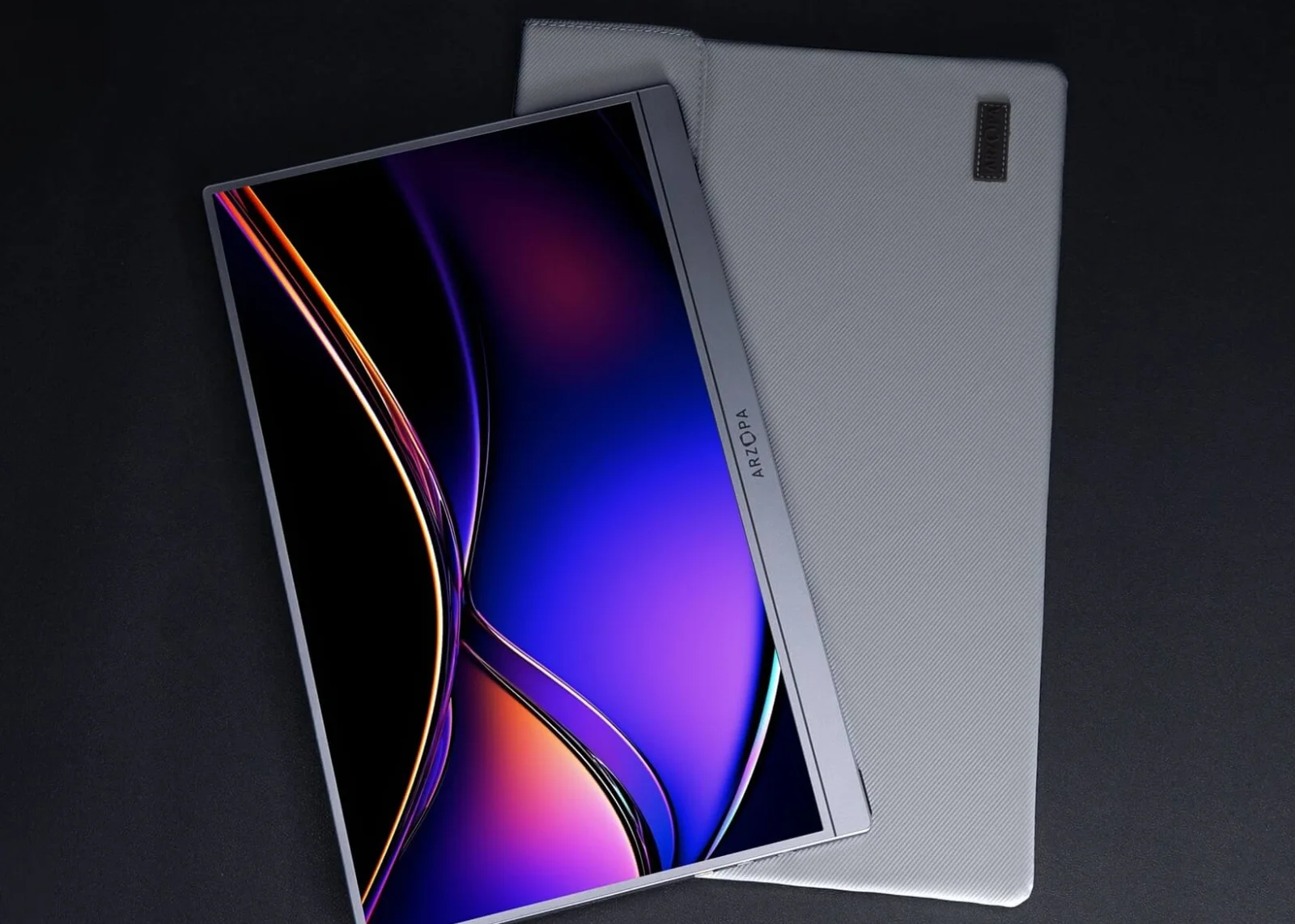
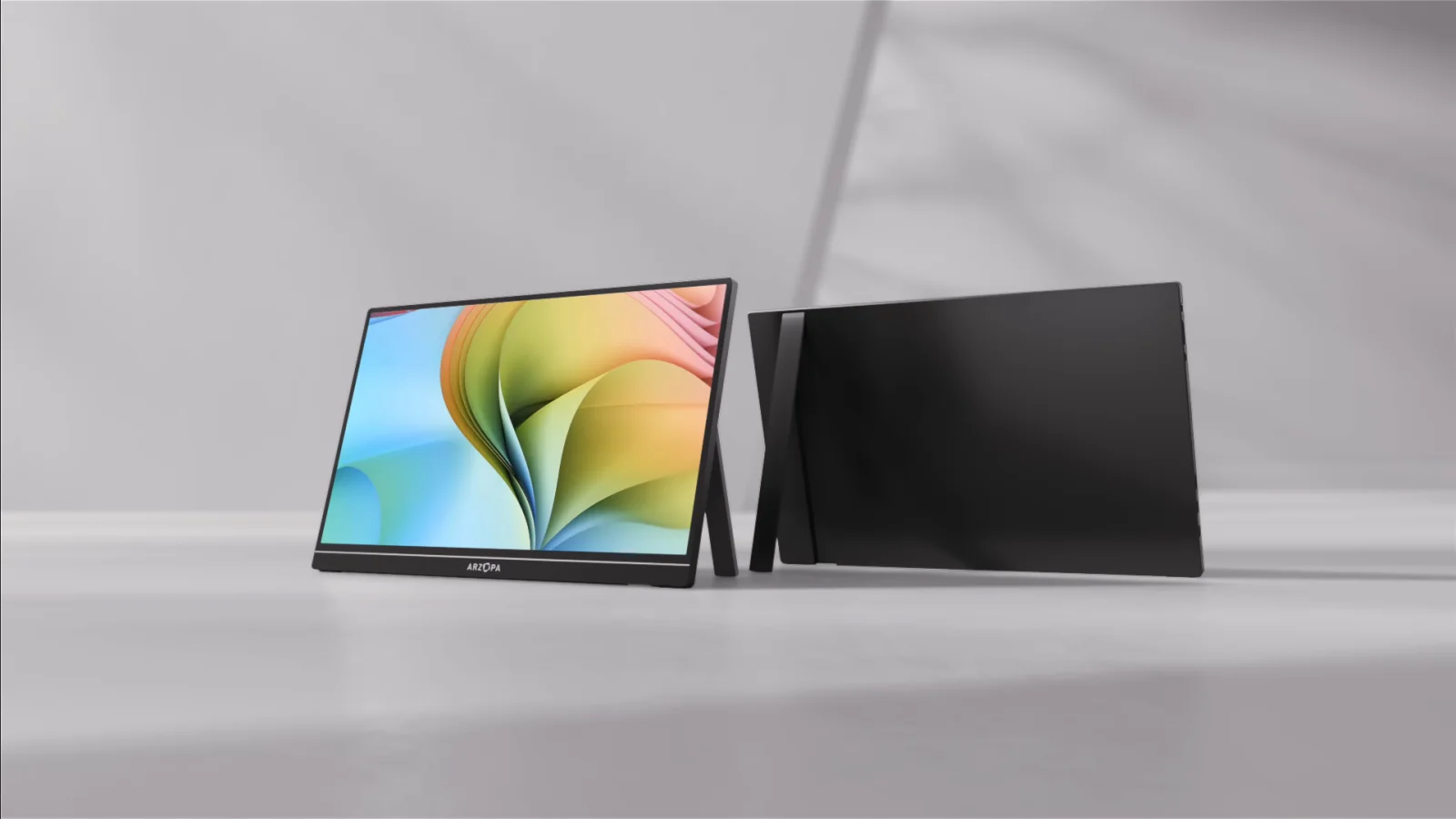
Arzopa Z1RC
Official listing; verify the current USB-C video and power details.
ASUS ZenScreen MB16ACV
Official listing; confirm the exact native USB-C or hybrid path.
Keep choosing
Related pages for the setup you are building.
Best portable monitor for MacBook
Compare native USB-C paths, HDMI power, stands, cables, and current product evidence.
Read nextPortable monitor comparison chart
Filter exact panels by size, resolution, refresh, inputs, power, weight, stand, and Mac/iPad notes.
Read nextCheck this MacBook setup
Pre-fill the M3 Air two-screen setup to check its video, cable, power, and adapter path.
Read nextDual-monitor desk size calculator
Check the desktop width and depth for two external monitors, a laptop, arms, and accessories.
Read nextPortable monitor vs. screen extender
Separate native displays, attachable panels, DisplayLink drivers, power, and returns.
Read nextFuture M4 portable monitor guide
Use the M4-specific page when your MacBook Air has the newer chip and a different display ceiling.
Read nextMacBook Air M1 dual monitors with DisplayLink
Use the M1-specific guide when the native display ceiling is one and a driver-managed dock is under consideration.
Read nextMacBook Air M2 dual monitors with DisplayLink
Use the M2 software-managed path when the newer M3 closed-lid native arrangement does not apply.
Read nextBest DisplayLink docks for MacBook
Compare exact dock chipsets, native versus USB graphics outputs, charging, ports, permissions, and protected-video limits.
Read nextDisplayLink vs InstantView on Mac
Compare the software paths when drivers, Screen Recording permission, managed-Mac policy, or protected video can decide the setup.
Read nextArzopa Z1RC vs Z1FC for MacBook
Compare two native portable-monitor choices after applying the M3 lid-open or lid-closed display limit.
Read nextFrequently asked questions
Does the MacBook Air M3 support two external monitors?
Yes, in Apple’s closed-lid configuration. Apple documents one external display up to 6K at 60Hz, then a second external display up to 5K at 60Hz after you close the M3 MacBook Air lid. The setup requires macOS Sonoma 14.3 or later, an external keyboard and mouse or trackpad, and power. With the lid open, use the built-in display plus one external display.
Can I run two monitors on an M3 MacBook Air with the lid open?
Not through Apple’s native M3 Air configuration described here. Apple’s instructions make two external displays a closed-lid arrangement; opening the lid while both are connected can make the secondary external display go dark or disconnect. A DisplayLink device is a separate, driver-managed path and must be verified as an exact hardware/software combination rather than assumed to work.
What macOS version is needed for two monitors on M3 Air?
Apple lists macOS Sonoma 14.3 or later for the MacBook Air closed-lid dual-monitor setup. A DisplayLink configuration may have its own current Manager and macOS requirements, so check Synaptics’ official macOS downloads page for the version installed on your Mac.
What is the correct order for connecting two monitors to an M3 Air?
Connect and test an external keyboard and mouse or trackpad first. Connect the Mac to power. Connect the first display; it becomes the primary display. Close the MacBook Air lid. Connect the second display. Apple lists the first display at up to 6K60 (or 4K144) and the second at up to 5K60 (or 4K100) in its dual-monitor instructions.
Does a USB-C hub let an M3 MacBook Air run more native displays?
Do not assume it does. A hub or daisy chain changes the wiring, not Apple’s native display-support ceiling. If a display connected through a hub or dock only mirrors, Apple recommends trying a port directly on the Mac. A dock that uses DisplayLink is a separate USB graphics path with a driver and software-maintenance dependency.
Do I need DisplayLink for two monitors on an M3 MacBook Air?
No, not for Apple’s supported closed-lid native arrangement. Use native video connections when they meet your needs. DisplayLink is relevant only when you are intentionally choosing a DisplayLink-capable dock, adapter, or monitor and accept the separate Synaptics Manager software path, macOS compatibility checks, permissions, and support trade-offs.
Can a portable monitor solve the M3 Air dual-monitor limit?
A portable monitor is one external display, not a display-limit bypass. It can be native over USB-C DisplayPort, HDMI with separate power, or DisplayLink through compatible hardware. Match its signal path to the M3 Air, then apply the same lid position, display count, cable, resolution, and power rules.
Is this page about MacBook Pro with M3 Pro or M3 Max?
No. This page is for the MacBook Air with the base M3 chip. Do not transfer its display ceiling or closed-lid wording to a MacBook Pro with M3 Pro or M3 Max; use the exact Mac model’s Apple technical specifications instead.