
Screens & connections
Best portable monitor for MacBook Air M4: fit the extra screen
The MacBook Air M4 is easy to pair with a second screen until the cable and adapter enter the bag. The Z1RC is the work-first choice here; compare it with the simpler option only after checking your Air’s video-capable port and power route.
The Z1RC is the work-first starting point; verify your Air’s ports and power before buying.
MacBook Air M4 owners building a compact dual-screen travel or home-office setup.
A monitor can be compatible on paper while still needing a hub, power brick, or different cable.
Our take is based on published specifications and linked sources. We have not hands-on tested these products. Some links may earn a commission.
Buying links, offers & research notes Expand
A closer look
Pick the panel after checking the signal
These three manufacturer listings cover a sharper 16:10 canvas, a smoother FHD panel, and a clearly documented USB-C path. Confirm the M4 Air port, cable, power, and display-count limits before ordering.
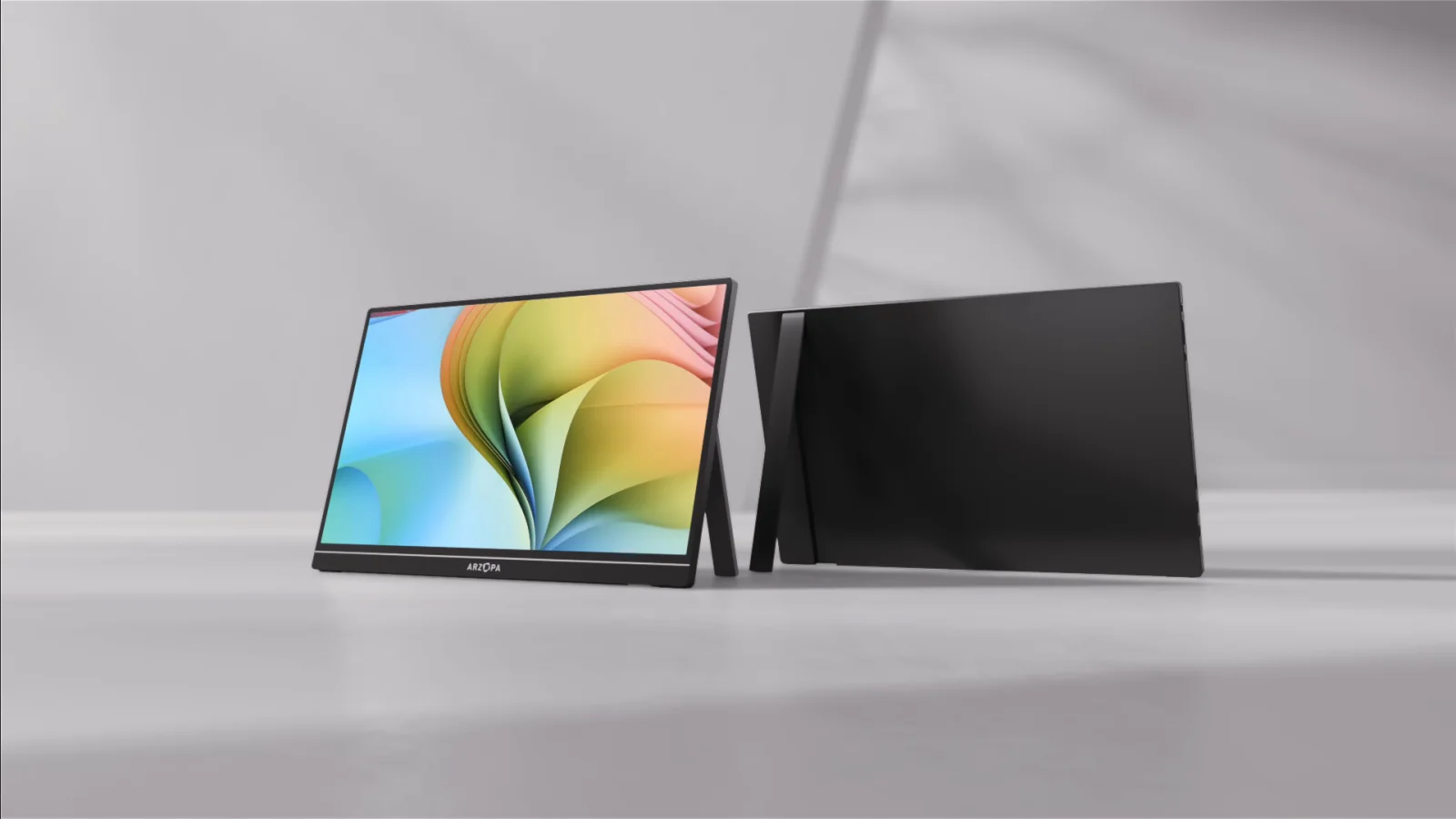 Photo: manufacturer
Arzopa Z1RC
Arzopa
Best for text space
2.5K · 16:10 · native USB-C path
Official specs checked September 8, 2026
See Amazon US listing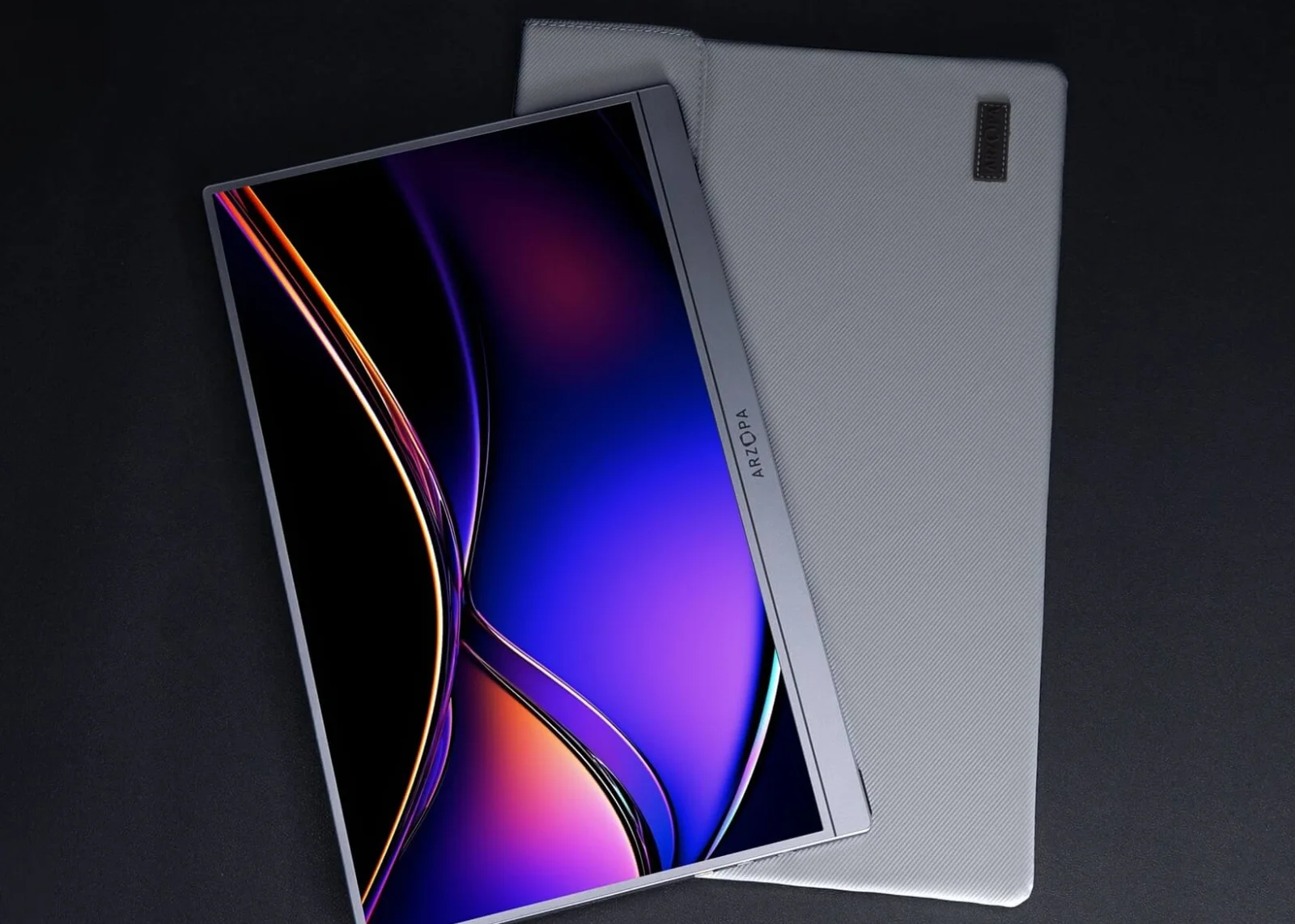 Photo: manufacturer
Arzopa Z1FC
Arzopa
Best for smooth motion
144Hz FHD · native USB-C path
Official specs checked September 8, 2026
See Amazon US listing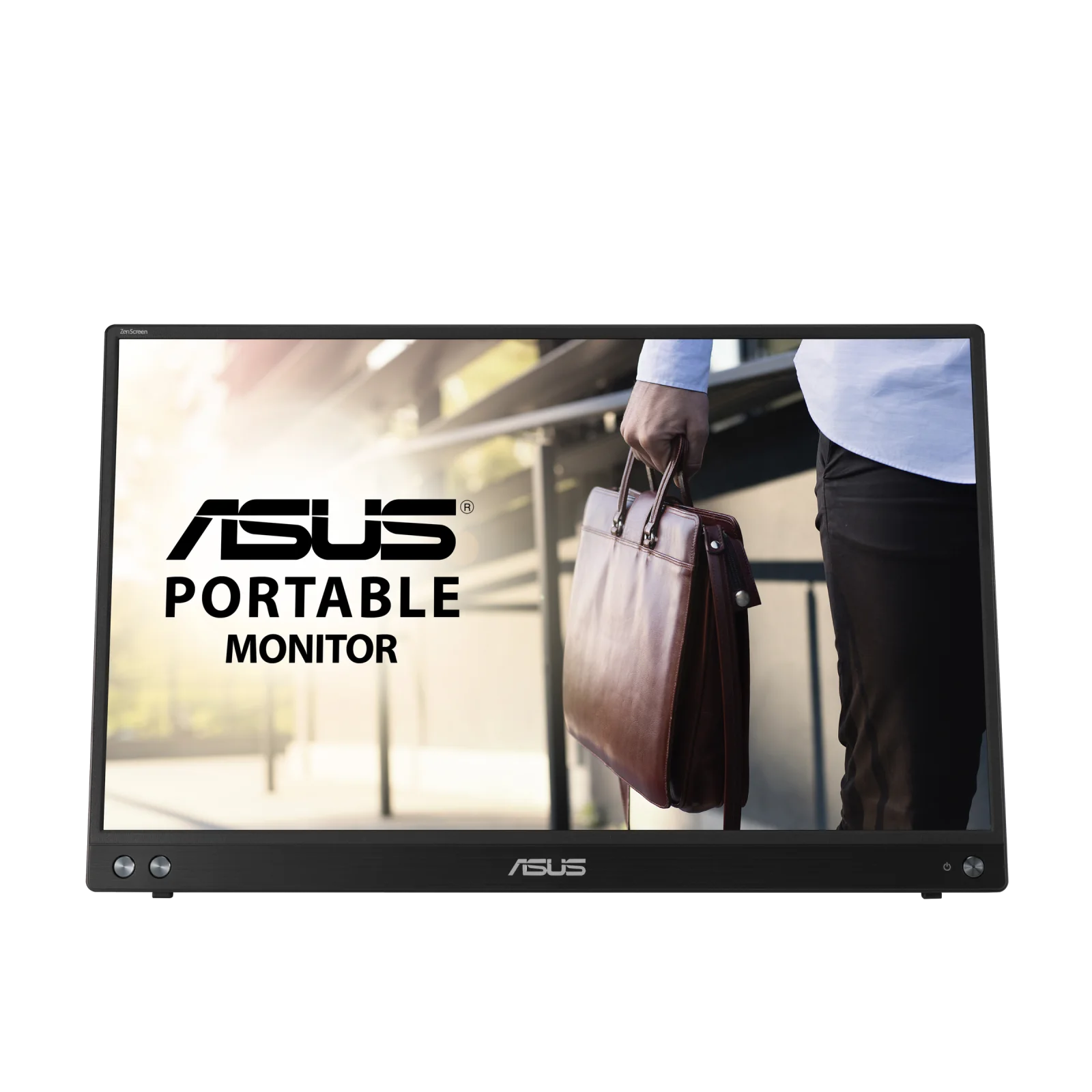 Photo: manufacturer
ASUS ZenScreen MB16ACV
ASUS
Best documented path
FHD · USB-C DP Alt Mode · 6.64W
Official specs checked September 8, 2026
See ASUS US listingCheck the connection before choosing
Check your signal and power path before choosing a portable monitor.
Start with Apple’s limit
M4 Air supports two external displays—with conditions.
Apple’s current support page says a MacBook Air with the M4 chip supports up to two external displays simultaneously in addition to the built-in display. Closing the lid does not increase that number. The exact resolution and refresh rate still matter.
| M4 Air setup | Apple-documented support |
|---|---|
| Built-in display + 1 external | Up to 8K at 60Hz, 5K at 120Hz, or 4K at 240Hz for the external display. |
| Built-in display + 2 external | Two displays up to 6K at 60Hz or 4K at 144Hz. A supported hub or daisy chain can change wiring, not the maximum display count. |
| Closed lid | Does not increase the M4 Air’s maximum external display count, according to Apple’s current page. |
Apple support page checked September 8, 2026; Apple published the current page March 10, 2026. Scaled modes and unusual adapter or dock combinations can change what you see in macOS. Connect the highest-resolution display first and verify your exact setup.
Signal and power logic
Separate the connector, the video signal, and the power plan.
A USB-C plug can carry different things. For an M4 Air, read the monitor input and the cable specification—not just the phrase “works with MacBook.”
USB-C + DP Alt Mode
The native path to prefer. The M4 Air Thunderbolt 4 port, monitor input, and full-featured cable must all carry DisplayPort video.
USB-C power
One cable may carry video and power, but only when the host supplies enough wattage. Flicker or restart means reassess power.
HDMI path
HDMI carries video. Arzopa lists mini HDMI inputs, so an M4 Air adapter or dock plus separate USB-C monitor power is required.
Two-display path
Use two independent video signals—often one native USB-C connection per M4 Air Thunderbolt 4 port. A monitor's second USB-C socket is not a second Mac output.
Manufacturer comparison
Three exact models, three different compromises.
The table stays close to current Arzopa Global and ASUS US manufacturer pages and model documents. “Power” describes the documented route, not a promise that every M4 Air configuration will supply enough wattage.
| Model | Panel | Video input | Power route | HDMI path | Weight | M4 fit |
|---|---|---|---|---|---|---|
| Arzopa Z1RC | 16.0-inch IPS · 2,560 × 1,600 · 16:10 · 60Hz 350 nits | 2 × USB-C (manufacturer lists DP Alt Mode + PD) · 1 × mini HDMI 2.0 | Arzopa lists 12W rated power and says USB-C can carry video + power when the host supplies enough power. | HDMI carries video only; the monitor needs separate USB-C power. The M4 Air needs a suitable USB-C-to-HDMI adapter or dock. | 1.79 lb | A strong one-monitor fit for the M4 Air. Two Z1RC units can use the Air's two Thunderbolt 4 ports only if each connection is an independent native video path and the power plan works. |
| Arzopa Z1FC | 16.1-inch IPS · 1,920 × 1,080 · 16:9 · 144Hz 300 nits | 2 × USB-C (manufacturer lists DP Alt Mode + PD) · 1 × mini HDMI 2.0 | Arzopa lists 10W rated power and says one USB-C cable can carry video + power when the host supplies enough power. | HDMI carries video only; use a separate USB-C power connection. The M4 Air needs a suitable USB-C-to-HDMI adapter or dock. | 1.72 lb | A simple one-monitor fit over native USB-C. Two units are within the M4 Air's two-external-display ceiling in principle, but each still needs its own independent signal and adequate power. |
| ASUS ZenScreen MB16ACV | 15.6-inch IPS · 1,920 × 1,080 · 16:9 · 60Hz 250 cd/m² typical | 1 × USB-C with DisplayPort Alt Mode & USB 3.2; no HDMI input listed | ASUS lists 6.64W power consumption and DC 5V/3A. A compatible USB-C host can carry power and video; low-power behavior may require external power. | No HDMI input is listed for MB16ACV. An HDMI adapter cannot connect to this model without another compatible video input. | 0.9 kg / 1.98 lb | A straightforward single-display choice over one Thunderbolt 4 port. Two MB16ACV units require two independent USB-C video paths; the monitor's hybrid feature does not create a second display output. |
Specifications and included accessories are manufacturer-published figures checked September 8, 2026. Prices are intentionally omitted; open the current Arzopa Global or ASUS US listing for the live offer.
Arzopa Z1RC
Best for text space and a 16:10 work canvas
- Display
- 16.0-inch IPS · 2,560 × 1,600 · 16:10 · 60Hz
- Brightness
- 350 nits
- Refresh rate
- 60Hz
- Dimensions
- 356 × 238 × 9.3 mm (about 14.02 × 9.37 × 0.37 in)
- Weight
- 1.79 lb
- Stand evidence
- Built-in stand with landscape/portrait positioning listed; stability was not independently tested.
Why choose it
Choose it when documents, code, and spreadsheets benefit from 2.5K text and the taller 16:10 frame. The two USB-C sockets can make left/right placement easier.
Why skip it
Skip it if you need high refresh-rate gaming, an independently verified rigid stand, or a single-cable setup that your M4 Air cannot power reliably.
M4 connection read
Native USB-C route when the M4 Air port, full-featured cable, and monitor input all support DisplayPort Alt Mode.
Two-display fit
A strong one-monitor fit for the M4 Air. Two Z1RC units can use the Air's two Thunderbolt 4 ports only if each connection is an independent native video path and the power plan works.
Power + cables: Arzopa lists 12W rated power and says USB-C can carry video + power when the host supplies enough power. USB-C to USB-C full-featured cable, mini-HDMI to HDMI cable, and USB-A to USB-C power cable listed.
HDMI note: HDMI carries video only; the monitor needs separate USB-C power. The M4 Air needs a suitable USB-C-to-HDMI adapter or dock.
Evidence boundary: Arzopa's current Global Z1RC page lists a 16-inch 2,560 × 1,600 IPS panel, 350 nits, 16:10, 60Hz, built-in stand, dual full-function USB-C, mini HDMI, and the listed cables. WorkChoose retained the dimensions, weight, and rated-power figures from the previously checked manufacturer specification set; verify the live listing before ordering. WorkChoose did not independently measure brightness, color, wobble, power draw, or connection reliability.
Arzopa Z1FC
Best for smoother motion at a lower resolution
- Display
- 16.1-inch IPS · 1,920 × 1,080 · 16:9 · 144Hz
- Brightness
- 300 nits
- Refresh rate
- 144Hz
- Dimensions
- 366 × 228 × 9.3 mm (about 14.41 × 8.98 × 0.37 in)
- Weight
- 1.72 lb
- Stand evidence
- Built-in stand for landscape/portrait viewing listed; stability was not independently tested.
Why choose it
Choose it when 144Hz motion matters for games or scrolling and FHD text density is acceptable. It is the lightest of this three-model shortlist on the published figures.
Why skip it
Skip it if your priority is the sharpest text or taller document workspace. “MacBook compatible” still assumes a video-capable USB-C port and enough host power.
M4 connection read
Native USB-C route when the M4 Air port, full-featured cable, and monitor input all support DisplayPort Alt Mode.
Two-display fit
A simple one-monitor fit over native USB-C. Two units are within the M4 Air's two-external-display ceiling in principle, but each still needs its own independent signal and adequate power.
Power + cables: Arzopa lists 10W rated power and says one USB-C cable can carry video + power when the host supplies enough power. USB-C to USB-C full-featured cable, mini-HDMI to HDMI cable, and USB-A to USB-C power cable listed.
HDMI note: HDMI carries video only; use a separate USB-C power connection. The M4 Air needs a suitable USB-C-to-HDMI adapter or dock.
Evidence boundary: Arzopa's current Global Z1FC page lists a 16.1-inch 1,920 × 1,080 IPS panel, 300 nits, 16:9, 144Hz, built-in stand, dual USB-C, and mini HDMI. WorkChoose retained the dimensions, weight, and rated-power figures from the previously checked manufacturer specification set; verify the live listing before ordering. WorkChoose did not independently measure brightness, color, wobble, power draw, or connection reliability.
ASUS ZenScreen MB16ACV
Best documented native USB-C path
- Display
- 15.6-inch IPS · 1,920 × 1,080 · 16:9 · 60Hz
- Brightness
- 250 cd/m² typical
- Refresh rate
- 60Hz
- Dimensions
- 35.8 × 22.5 × 1.0 cm (about 14.09 × 8.86 × 0.39 in)
- Weight
- 0.9 kg / 1.98 lb
- Stand evidence
- Fold-out kickstand with +15° to +35° tilt and a 1/4-inch tripod socket listed; stability was not independently tested.
Why choose it
Choose it when you want a mainstream FHD panel and model-specific ASUS documentation for the native USB-C/DP Alt Mode path. The kickstand supports portrait or landscape placement.
Why skip it
Skip it if you need 2.5K text, 144Hz, multiple direct video inputs, or an HDMI fallback. The Type-A hybrid option adds a driver step and should not be confused with DP Alt Mode.
M4 connection read
Native USB-C DP Alt Mode is the MacBook Air route. ASUS says the Type-A hybrid route needs its driver; that is not the same as native video.
Two-display fit
A straightforward single-display choice over one Thunderbolt 4 port. Two MB16ACV units require two independent USB-C video paths; the monitor's hybrid feature does not create a second display output.
Power + cables: ASUS lists 6.64W power consumption and DC 5V/3A. A compatible USB-C host can carry power and video; low-power behavior may require external power. USB-C cable, sleeve, warranty card, and quick-start guide listed; the manual also describes a USB-C-to-Type-A cable for the hybrid route.
HDMI note: No HDMI input is listed for MB16ACV. An HDMI adapter cannot connect to this model without another compatible video input.
Evidence boundary: ASUS's USA MB16ACV tech-spec page lists a 15.6-inch 1,920 × 1,080 IPS panel, 250 cd/m² typical brightness, 60Hz, one USB-C (DP Alt Mode & USB 3.2), 6.64W power consumption, DC 5V/3A, 35.8 × 22.5 × 1.0 cm dimensions, 0.9 kg net weight, and a +15° to +35° kickstand with tripod socket. The model guide documents DP Alt Mode and the separate Type-A driver route. WorkChoose did not independently measure brightness, color, wobble, power draw, or connection reliability.
Before you buy two
Make the connection plan explicit.
1. Identify the M4 Air ports
The M4 Air has two Thunderbolt 4 ports. Record which port will feed each monitor and whether any dock, hub, or adapter sits in between.
2. Choose native USB-C first
Use a full-featured USB-C cable for each monitor that accepts DP Alt Mode. Do not substitute a charging-only cable.
3. Budget monitor power
Arzopa lists 10W or 12W rated power by model; ASUS lists 6.64W consumption and DC 5V/3A. If the host cannot sustain the screen, add the manufacturer-recommended power cable or adapter.
4. Verify the second signal
A second monitor needs a second independent signal. Confirm the dock explicitly supports two displays on macOS; DisplayLink is a separate driver-managed path.
5. Check the mode ceiling
Two external displays are allowed by Apple for M4 Air, but the pair must fit Apple's documented resolution/refresh combinations. High-refresh or scaled modes can change the practical result.
6. Recheck the live listing
The manufacturer pages were checked September 8, 2026. Confirm exact model, color, cables, stock, price, warranty, and returns at checkout; none of those is permanent evidence.
Why choose a portable monitor
It is a useful M4 Air second-screen tool when…
- You need a separate display for documents, email, code, or reference windows while traveling.
- You can use a documented native USB-C DP Alt Mode path and supply the monitor’s power.
- The screen’s size, resolution, brightness, stand, and cables match the bag and desk you actually use.
Why skip or verify first
It is the wrong shortcut when…
- You are assuming a hub or two monitor USB-C sockets will create more displays than Apple documents.
- The only route is USB-A, DisplayLink, or an HDMI adapter and you have not confirmed the driver, signal, and power plan.
- You need a color-critical, high-brightness, height-adjustable workstation but are relying on a travel kickstand and published claims alone.
Evidence boundary
What the official pages do—and do not—tell you.
Apple sets the display ceiling
Apple's M4 Air support page sets the maximum external display count and supported top-line modes. A portable monitor or hub cannot override it.
Specs are not hands-on results
Resolution, brightness, refresh rate, stand design, cable lists, and power figures are manufacturer specifications. WorkChoose did not personally test the products.
Live terms are time-stamped
The linked Arzopa Global and ASUS US product pages were checked September 8, 2026. Prices, stock, colors, bundles, manuals, warranties, shipping, and return terms can change, so re-open the exact listing before ordering.
Keep choosing
Related MacBook setup pages.
Best portable monitor for MacBook
Start with the broader port, power, stand, and external-display buying guide.
Read nextPortable monitor vs. screen extender
Compare native USB-C displays with attachable, driver-managed screen formats.
Read nextPortable monitor comparison chart
Filter exact panels by size, resolution, refresh, inputs, power, weight, stand, and Mac/iPad notes.
Read nextDual-monitor desk size calculator
Check the desktop width and depth for two portable monitors, a laptop, arms, and accessories.
Read nextMacBook Air M3 dual-monitor support
Open the related M3 lid-closed display-limit guide when your chip is not M4.
Read nextMacBook Air M1 dual monitors with DisplayLink
Use the M1 guide when a driver-managed dock is needed to go beyond that chip’s native one-display limit.
Read nextMacBook Air M2 dual monitors with DisplayLink
Use the M2 guide when its native one-display limit requires a driver-managed second-display path.
Read nextArzopa Z1RC vs Z1FC
Compare sharper 16:10 work space with faster 16:9 motion after confirming the M4 Air connection plan.
Read nextArzopa Z1RC vs Z1FC for Mac mini M4
Compare 2.5K 16:10 work space with FHD 144Hz motion after checking the Mac mini M4 output and power path.
Read nextFrequently asked questions
Can a MacBook Air M4 run two portable monitors?
Yes. Apple says a MacBook Air with the M4 chip supports up to two external displays simultaneously in addition to the built-in display, subject to the resolution and refresh rate of each display. Closing the lid does not increase that number. Each portable monitor still needs an independent video signal and a workable power path.
What is the best portable monitor for MacBook Air M4?
It depends on the job. Arzopa Z1RC is the text-space pick with a 2,560 × 1,600 16:10 panel; Arzopa Z1FC prioritizes a 144Hz refresh rate at FHD; ASUS ZenScreen MB16ACV offers the clearest model-specific documentation for a single USB-C DP Alt Mode connection. These are fit-based recommendations, not personal test results.
Does USB-C automatically mean a portable monitor will work with M4 Air?
No. USB-C describes the connector shape, not the signal. The M4 Air port, monitor input, and full-featured cable must support DisplayPort Alt Mode (or the HDMI adapter path must be verified). A USB-C charging-only cable or input can power a screen without carrying video.
Can one USB-C cable carry both video and power?
Sometimes. Arzopa says one full-featured USB-C cable can carry video and power when the host supports USB-C video output and supplies enough power. ASUS lists a 5V/3A requirement for MB16ACV. If the display flickers, restarts, or becomes dim, follow the manufacturer's external-power guidance and use a second cable or adapter.
Can I use HDMI from a MacBook Air M4?
The M4 Air has Thunderbolt 4 ports rather than a built-in HDMI port. An appropriate USB-C-to-HDMI adapter or dock can carry an independent HDMI signal to a monitor such as the Arzopa models, but HDMI normally carries video only, so plan separate USB-C power. MB16ACV does not list an HDMI input, so it is a USB-C-only display in this shortlist.
Do two USB-C ports on a portable monitor support two Mac displays?
No. On the Arzopa Z1RC and Z1FC, the manufacturer lists two USB-C interfaces for flexible connection, PD power, and DP signaling; they are not two independent Mac video outputs. For two displays, use two independent M4 Air video paths or a macOS-compatible dock that explicitly supports two displays. A hub cannot raise Apple's documented maximum.
Does “works with MacBook” prove compatibility?
No. Treat it as a starting claim. Check the exact Mac chip and port, USB-C DP Alt Mode or HDMI adapter path, cable, power requirement, display count, resolution, refresh rate, and model manual. The monitor's published compatibility list does not override Apple's M4 Air display limit.
Are prices shown on this page?
No. Prices, stock, colors, bundles, shipping, and retailer terms can change. Arzopa evidence and coupon links open Arzopa Global, the ASUS evidence link opens ASUS US, and eligible Z1RC and Z1FC purchase buttons open Amazon US through approved affiliate links; use the relevant live offer link before ordering.