
Screens & connections
Best portable monitor for MacBook: a workday shortlist
A MacBook makes the portable-monitor market look easy until cables, power, and display arrangement enter the room. This shortlist keeps the decision human: choose the extra screen for how you write, compare, or play, then verify the connection details.
Choose Z1RC for 2.5K 16:10 text; choose Z1FC for 144Hz FHD motion; verify the MacBook connection first.
MacBook writers and spreadsheet users fit Z1RC; gaming or scrolling priorities fit Z1FC.
Exact Mac support, DisplayPort-over-USB-C, cable capability, and power remain separate checks.
Our take is based on published specifications and linked sources. We have not hands-on tested these products. Some links may earn a commission.
Buying links, offers & research notes Expand
Confirm the final cart discount and Global-store eligibility against Arzopa’s current coupon terms before paying. See the verified Arzopa coupon list for other current offers.
A closer look
Match the signal before the screen
The first decision is the video path: panel shape, refresh target, or USB-C DisplayPort Alt Mode. Confirm the exact MacBook port and monitor variant on the manufacturer page.
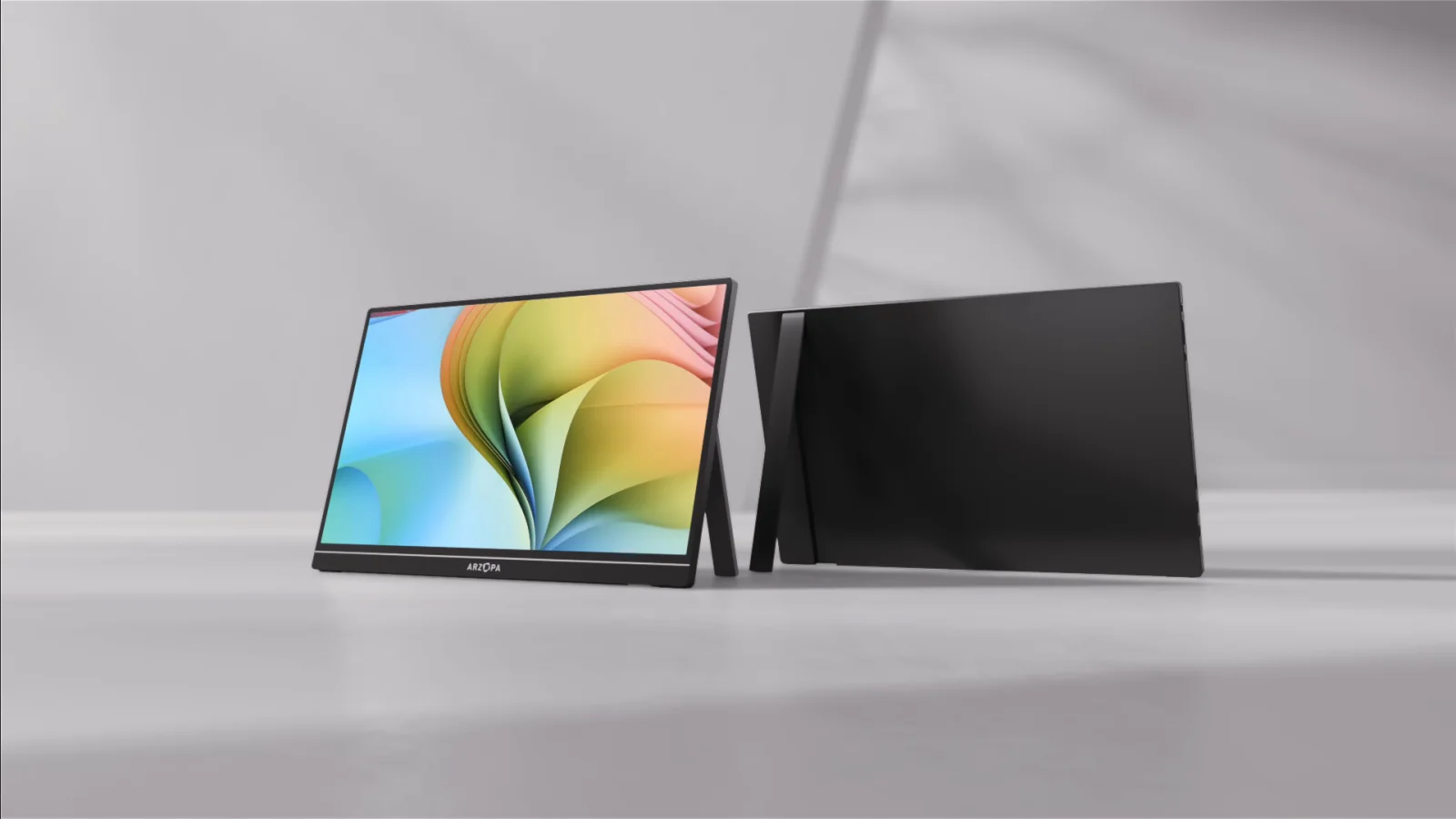 Photo: manufacturer
Arzopa Z1RC
Arzopa
Panel fit
16:10 · 2,560 × 1,600 · 16.0 in
Official specs checked September 8, 2026
See Amazon US listing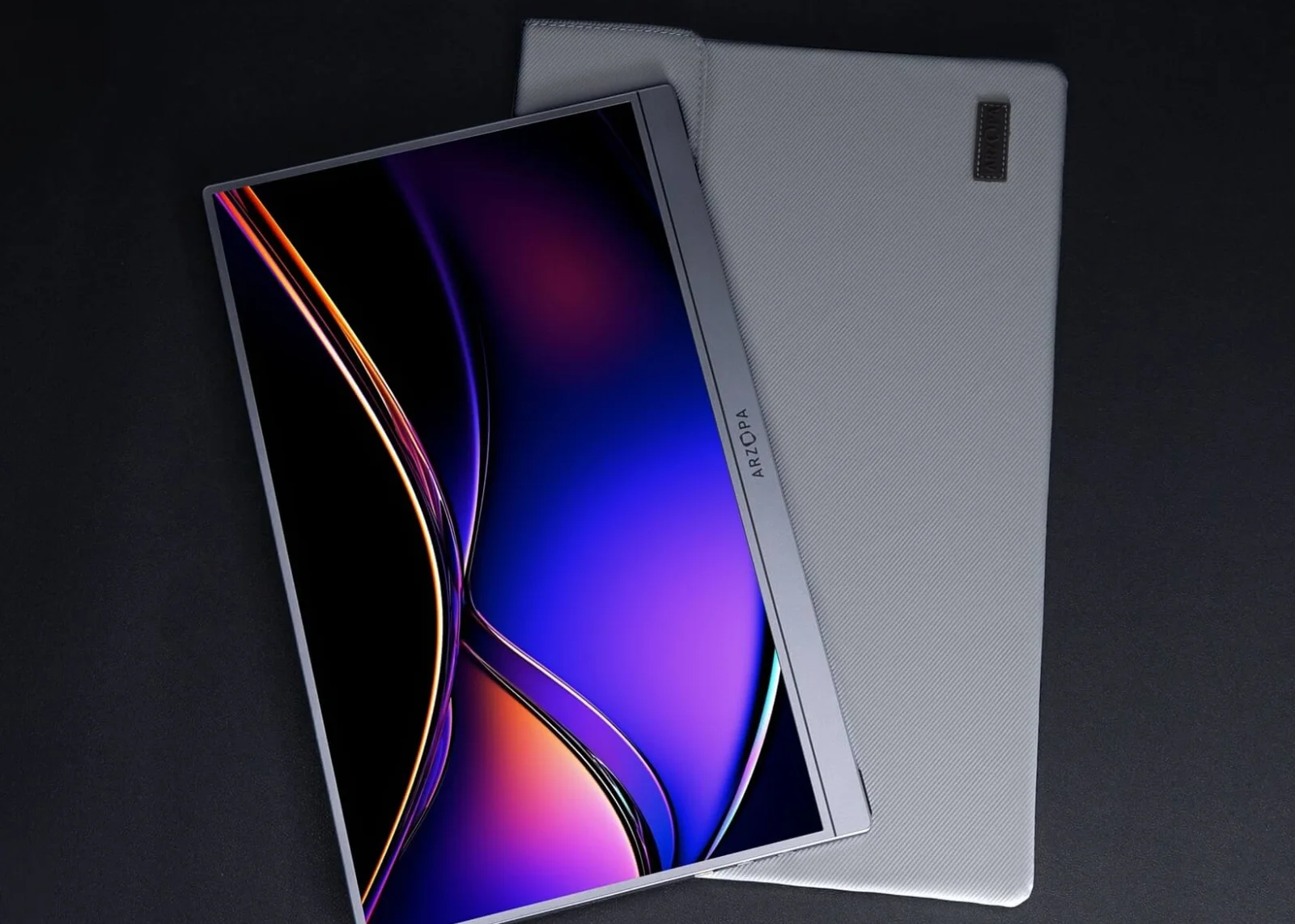 Photo: manufacturer
Arzopa Z1FC
Arzopa
Refresh fit
144Hz · 16.1 in · FHD
Official specs checked September 8, 2026
See Amazon US listing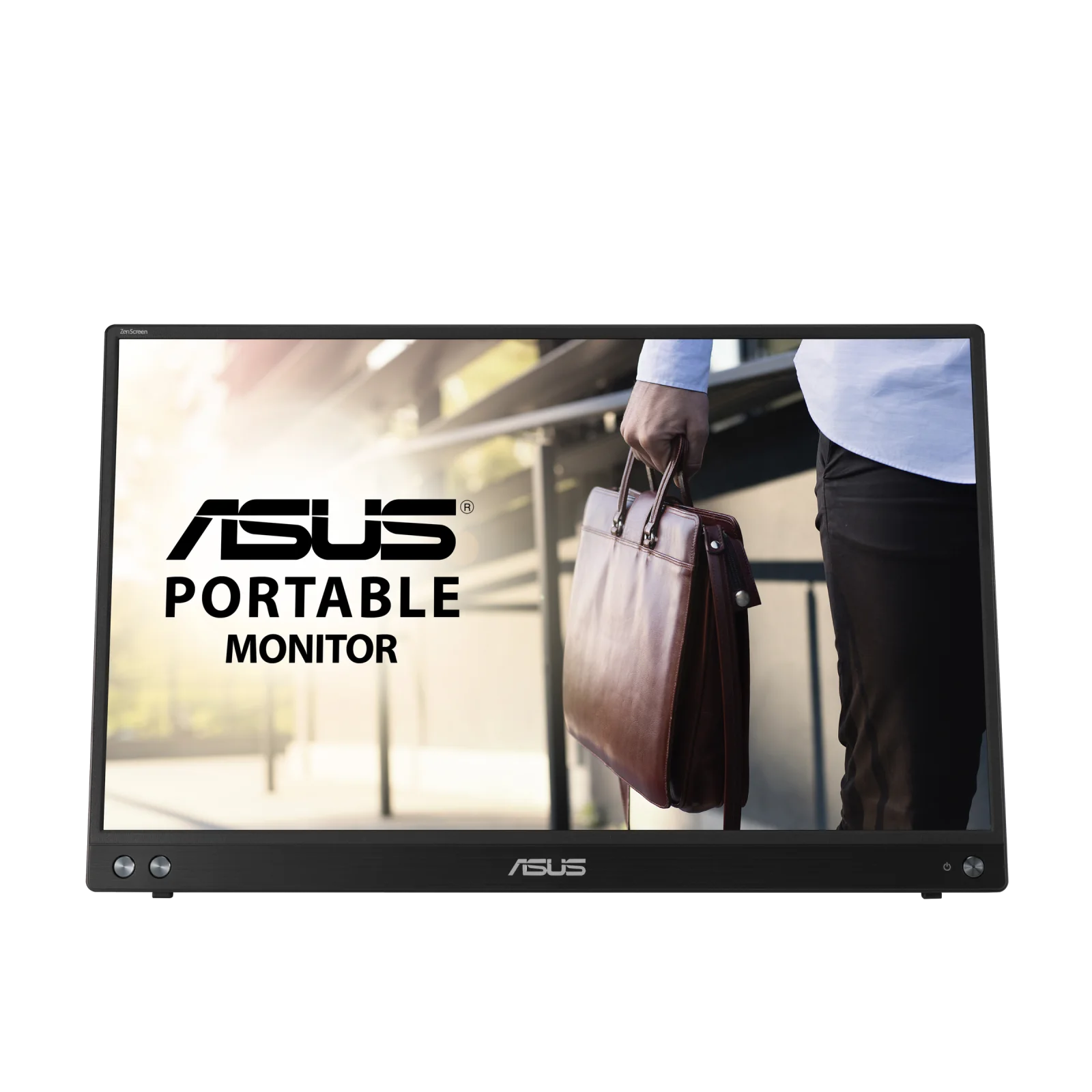 Photo: manufacturer
ASUS ZenScreen MB16ACV
ASUS
Connection fit
USB-C DisplayPort Alt Mode
Official specs checked September 8, 2026
See ASUS US listingCheck the connection before choosing
Check your signal and power path before choosing a portable monitor.
1. Identify the Mac
Write down the exact MacBook model, chip, macOS version, ports, and external displays already connected.
2. Match the signal
Use USB-C with DisplayPort Alt Mode when the port, cable, and monitor all support it. HDMI and USB-A routes change the power or driver plan.
3. Plan the power
One cable may carry video and power, but a portable monitor can still need an adapter or second USB-C cable when the host cannot supply enough power.
The short answer
Choose the Z1RC for sharper 16:10 work space, Z1FC for a higher-refresh work-and-play panel, or MB16ACV for an explicitly documented USB-C DP Alt Mode path—then verify your Mac’s own display limit.
Mac capability first
Your MacBook decides how many screens can exist.
Apple’s current support pages say the maximum number of external displays depends on the Mac model, resolution, and refresh rate. A hub or daisy chain can simplify connections, but it does not increase that maximum.
| MacBook family | Apple-documented ceiling | Buying implication |
|---|---|---|
| MacBook Pro 13-inch with base M1 or M2 | 1 native external display with the built-in display | These 2020/2022 models have base M1/M2 chips, not M1 Pro/M2 Pro. Apple specifies one external display up to 6K at 60Hz; charging uses USB-C rather than MagSafe. |
| MacBook Air M1 or M2 | 1 external display with the built-in display | A direct USB-C/Thunderbolt display is the native path. Apple’s M1 and M2 Air tech specs each list one external display. |
| MacBook Air M3 | 1 external display with the lid open; up to 2 with the lid closed | A second portable monitor changes the lid/display arrangement. Apple also limits the supported resolution and refresh rate for each display. |
| MacBook Air M4 or M5 | Up to 2 external displays with the built-in display | Use Apple’s current Air support page for the exact resolution/refresh combination and connect the highest-resolution display first. |
| MacBook Pro with base M3 | 1 external display with the lid open; up to 2 with the lid closed | Two displays are a lid-closed configuration in Apple’s current Pro support table. |
| MacBook Pro with base M4 or M5 | Up to 2 external displays with the built-in display | The ceiling is still a Mac capability limit; a hub cannot create more displays than Apple documents. |
| MacBook Pro with Pro/Max chips | 2–4 external displays depending on the exact chip | Apple lists separate ceilings for M2/M3 Pro, M2/M3 Max, M4 Pro/Max, and M5 Pro/Max. Check the exact model before buying two or more screens. |
| Intel or older MacBook | Model-specific | Open Apple’s tech specs for the exact model. Do not use an Apple silicon rule as a substitute. |
Apple support pages checked September 8, 2026. Resolution and refresh-rate combinations can reduce the practical ceiling; use your exact Apple tech-spec page for older models and unusual configurations.
Connection logic
USB-C is a connector shape, not a compatibility verdict.
USB-C + DP Alt Mode
The native path to prefer. Apple documents DisplayPort/Thunderbolt video on supported MacBook ports; the monitor and full-featured cable must also support video.
USB-C power
Some monitors can receive video and power over one cable. If the screen flickers or enters power-saving mode, use the manufacturer’s recommended adapter or a second power cable.
HDMI or USB-A
HDMI carries video but normally needs separate monitor power. USB-A hybrid routes can require a DisplayLink or manufacturer driver; they are not the same as native DP Alt Mode.
Search-path selector
Pick the connection path before picking the monitor.
These four routes answer different buying questions. The exact MacBook model, port, cable, power source, macOS version, and Apple display limit remain the final compatibility check.
Portable monitor with one cable on MacBook
Choose a monitor with USB-C DisplayPort Alt Mode when the Mac port, monitor input, and full-featured cable all support video. One cable can carry video and power in a compatible setup; it cannot create video on a data-only port or guarantee enough wattage.
Portable monitor for MacBook with HDMI
HDMI is a video path, not usually a one-cable power path for a portable panel. Match the Mac output, monitor HDMI input, adapter direction, resolution, and a separate USB-C power connection. Do not assume every USB-C-to-HDMI cable works in both directions.
Portable monitor with no driver on MacBook
Native USB-C DisplayPort Alt Mode or HDMI normally avoids a USB graphics driver when the exact ports and cable support the signal. “No driver” still does not guarantee the Mac display count, sleep/wake behavior, brightness, or power budget.
DisplayLink dock for MacBook Air M3
A DisplayLink dock is a software-dependent USB graphics route: it needs a compatible dock, current DisplayLink Manager, macOS permissions, and an employer-approved install if applicable. It may change the available wiring, but it does not rewrite Apple’s documented native M3 display rules or remove the need to verify the lid arrangement.
Evidence boundary: Apple’s display and port support pages define the Mac-side ceiling; each monitor or dock manual defines its signal and power requirements; DisplayLink defines its own software path. WorkChoose did not test an individual cable, dock, M3 Air, or monitor combination.
Manufacturer specs
Three current models, three different compromises.
The table below stays close to current manufacturer pages and exact model documents. “Stand evidence” means what the manufacturer lists—not a stability score. “Power” describes the documented route, not a guarantee that every MacBook configuration supplies enough wattage.
| Model | Panel | Brightness | Ports / video path | Power / cables | Weight | Stand evidence |
|---|---|---|---|---|---|---|
| Arzopa Z1RC | 16.0-inch IPS · 2,560 × 1,600 · 16:10 · 60Hz | 350 nits | 2 × USB-C (DP output + PD power) · 1 × mini HDMI 2.0 | USB-C host can carry video + power when the MacBook port and cable support it; HDMI needs separate USB-C power. USB-C to USB-C full-featured cable, mini-HDMI to HDMI cable, USB-A to USB-C power cable listed. | 1.79 lb | Built-in stand with landscape/portrait positioning listed; hinge stability was not independently tested. |
| Arzopa Z1FC | 16.1-inch IPS · 1,920 × 1,080 · 16:9 · 144Hz | 300 nits | 2 × USB-C (DP output + PD power) · 1 × mini HDMI 2.0 | USB-C host can carry video + power when the MacBook port and cable support it; HDMI needs separate USB-C power. USB-C to USB-C full-featured cable, mini-HDMI to HDMI cable, USB-A to USB-C power cable listed. | 1.72 lb | Built-in stand for landscape/portrait viewing listed; hinge stability was not independently tested. |
| ASUS ZenScreen MB16ACV | 15.6-inch IPS · 1,920 × 1,080 · 16:9 · 60Hz | 250 cd/m² typical | 1 × USB-C with DisplayPort Alt Mode; Type-A hybrid connection uses the ASUS/DisplayLink driver path. | USB-C port carries video and power on a compatible DP Alt Mode host; manual lists DC 5V/3A and describes the Type-A driver route. USB-C to USB-C cable and USB-C to USB-A cable listed in the exact user guide; sleeve/cover also listed. | 0.9 kg / 1.98 lb | Fold-out kickstand with 15°–35° tilt and a 1/4-inch tripod socket listed; stability was not independently tested. |
All figures are manufacturer-published specifications or package fields checked September 8, 2026. Arzopa’s Global pages list a quick-start guide and a dynamic support center rather than a stable model PDF URL; use the exact guide supplied with the unit. ASUS’s MB16ACV English user guide is linked below each card.
Arzopa Z1RC
Best text-space fit in this shortlist
- Display
- 16.0-inch IPS · 2,560 × 1,600 · 16:10 · 60Hz
- Brightness
- 350 nits
- Ports
- 2 × USB-C (DP output + PD power) · 1 × mini HDMI 2.0
- Dimensions
- 356 × 238 × 9.3 mm (about 14.02 × 9.37 × 0.37 in)
- Weight
- 1.79 lb
- Stand evidence
- Built-in stand with landscape/portrait positioning listed; hinge stability was not independently tested.
Why consider it
Consider it when sharper text and extra vertical space matter more than high refresh rate. Its two USB-C ports give you more flexibility for which side receives the cable.
Why skip it
Skip it when you need 120Hz/144Hz gaming, an integrated hard stand, or you cannot provide enough USB-C power. The official page does not establish a universal Mac model guarantee beyond a compatible video-output port.
Mac connection read
A good candidate for documents, code, and spreadsheets when you want 16:10 vertical room. Apple silicon MacBooks with a video-capable USB-C/Thunderbolt port can use the direct USB-C route.
Single / multi-display boundary
The monitor is one external display; the MacBook chip decides whether a second one can be added. Do not treat two USB-C ports on the monitor as two Mac video outputs.
Power + included cables: USB-C host can carry video + power when the MacBook port and cable support it; HDMI needs separate USB-C power. USB-C to USB-C full-featured cable, mini-HDMI to HDMI cable, USB-A to USB-C power cable listed.
Current policy check: Global product, return, and warranty pages checked September 8, 2026: Arzopa lists a 1-year limited warranty and returns, refunds, or exchanges within 30 days of receipt, subject to eligibility and exclusions. Non-defective return shipping is buyer-paid. Recheck stock, variant, region, and live terms before ordering.
Evidence boundary: The current Global product page lists 16-inch 2.5K (2,560 × 1,600) IPS, 350 nits, 16:10, 60Hz, 1.79 lb, a built-in stand, two full-featured USB-C ports, mini HDMI, included cables, and 12-month warranty service. Arzopa’s resource center lists the Z1RC model selector and support materials.
Arzopa Z1FC
Best work-and-play balance on paper
- Display
- 16.1-inch IPS · 1,920 × 1,080 · 16:9 · 144Hz
- Brightness
- 300 nits
- Ports
- 2 × USB-C (DP output + PD power) · 1 × mini HDMI 2.0
- Dimensions
- 366 × 228 × 9.3 mm (about 14.41 × 8.98 × 0.37 in)
- Weight
- 1.72 lb
- Stand evidence
- Built-in stand for landscape/portrait viewing listed; hinge stability was not independently tested.
Why consider it
Consider it when you want a larger 16.1-inch portable panel, built-in stand, and higher refresh rate for motion while keeping a simple USB-C/mini-HDMI setup.
Why skip it
Skip it when your priority is the sharpest text or a taller 16:10 workspace. FHD at 16:9 gives less vertical workspace than the Z1RC, and “MacBook compatible” still assumes a video-capable USB-C port.
Mac connection read
The direct USB-C path is the cleanest fit for a compatible MacBook port. The FHD 16:9 panel and 144Hz ceiling are manufacturer specifications; macOS and the Mac model still determine the available output mode.
Single / multi-display boundary
One Z1FC is one external display. Adding a second Z1FC requires a MacBook that supports the additional display and a connection path that provides another independent video signal.
Power + included cables: USB-C host can carry video + power when the MacBook port and cable support it; HDMI needs separate USB-C power. USB-C to USB-C full-featured cable, mini-HDMI to HDMI cable, USB-A to USB-C power cable listed.
Current policy check: Global product, return, and warranty pages checked September 8, 2026: Arzopa lists a 1-year limited warranty and returns, refunds, or exchanges within 30 days of receipt, subject to eligibility and exclusions. Non-defective return shipping is buyer-paid. Recheck stock, variant, region, and live terms before ordering.
Evidence boundary: The current Global product page technical table lists 16.1-inch FHD (1,920 × 1,080) IPS, 300 nits, 16:9, 144Hz, 1.72 lb, a built-in stand, two USB-C inputs with PD and DisplayPort support, mini HDMI, and included cables. Arzopa’s resource center lists the Z1FC model selector and support materials.
ASUS ZenScreen MB16ACV
Best documented one-cable USB-C route
- Display
- 15.6-inch IPS · 1,920 × 1,080 · 16:9 · 60Hz
- Brightness
- 250 cd/m² typical
- Ports
- 1 × USB-C with DisplayPort Alt Mode; Type-A hybrid connection uses the ASUS/DisplayLink driver path.
- Dimensions
- 357.9 × 224.8 × 10.5 mm (about 14.09 × 8.86 × 0.41 in)
- Weight
- 0.9 kg / 1.98 lb
- Stand evidence
- Fold-out kickstand with 15°–35° tilt and a 1/4-inch tripod socket listed; stability was not independently tested.
Why consider it
Consider it when a mainstream 15.6-inch FHD screen, documented USB-C/DP Alt Mode behavior, and a supplied Type-A fallback are useful. ASUS publishes a model-specific manual and support page.
Why skip it
Skip it when you want 2.5K text density, 144Hz, two direct video-capable USB-C inputs, or a manufacturer-published US return window on the product page. Type-A operation adds a driver step.
Mac connection read
For a MacBook, use the USB-C port’s DisplayPort Alt Mode path. The ASUS manual says no USB monitor driver is needed when using Type-C DP Alt Mode; do not assume an adapter’s USB-A port is equivalent.
Single / multi-display boundary
The MB16ACV is one external display. The MacBook’s chip and Apple’s display-support table—not the monitor’s hybrid USB feature—determine whether another display can be used.
Power + included cables: USB-C port carries video and power on a compatible DP Alt Mode host; manual lists DC 5V/3A and describes the Type-A driver route. USB-C to USB-C cable and USB-C to USB-A cable listed in the exact user guide; sleeve/cover also listed.
Current policy check: Current ASUS US product/support pages checked September 3, 2026: the product page routes buyers to ASUS and retail “Where to buy” listings; it does not publish one universal return window. ASUS’s US monitor warranty page states a standard 36-month period for non-OLED monitor models, subject to region and purchase terms. Confirm the retailer return policy and exact warranty coverage.
Evidence boundary: The ASUS USA tech-spec page and exact MB16ACV user guide list a 15.6-inch 1,920 × 1,080 IPS panel, 250 cd/m² typical brightness, 60Hz, USB-C DP Alt Mode, 0.9 kg net weight, 357.9 × 224.8 × 10.5 mm dimensions, tilt range, power requirement, and included cables. ASUS documents a driver requirement for the Type-A hybrid route.
Connection checklist
Fill this out before you click Buy.
Keep the exact MacBook model and the exact monitor variant on the same sheet. A cable, hub, and adapter can change the answer even when the screen itself is unchanged.
1. Identify the MacBook
Model name: ____________________ | Chip: ____________________ | macOS: ____________________
Open Apple menu → About This Mac. Record whether your existing displays already consume the Mac’s native limit.
2. Identify the port
Port symbol: Thunderbolt / USB-C / HDMI | Video over USB-C: yes / verify / no
Apple’s port guide and exact tech specs decide whether the port carries DisplayPort video. Shape alone is not enough.
3. Choose the signal path
Monitor: ____________________ | USB-C DP Alt Mode / HDMI / USB-A driver
Prefer a full-featured USB-C cable for native DP Alt Mode. If you choose USB-A or a DisplayLink adapter, record the exact driver and macOS requirement.
4. Plan power
One-cable attempt: yes / no | Adapter: ______ V / ______ A | Second cable: yes / no
Arzopa pages list separate power guidance for HDMI; ASUS’s manual lists DC 5V/3A. Follow the exact monitor’s current instructions.
5. Check the display limit
External displays already connected: ______ | New display(s): ______
Use Apple’s Air or Pro support table. A hub or daisy chain can change wiring, not the Mac’s maximum display count.
6. Check the physical setup
Desk width: ______ in | Viewing angle: ______ | Stand/tripod plan: ____________________
Record the manufacturer’s stand evidence, but treat stability and viewing comfort as unverified until you assess your own desk setup.
Why consider a portable monitor
It can solve a temporary second-screen constraint.
- You need a separate display for documents, email, code, or reference windows while traveling.
- Your MacBook has a documented native video path and you can supply the monitor’s power.
- The screen’s size, resolution, brightness, cables, and stand match the actual bag and desk you will use.
Why skip or verify first
A portable panel is the wrong shortcut when…
- You need more external screens than Apple documents for your exact chip.
- The only available connection is USB-A or a hub and you have not confirmed the driver path.
- You need a color-critical, high-brightness, height-adjustable workstation but are relying on a travel kickstand and unverified claims.
Evidence boundary
What the manufacturer pages do not answer for you.
Compatibility is conditional
A MacBook product name is not a complete test. Chip, port protocol, cable, adapter, power, macOS, and display count all matter.
Stand and picture claims are not hands-on results
Built-in stand, brightness, color gamut, and resolution are manufacturer specifications. WorkChoose did not measure wobble, luminance, color, or connection reliability.
Policies are time-stamped
Arzopa Global product, warranty, and return pages were checked September 8, 2026. Re-open the exact product and policy pages before purchasing.
Keep choosing
Next pages for the setup you are building.
Best portable monitors for laptops
Use the broader Windows and Chromebook guide when the decision is about DP Alt Mode, HDMI power, or USB-A drivers rather than a specific Mac chip.
Read nextUnder-desk work setup
Start with the complete desk, walking pad, monitor, cable, and task workflow.
Read nextPortable monitor vs. screen extender
Compare native and driver-managed signal paths across portable and attachable screen formats.
Read nextPortable monitor comparison chart
Filter exact panels by size, resolution, refresh, inputs, power, weight, stand, and Mac/iPad notes.
Read nextDual-monitor desk size calculator
Check the desktop width and depth for two portable monitors, a laptop, arms, and accessories.
Read nextDisplayLink vs. InstantView
Compare software-managed USB display paths by installation, permissions, protected video, latency, and IT restrictions.
Read nextBest portable monitor for MacBook Air M4
Narrow the shortlist to the current Air M4 display limit, one-cable power plan, and portable work constraints.
Read nextMacBook Air M4 dual portable monitors
Connect two portable screens through two native video paths, then plan cables and power for each panel.
Read nextBest portable monitor for iPad Pro
Match the exact iPad, USB-C video, external power, Stage Manager workflow, and portable-monitor fit.
Read nextMacBook Air M3 dual-monitor support
Check the lid-closed arrangement, native display ceiling, and dock path before buying a second panel.
Read nextMacBook Air M1 dual portable monitors
Separate the M1 native one-display limit from a driver-managed DisplayLink dock path before buying a second panel.
Read nextMacBook Air M2 dual portable monitors
Separate the M2 native one-display ceiling from the DisplayLink dock, permissions, power, and adapter path.
Read nextTouchscreen portable monitors for MacBook
Separate video compatibility from macOS touch input, drivers, USB data, and power before buying.
Read nextArzopa Z1RC vs Z1FC for MacBook
Choose between sharper 16:10 work space and faster 16:9 motion using exact input, power, size, and stand facts.
Read nextArzopa Z1RC review
Check the 2.5K 16:10 workspace, 60Hz limit, USB-C/HDMI power paths, and current purchase terms before choosing.
Read nextArzopa A1M vs Z1RC
Choose between a larger 17.3-inch FHD panel and a sharper, lighter 16-inch 2.5K 16:10 panel.
Read nextArzopa A1M vs Z1FC
Choose between a larger 17.3-inch work canvas and a lighter 16.1-inch panel with a 144Hz published ceiling.
Read nextArzopa Z1C vs Z1FC
Compare two 16.1-inch FHD models by refresh rate, color claim, power, weight, ports, and current official conflicts.
Read nextArzopa Z3FC vs Z1FC
Choose between 2.5K at a listed 180Hz and FHD at 144Hz after checking the exact Mac, signal, cable, and power path.
Read nextArzopa Z3FC vs Z1RC
Compare the 16:9 QHD high-refresh gaming route with the 16:10 2.5K/60Hz productivity route by Mac signal path, power, and workspace fit.
Read nextBest Arzopa portable monitor
Choose among Z3FC, Z1RC, Z1FC, Z1C, and A1M by aspect ratio, resolution, refresh, power path, and Mac workspace fit.
Read nextMonitor arms for a walking-pad desk
Check VESA, monitor weight, clamp fit, cable travel, and the source of visible screen movement.
Read nextHow WorkChoose chooses
Read the evidence and sorting rules behind fit-first product pages.
Read nextFrequently asked questions
What is the best portable monitor for a MacBook?
There is no universal winner. The Arzopa Z1RC is the desk-first text-space option on this page, the Arzopa Z1FC is the work-and-play option on published refresh-rate specs, and the ASUS ZenScreen MB16ACV is the most explicitly documented one-cable USB-C/DP Alt Mode route. Your MacBook chip, port, power plan, display count, and task should decide the final choice.
Does every MacBook USB-C port support an external monitor?
Do not assume from the shape alone. Apple’s port guide and the MacBook’s exact tech-spec page identify whether the port carries DisplayPort or Thunderbolt video. A portable monitor’s USB-C input must also support video, and the cable must be full-featured. If the route is USB-A through a hub or adapter, a driver or DisplayLink device may be required.
Can I connect two portable monitors to a MacBook?
Only when the MacBook chip and connection path support two independent external displays. Apple says a supported hub or daisy chain does not increase the Mac’s maximum display count. Base M1/M2 Air models are a common one-external-display boundary; M3 Air and base M3 Pro configurations depend on whether the lid is closed.
What is DisplayPort Alt Mode, and do I need DisplayLink?
DisplayPort Alt Mode sends display video over a USB-C cable without a USB graphics driver when the Mac port, monitor input, and cable all support it. DisplayLink is a different USB graphics path that uses a driver and compatible hardware. Use the native DP Alt Mode route first; if a product or adapter says DisplayLink, install only the manufacturer’s current driver and confirm macOS support.
Can one USB-C cable power and display a portable monitor?
Sometimes. Arzopa says one full-featured USB-C cable can carry video and power when the host supports video output and provides enough power; ASUS documents the same DP Alt Mode concept and lists a 5V/3A requirement. HDMI carries video but usually needs separate USB-C power. A portable monitor has no guaranteed battery backup unless the product page explicitly says it has one.
Is a built-in stand stable enough for a portable monitor?
A built-in or fold-out stand is a design feature, not an independent stability result. The Arzopa models list built-in stands; the ASUS MB16ACV manual lists a kickstand with a 15°–35° tilt range and tripod socket. WorkChoose did not perform a stand-load or wobble test, so use the stand specifications as evidence and confirm the desk surface and viewing angle yourself.
Does “works with MacBook” prove compatibility?
No. It is a starting claim, not a complete compatibility record. Match the exact MacBook chip and port, confirm USB-C DP Alt Mode or the HDMI/adapter route, plan power, verify the supported number of external displays, and check the product manual. The monitor’s resolution and refresh-rate claims do not override Apple’s Mac limit.
