
Screens & connections
Best portable monitor for Steam Deck: work and play in one bag
A Steam Deck screen may host a game one hour and a browser the next. Z1FC favors motion, Z1RC gives desktop text more room, and Z3FC raises the detail ceiling; your dock, charger, cable, and preferred mode decide the comfortable choice.
Z1FC is the easy motion pick; Z1RC gives more room for desktop text; choose around your dock.
Steam Deck owners who use a portable display for games and occasional desktop work.
Dock output, USB-C power, HDMI adapters, and refresh modes can narrow the options quickly.
Our take is based on published specifications and linked sources. We have not hands-on tested these products. Some links may earn a commission.
Buying links, offers & research notes Expand
Confirm eligibility and the final cart total. Other model and regional offers remain on the verified coupon page.
A closer look
Match the Deck connection before the panel
These are three different fits—not a universal first, second, and third place. Confirm the Deck video path, monitor power, and desired output mode before opening a product listing.
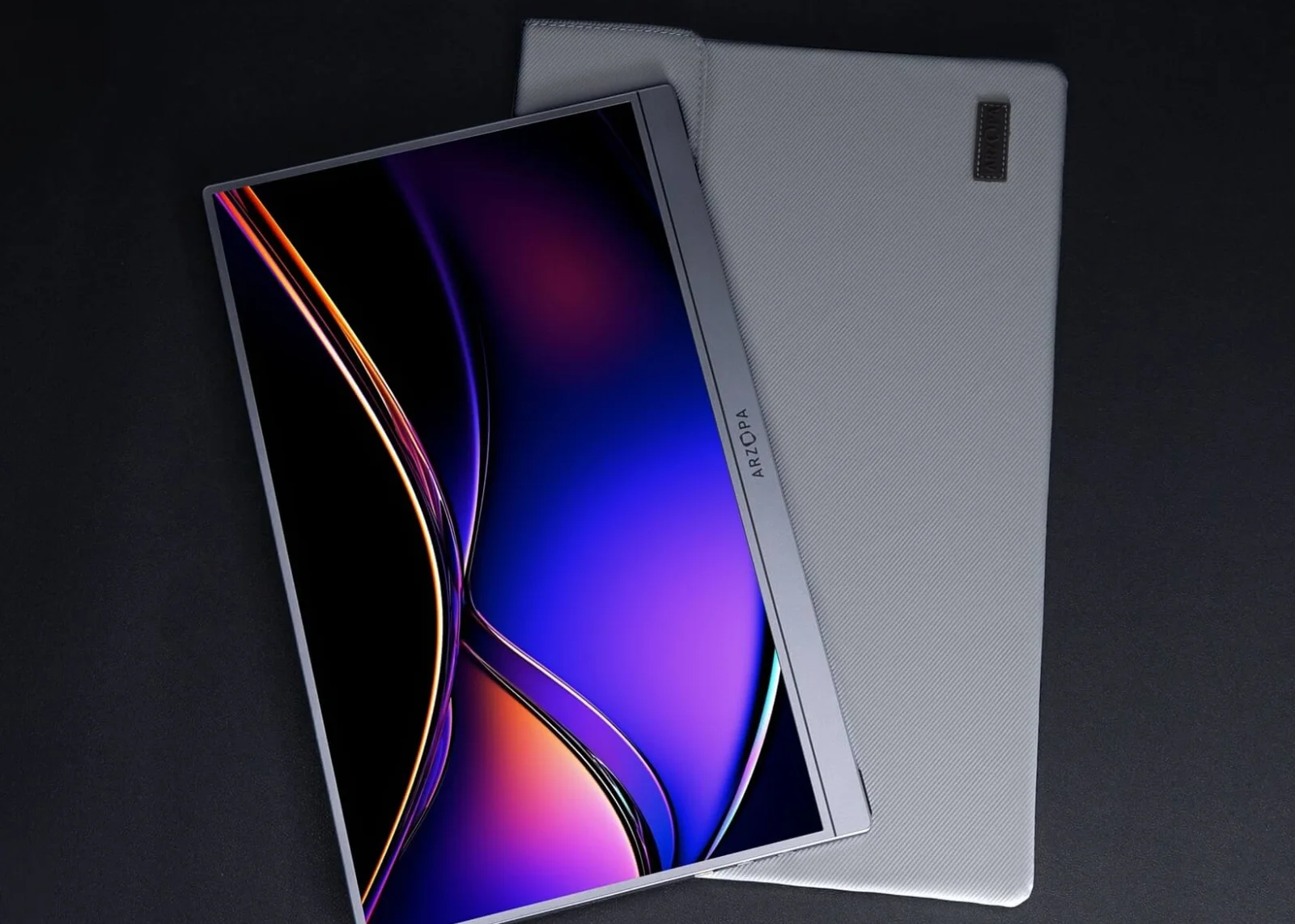 Photo: manufacturer
Arzopa Z1FC
Arzopa
Best 1080p high refresh
16.1 in · FHD · 144Hz
Official specs checked September 7, 2026
See current price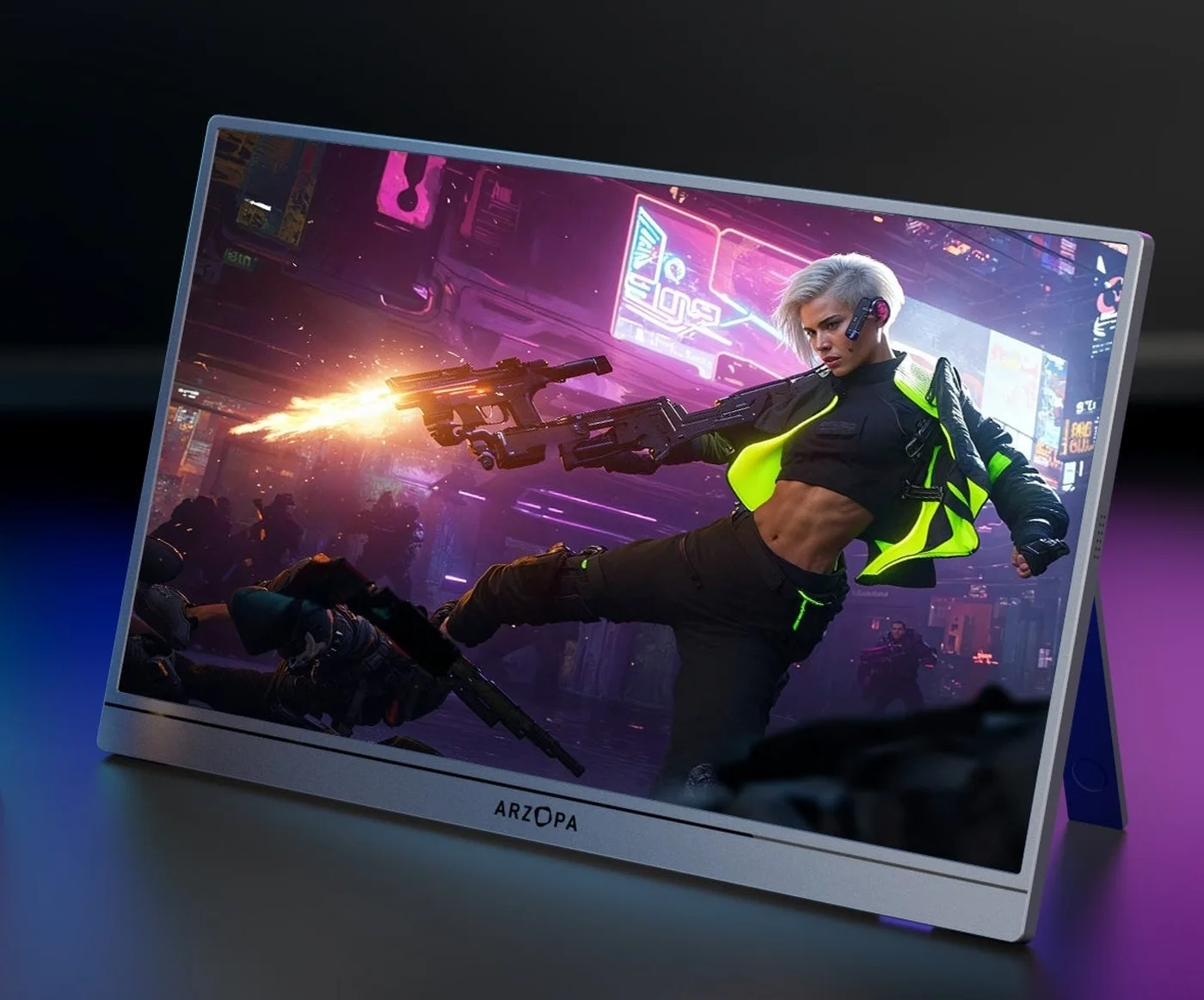 Photo: manufacturer
Arzopa Z3FC
Arzopa
Best QHD high refresh
16.1 in · 2.5K · 180Hz DP
Official specs checked September 7, 2026
See current price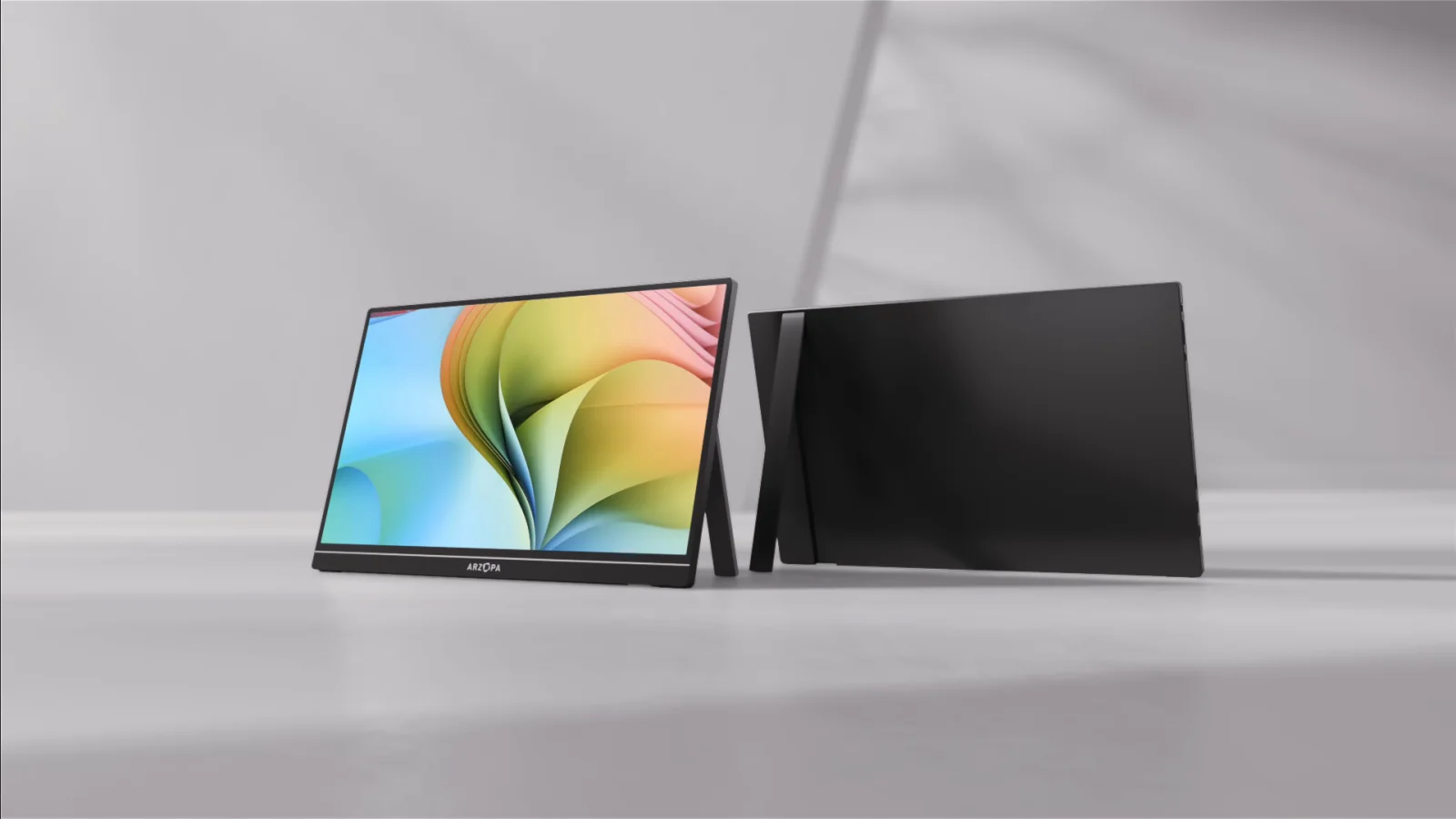 Photo: manufacturer
Arzopa Z1RC
Arzopa
Best desktop text space
16 in · 16:10 · 2.5K · 60Hz
Official specs checked September 7, 2026
See current priceFour gates before checkout
Pass the Deck connection test, not just the product filter.
Does the Deck output video?
Valve lists USB-C DisplayPort 1.4 Alt Mode for external displays. A full-featured cable and a monitor USB-C input that accepts video are required; USB-C shape alone is not enough.
Where does the monitor get power?
The Deck can supply a portable panel in some direct setups, but a 10–13W screen still changes the battery equation. HDMI does not power the monitor, so plan a separate USB-C charger or power bank.
Do you need the dock?
The official dock exposes HDMI 2.0 and DisplayPort 1.4, supports up to 4K60 or 1440p120, and accepts USB-C PD power. It is useful for HDMI-only screens and desk peripherals, not mandatory for a native USB-C monitor.
Which SteamOS mode are you using?
Valve says Gaming Mode turns the Deck screen black when an external display is connected. To use both screens, currently reboot into Desktop Mode; do not promise a seamless mirrored dual-screen mode.
Connection decision tree
Choose the whole cable chain before choosing the screen.
Start with the Deck port, then decide whether the monitor should receive video over USB-C or HDMI. Keep monitor power and Deck PD power as separate questions; a single USB-C label does not answer both.
| Path | Cable chain | Decision and limitation |
|---|---|---|
| Direct USB-C video | Steam Deck USB-C DP Alt Mode → full-featured USB-C cable → monitor USB-C video input | Preferred for Arzopa Z1FC/Z3FC/Z1RC and compatible displays. One cable may carry video and monitor power, but the Deck battery and cable quality still matter. Add separate monitor power if the image flickers, dims, or restarts. |
| Dock HDMI video | Steam Deck → dock USB-C cable; dock HDMI 2.0 → HDMI-to-mini-HDMI cable → monitor | Use when you need peripherals, a stable desk setup, or a monitor without USB-C video. HDMI carries the picture; power the portable monitor separately and connect PD to the dock for the Deck. |
| Independent monitor power | Charger or power bank → monitor USB-C power input; Deck → monitor USB-C or dock HDMI for video | A portable monitor usually has no battery. A monitor USB-C PD input is not automatically a pass-through charger for the Deck. Verify the manufacturer wiring before treating it as a charging hub. |
| Powered third-party hub | Deck USB-C → USB-C hub with display output and PD passthrough → HDMI or USB-C monitor | Valve says most USB-C hubs work, but Thunderbolt and DisplayLink docks are not officially supported. Use an active adapter where required; passive DP-to-HDMI adapters may cause issues. |
Five fit-led candidates
Pick the screen that solves your Deck constraint.
Arzopa has the strongest current budget fit in this source-backed shortlist. Eligible Arzopa purchase buttons use approved PartnerBoost affiliate links, so WorkChoose may earn a commission at no added cost. ASUS, ViewSonic, and other purchase links remain useful direct-link contrasts for battery and power-path tradeoffs, while the ranking follows fit and evidence.
Photo: manufacturerBest first Deck pick for 1080p high-refresh play
Arzopa Z1FC
Display
16.1-inch IPS · 1,920 × 1,080 · 16:9
Refresh
144Hz listed; the Deck, game, cable, and mode decide the actual output
Ports
2 × full-function USB-C (DP/PD) · 1 × mini HDMI 2.0
Power
10W rated power; no built-in battery listed. A separate USB-C power source may be needed when the Deck cannot sustain the monitor.
Travel weight
1.72 lb / 780g
Dimensions
366 × 228 × 9.3 mm
Deck connection plan
For a direct attempt, connect the Deck USB-C port to the monitor USB-C video input with the full-featured cable. If the picture flickers or the Deck drains quickly, power the monitor separately. Through a dock, use HDMI-to-mini-HDMI for video and USB-C for monitor power.
Choose it
Choose it when you want the simplest FHD gaming match, a 144Hz ceiling, a built-in stand, and both native USB-C and mini-HDMI paths.
Skip it
Skip it when you need an integrated battery, a guaranteed Deck charging path through the monitor, 2.5K text space, or verified hands-on input-lag results.
Listing snapshot: The US listing showed $109.98 when checked; price, stock, and variant can change.
Evidence: Arzopa lists 16.1-inch FHD IPS, 144Hz, 300 nits, 1.72 lb, dual USB-C, mini HDMI, 10W rated power, included cables, and Steam Deck compatibility. WorkChoose did not test this monitor.
Policy check: The page and support center were checked September 4, 2026. Confirm the exact US SKU, return terms, warranty, and current stock before ordering.
Photo: manufacturerBest published resolution-plus-refresh option
Arzopa Z3FC
Display
16.1-inch IPS · 2,560 × 1,440 · 16:9
Refresh
180Hz over DP; Arzopa says HDMI supports up to 144Hz. Deck output and game settings still control the result.
Ports
2 × USB-C (DP/PD) · 1 × mini HDMI 2.0
Power
12.9W rated power; the official spec does not list a built-in battery. Plan external USB-C power for a stable docked setup.
Travel weight
780g
Dimensions
366 × 228 × 9.3 mm
Deck connection plan
Use USB-C DP Alt Mode directly from the Deck only when the cable and power budget are adequate. For the official dock, HDMI 2.0 leaves the monitor on its mini-HDMI input; feed monitor power separately and use the dock PD input for the Deck.
Choose it
Choose it when you will also use the monitor with a gaming PC and value 2.5K detail, FreeSync, and a high refresh ceiling beyond the Deck use case.
Skip it
Skip it if your Deck workflow is strictly 1080p and battery-sensitive, or if you expect every game to render at 180Hz. The panel specification is not a frame-rate promise.
Listing snapshot: The US listing showed $139.99 when checked; sale pricing is not permanent.
Evidence: Arzopa lists 16.1-inch QHD IPS, 180Hz, 400 nits, 12.9W rated power, dual USB-C with DP/PD, mini HDMI 2.0, 780g, built-in stand, and Steam Deck compatibility. No independent WorkChoose testing was performed.
Policy check: The product listing was checked September 4, 2026. Recheck the exact US variant, price, delivery estimate, warranty, and return terms at checkout.
Photo: manufacturerBest text and Desktop Mode companion
Arzopa Z1RC
Display
16-inch IPS · 2,560 × 1,600 · 16:10
Refresh
60Hz listed; 16:10 gives more vertical workspace for desktop apps
Ports
2 × USB-C (DP/PD) · 1 × mini HDMI 2.0
Power
12W rated power; Arzopa explicitly says this model has no battery. Use a separate 5V/3A-or-higher source when needed.
Travel weight
1.79 lb
Dimensions
356 × 238 × 9.3 mm
Deck connection plan
Direct USB-C can carry the Deck video signal when the full-featured cable and monitor input agree, but it can draw from the Deck. For dock use, HDMI-to-mini-HDMI carries the picture while a separate USB-C source powers the display.
Choose it
Choose it when you use the Deck as a small Linux desktop, read text, browse, or stream and prefer a 16:10 2.5K workspace over high-refresh gaming.
Skip it
Skip it when 120Hz/144Hz motion, an integrated battery, or a 16:9 console canvas is the main reason you are buying a screen.
Listing snapshot: The US listing showed $124.98 when checked; sale pricing and stock can change.
Evidence: Arzopa lists 16-inch 16:10 2.5K IPS, 60Hz, 350 nits, 1.79 lb, dual USB-C with DP/PD, mini HDMI 2.0, 12W rated power, and no battery. WorkChoose did not measure text clarity, battery draw, or stand stability.
Policy check: The product listing and support center were checked September 4, 2026. Confirm exact variant, warranty, returns, delivery, and price before ordering.
Battery-equipped alternative for travel tables
ASUS ROG Strix XG16AHPE
Display
15.6-inch IPS · 1,920 × 1,080 · 16:9
Refresh
144Hz listed with G-SYNC compatibility
Ports
USB-C DP input · USB-C charging · 1 × micro HDMI
Power
Built-in 7,800mAh battery; ASUS says up to 3 hours at 144Hz. Separate charging still matters for longer sessions.
Travel weight
900g for the AHPE variant
Dimensions
360.52 × 225.52 × 11.8 mm without stand
Deck connection plan
A direct USB-C DP Alt Mode cable is the cleanest Deck path, while the micro-HDMI input can accept a dock or adapter video signal. The battery reduces dependence on a power bank, but it does not remove the need to plan the Deck charging path.
Choose it
Choose it when an integrated battery, 144Hz, micro-HDMI, kickstand, and travel use matter more than the lowest price or the lightest panel.
Skip it
Skip it when you need a current low-cost US listing, 2.5K resolution, or a simple manufacturer-availability story. The official page is for an older model family.
Listing snapshot: The official page is available but US price/stock was not established in this check; verify the retailer and region.
Evidence: ASUS lists a 15.6-inch FHD 144Hz IPS panel, 7,800mAh battery, up to 3 hours at 144Hz, USB-C and micro-HDMI, kickstand, sleeve, and 900g AHPE weight. WorkChoose did not test battery life or compatibility.
Policy check: The official ASUS product page and manual were checked September 4, 2026. Product-page presence is not a guarantee of US inventory or retailer returns.
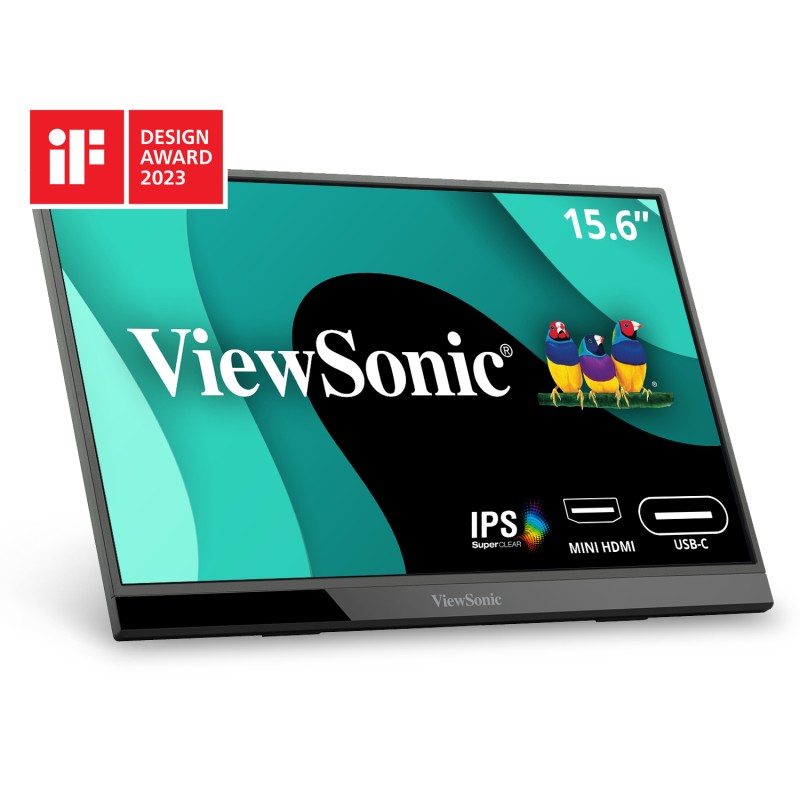 Photo: manufacturer
Conservative 1080p / power-path comparison
ViewSonic VX1655
Display
15.6-inch IPS · 1,920 × 1,080 · 16:9
Refresh
60Hz listed
Ports
2 × USB-C DP Alt Mode · 1 × mini HDMI 1.4 · 3.5mm audio
Power
Typical consumption listed at 9W; ViewSonic describes 60W two-way USB-C charging. Do not assume a particular Deck PD profile without checking the device and cable.
Travel weight
1.7 lb / 0.77kg
Dimensions
355 × 224 × 21 mm
Deck connection plan
Use direct USB-C DP Alt Mode from the Deck if the monitor and cable are powered adequately. With a dock, send HDMI to mini HDMI and give the monitor its own USB-C power; treat the 60W two-way claim as a specification to verify, not a Deck charging guarantee.
Choose it
Choose it when 1080p/60Hz is enough and you want mini-HDMI, dual DP-capable USB-C, a cover, a tripod mount, and a 3-year limited warranty comparison.
Skip it
Skip it when high refresh rate, 2.5K detail, a built-in battery, or a current low-price option is the deciding factor.
Listing snapshot: The US product page did not expose a current retail price in this check; confirm the seller and return policy.
Evidence: ViewSonic lists 15.6-inch FHD IPS, 60Hz, dual USB-C DP Alt Mode, mini HDMI, 60W two-way USB-C charging, 1.7 lb, 9–10W consumption, integrated stand, and a 3-year limited warranty. WorkChoose did not test pass-through charging.
Policy check: ViewSonic US and its official specification page were checked September 4, 2026. Confirm regional stock, seller returns, and the exact VX1655 variant.
Device boundary
This guide owns the Steam Deck connection problem.
Switch is a useful comparison, but its official path is dock + AC + HDMI rather than a promised direct USB-C video path. Keeping those intents separate prevents this page from overlapping a future Nintendo monitor guide.
Steam Deck LCD/OLED
Direct USB-C DP Alt Mode or dock/hub HDMI/DP. Monitor power, Deck PD, and Gaming/Desktop Mode remain separate checks.
Switch / OLED
Nintendo documents a dock, AC adapter, and HDMI for TV mode, up to 1080p. It is a different buying-intent page.
Lite / Switch 2
Switch Lite has no TV Mode; Switch 2 has separate dock/TV specs. Do not merge either output boundary into this guide.
Continue the decision
Use the guide that matches the host device.
Portable monitors for laptops
Use the general Windows/Chromebook signal, USB-A driver, and HDMI power map.
Read nextPortable monitors for MacBook
Check Apple chip limits, USB-C paths, lid behavior, and external-display count.
Read nextPortable monitors for iPad Pro
Separate iPad USB-C video, external power, and Stage Manager behavior.
Read nextPortable monitor connection checker
Work through DP Alt Mode, HDMI, independent power, adapters, and no-signal checks.
Read nextPortable monitor comparison chart
Filter published size, resolution, refresh, inputs, power, weight, and stand fields.
Read nextBest portable gaming monitors
Compare portable gaming models across PCs, consoles, and handhelds.
Read nextArzopa Z1FC review
Check the exact model's 144Hz, USB-C, HDMI-power, and return caveats.
Read nextArzopa Z3FC review
Check the QHD panel, USB-C/DisplayPort up to 180Hz, HDMI up to 144Hz, external power, and current regional purchase terms.
Read nextFrequently asked questions
What is the best portable monitor for Steam Deck?
There is no universal winner. Arzopa Z1FC is the straightforward FHD/144Hz starting point on published specs, Z3FC is the QHD/high-refresh option for people who will also use a gaming PC, and Z1RC is the 16:10 text-space choice for Desktop Mode. Choose after confirming the USB-C video and power path, not from refresh rate alone.
Can Steam Deck connect directly to a portable monitor over USB-C?
Yes, when the monitor accepts USB-C DisplayPort Alt Mode and the cable is full-featured. Valve documents DisplayPort 1.4 Alt Mode on the Deck USB-C port. The monitor may draw from the Deck, so use its second USB-C power input or a separate charger when the picture is unstable or battery drain is unacceptable.
Do I need a dock for a portable monitor?
Not for a compatible USB-C DP Alt Mode monitor. A dock is useful when the monitor uses HDMI, when you want keyboard/mouse or Ethernet, or when you want the Deck powered through PD passthrough. The official dock provides HDMI 2.0 and DisplayPort 1.4; the monitor still needs its own power if HDMI is carrying the picture.
Will a portable monitor charge my Steam Deck?
Do not assume it. A monitor listing “PD” usually describes power entering the monitor, not power passing through to the Deck. Use the official dock or a hub that explicitly documents USB-C Power Delivery passthrough, and verify the charger, cable, and power contract before relying on the setup.
Can the Steam Deck actually use 144Hz or 180Hz?
The monitor can advertise a 144Hz or 180Hz ceiling, but the Deck output mode, game, resolution, cable, dock, and SteamOS settings determine what is available. This guide reports manufacturer and Valve specifications; it does not claim that a particular game will render at the panel maximum.
Can I use Gaming Mode and the Deck screen at the same time?
Valve support says the Deck screen goes black in Gaming Mode when an external display is connected. Valve currently documents using Desktop Mode after rebooting to enable both or multiple displays. Treat mode switching as part of the purchase decision.
Does this page also cover Nintendo Switch?
Only as a boundary note. The original Nintendo Switch and OLED model use a dock, AC adapter, and HDMI for TV or monitor output up to 1080p; Switch Lite does not support TV Mode. Switch 2 is a separate product and output intent, so it should have a separate guide rather than being mixed into this Steam Deck page.
Were these portable monitors tested by WorkChoose?
No. The shortlist uses current manufacturer specifications and Valve/Nintendo support documentation. WorkChoose did not measure brightness, input lag, color, battery drain, frame rate, stand stability, or wake behavior. Confirm the exact product listing and test your own cable chain before making it a critical setup.
Are the Arzopa links affiliate links?
Yes. Eligible Arzopa purchase buttons use approved PartnerBoost affiliate links, so WorkChoose may earn a commission at no added cost. ASUS, ViewSonic, official evidence, and support links remain direct; product order still follows fit and evidence.